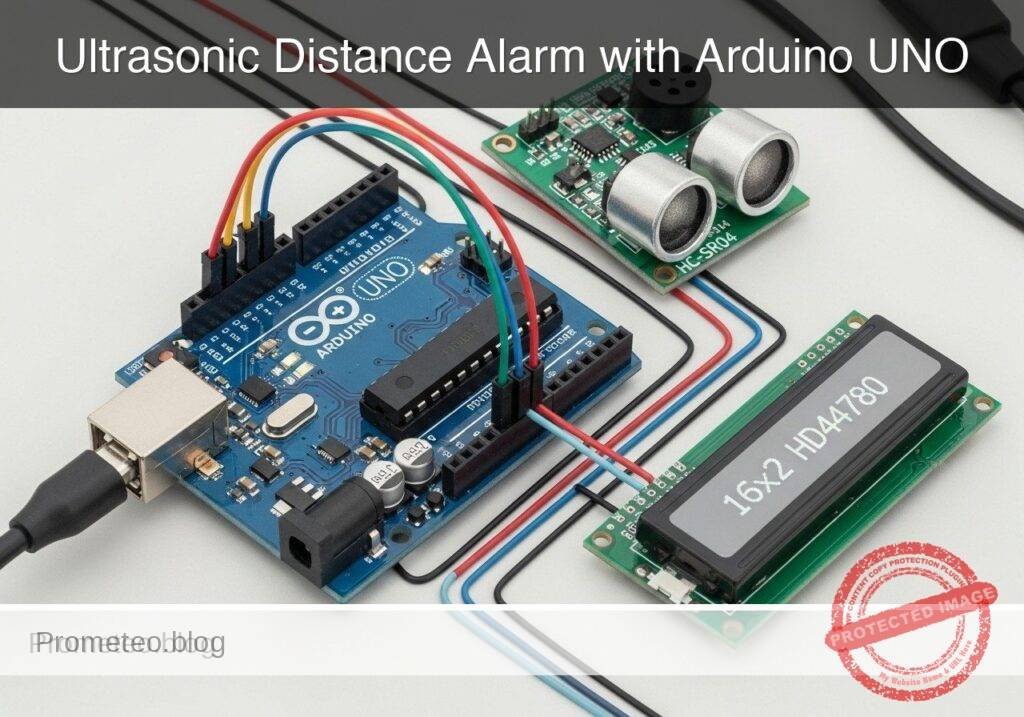
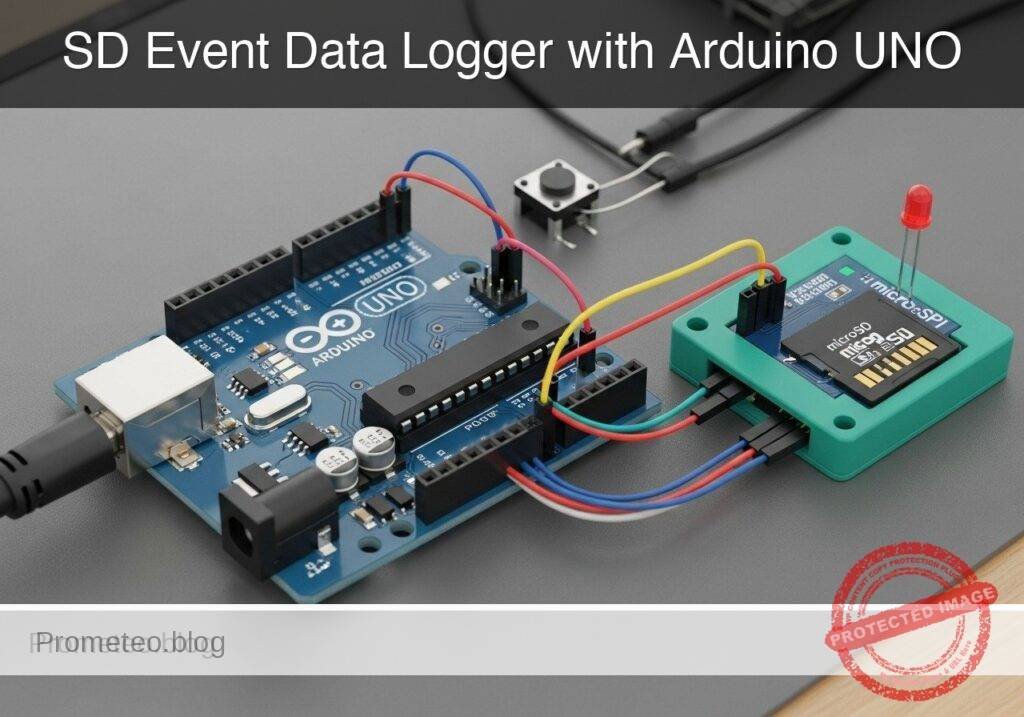
Practical case: Arduino MKR GSM 1400 Cold Chain Logger

Practical case: Arduino MKR GSM 1400 Cold Chain Logger — hero

Objective and use case

What you’ll build: A robust cellular cold-chain data logger using the Arduino MKR GSM 1400 that records temperature and timestamps entries, pushing data to the cloud.

Why it matters / Use cases

  • Monitor temperature-sensitive pharmaceuticals during transport to ensure compliance with safety regulations.
  • Track food products in transit, sending alerts if temperatures exceed safe thresholds.
  • Implement IoT solutions for smart agriculture, monitoring conditions for perishable goods.
  • Enable real-time data logging for environmental research projects, ensuring accurate data collection.

Expected outcome

  • Temperature logging accuracy within ±0.5°C using the DS18B20 sensor.
  • Data push frequency of every 10 minutes to the cloud endpoint.
  • SMS alerts triggered for temperature excursions above predefined thresholds.
  • Timestamp accuracy of ±1 second provided by the DS3231 RTC.
  • Data storage capacity of up to 32GB on the MicroSD card for extensive logging.

Audience: Advanced practitioners; Level: Intermediate to advanced.

Architecture/flow: Arduino MKR GSM 1400 communicates with DS3231 for timekeeping, DS18B20 for temperature sensing, and MicroSD for local data storage, with GSM module for cloud connectivity.

Cellular Cold Chain SD Logger (Advanced) with Arduino MKR GSM 1400 + DS3231 + MicroSD SPI (CD74HC4050) + DS18B20

This hands-on case builds a robust cellular cold-chain data logger that records temperature to a MicroSD card, timestamps entries using a DS3231 RTC, and periodically pushes data over GSM to a cloud endpoint. It includes alerting via SMS when temperature excursions are detected. Everything is built around the exact model: Arduino MKR GSM 1400 + DS3231 + MicroSD SPI (CD74HC4050) + DS18B20.

You will compile and flash via Arduino CLI. The guide is written for advanced practitioners and assumes you are comfortable with SPI/I2C buses, cellular APNs, and filesystem logging patterns.


Prerequisites

  • Host OS: Linux/macOS/Windows 10+ with USB CDC drivers (MKR boards use native CDC; Windows 10 typically installs automatically).
  • Arduino CLI 0.35.x installed and on PATH.
  • A working data SIM (nano-SIM) with:
  • APN (e.g., internet, m2m.example.com)
  • Optional: SIM PIN (can be blank)
  • Basic familiarity with:
  • 3.3 V logic and level shifting
  • OneWire bus (DS18B20)
  • I2C devices (DS3231)
  • SPI devices and CS line selection
  • FAT filesystem on SD
  • HTTP and SMS via MKRGSM library

Materials (exact models and parts)

  • MCU:
  • Arduino MKR GSM 1400 (u-blox SARA modem; 3.3 V logic)
  • Real-time clock:
  • DS3231 (module with backup CR2032 holder; I2C)
  • Temperature sensor:
  • DS18B20 (TO-92 or waterproof probe version)
  • Storage:
  • MicroSD card (FAT32, Class 10 recommended)
  • MicroSD SPI breakout (3.3 V compatible)
  • Level shifting/buffering:
  • CD74HC4050 (hex non-inverting buffer, 3.3 V powered)
  • Passives:
  • 4.7 kΩ resistor (OneWire pull-up)
  • Power:
  • LiPo battery 3.7 V (≥ 1200 mAh recommended for field use) connected to MKR JST-PH port
  • External GSM antenna (the MKR GSM 1400 requires an antenna)
  • Wiring:
  • Female-to-female dupont wires, short lengths
  • CR2032 cell for RTC backup
  • Tools:
  • USB cable (Micro USB for MKR)
  • Optional: USB power bank or lab PSU

Setup/Connection

The MKR GSM 1400 is a 3.3 V SAMD21 board with native USB. Its SPI/I2C pins are labeled on the headers (MOSI, MISO, SCK, SDA, SCL). The modem draws significant peak current; always use a LiPo or a sturdy 5 V USB source plus LiPo to avoid brownouts during network registration.

Important note on CD74HC4050: This device is a level-down buffer (when VCC=3.3 V). With a 3.3 V MCU and a 3.3 V MicroSD, level shifting is not strictly necessary. We include it to harden SPI edges, provide input protection, and to comply with the specified materials. Do not buffer the MISO line from the card to the MCU.

Pin assignments

  • MicroSD SPI (via CD74HC4050 buffering on outputs only):
  • SCK: MKR pin SCK -> 4050 input -> 4050 output -> SD SCK
  • MOSI: MKR pin MOSI -> 4050 input -> 4050 output -> SD MOSI
  • CS: MKR pin D4 -> 4050 input -> 4050 output -> SD CS
  • MISO: SD MISO -> MKR pin MISO (direct, not via 4050)
  • Power: MKR 3V3 -> SD VCC, MKR GND -> SD GND
  • CD74HC4050 VCC=3.3 V, GND common with MKR
  • DS3231 RTC (I2C, 3.3 V):
  • MKR SDA -> DS3231 SDA
  • MKR SCL -> DS3231 SCL
  • MKR 3V3 -> DS3231 VCC
  • MKR GND -> DS3231 GND
  • Insert CR2032 into RTC backup holder
  • DS18B20 OneWire:
  • Data -> MKR A1 (used as digital I/O)
  • 4.7 kΩ pull-up between A1 and 3V3
  • GND -> MKR GND, VDD -> MKR 3V3
  • GSM:
  • Insert nano-SIM
  • Connect GSM antenna
  • Connect LiPo battery to MKR JST-PH port

CD74HC4050 channel usage (example)

  • 1A (input) = SCK from MKR, 1Y (output) -> SD SCK
  • 2A (input) = MOSI from MKR, 2Y (output) -> SD MOSI
  • 3A (input) = D4 (CS) from MKR, 3Y (output) -> SD CS

Leave MISO direct from SD to MKR.

Connection table

Function Module MKR GSM 1400 pin Direction (MCU POV) Notes
SD SCK MicroSD SCK Output Buffer via CD74HC4050 1A->1Y
SD MOSI MicroSD MOSI Output Buffer via CD74HC4050 2A->2Y
SD MISO MicroSD MISO Input Direct (no buffer)
SD CS MicroSD D4 Output Buffer via CD74HC4050 3A->3Y
SD VCC MicroSD 3V3 3.3 V only
SD GND MicroSD GND Common ground
RTC SDA DS3231 SDA Bi-directional I2C pull-ups typically on module
RTC SCL DS3231 SCL Output I2C
RTC VCC DS3231 3V3 3.3 V OK for DS3231
RTC GND DS3231 GND
OneWire data DS18B20 A1 Bi-directional Add 4.7 kΩ pull-up to 3V3
OneWire VDD DS18B20 3V3
OneWire GND DS18B20 GND
GSM antenna MKR module Antenna u.FL Must be connected for reliable operation
LiPo battery MKR power JST-PH Smooths GSM current spikes

Full Code

Create a folder named coldchain-mkrgsm1400 and put the following sketch as coldchain-mkrgsm1400.ino.

/*
  Cellular Cold Chain SD Logger
  Hardware: Arduino MKR GSM 1400 + DS3231 + MicroSD SPI (CD74HC4050) + DS18B20
  Function: Logs temperature with RTC timestamp to SD, periodically POSTs to HTTP,
            and sends SMS on excursion. Designed for 3.3 V logic, SPI buffered
            with CD74HC4050 on SCK/MOSI/CS; MISO direct.

  Libraries:
    - MKRGSM
    - SPI
    - SD
    - Wire
    - RTClib
    - OneWire
    - DallasTemperature
*/

#include <MKRGSM.h>
#include <SPI.h>
#include <SD.h>
#include <Wire.h>
#include <RTClib.h>
#include <OneWire.h>
#include <DallasTemperature.h>

// =================== Hardware pins ===================
static const int PIN_SD_CS      = 4;      // CS to SD via CD74HC4050
static const int PIN_ONEWIRE    = A1;     // DS18B20 data (with 4.7k pull-up to 3V3)

// =================== GSM credentials ===================
const char PINNUMBER[] = "";              // SIM PIN ("" if not required)
const char APN[]       = "your.apn";      // Replace with your APN
const char LOGIN[]     = "";              // APN username or ""
const char PASSWORD[]  = "";              // APN password or ""

// =================== Cloud endpoint ===================
const char* HTTP_HOST = "webhook.site";   // Use webhook.site for validation
const int   HTTP_PORT = 80;               // 80 (HTTP). For HTTPS use GSMSSLClient, not shown here
// Path example: create a unique token URL on webhook.site and paste the path here
const char* HTTP_PATH = "/your-unique-token-path"; // e.g., "/f7a0b5d1-..." (no trailing slash)

// =================== Logging parameters ===================
static const unsigned SAMPLE_PERIOD_SEC = 60;   // Temperature sample period
static const unsigned POST_PERIOD_SEC   = 300;  // Try to post every 5 minutes
static const float    ALERT_MIN_C       = 2.0;  // Cold chain lower bound
static const float    ALERT_MAX_C       = 8.0;  // Cold chain upper bound
static const uint32_t ALERT_GRACE_SEC   = 120;  // Require sustained excursion for 2 minutes

// =================== Globals ===================
RTC_DS3231 rtc;
OneWire oneWire(PIN_ONEWIRE);
DallasTemperature sensors(&oneWire);
DeviceAddress sensorAddress;

GSM gsmAccess;
GPRS gprs;
GSMClient net;           // For HTTP over TCP
GSM_SMS sms;

File logFile;

uint32_t lastSampleEpoch = 0;
uint32_t lastPostEpoch   = 0;
bool      haveSensor     = false;
bool      sdReady        = false;
bool      gsmReady       = false;
bool      alerted        = false;
uint32_t  excursionStart = 0;

// Utility: format DateTime to ISO8601 "YYYY-MM-DDTHH:MM:SSZ"
String iso8601(const DateTime& dt) {
  char buf[25];
  snprintf(buf, sizeof(buf), "%04d-%02d-%02dT%02d:%02d:%02dZ",
           dt.year(), dt.month(), dt.day(), dt.hour(), dt.minute(), dt.second());
  return String(buf);
}

// Utility: build log file path "/LOGS/YYYY-MM-DD.csv"
String buildDailyPath(const DateTime& dt) {
  char buf[32];
  snprintf(buf, sizeof(buf), "/LOGS/%04d-%02d-%02d.csv", dt.year(), dt.month(), dt.day());
  return String(buf);
}

// Ensure /LOGS exists and the daily file has a header
bool ensureDailyLogFile(const DateTime& now) {
  if (!sdReady) return false;
  if (!SD.exists("/LOGS")) {
    if (!SD.mkdir("/LOGS")) return false;
  }
  String path = buildDailyPath(now);
  if (!SD.exists(path)) {
    File f = SD.open(path, FILE_WRITE);
    if (!f) return false;
    f.println(F("timestamp,temp_c,temp_f,sd_ok,gsm_post_ok,sms_ok,error"));
    f.close();
  }
  return true;
}

bool appendLog(const String& line, const DateTime& now) {
  if (!sdReady) return false;
  String path = buildDailyPath(now);
  File f = SD.open(path, FILE_WRITE);
  if (!f) return false;
  f.println(line);
  f.flush();
  f.close();
  return true;
}

// Find the first DS18B20
bool discoverSensor() {
  byte addr[8];
  oneWire.reset_search();
  if (!oneWire.search(addr)) return false;
  if (DallasTemperature::validAddress(addr) && addr[0] == 0x28) {
    memcpy(sensorAddress, addr, 8);
    sensors.setResolution(sensorAddress, 12);
    return true;
  }
  return false;
}

float readTemperatureC(bool* ok) {
  if (!haveSensor) {
    *ok = false;
    return NAN;
  }
  sensors.requestTemperatures();
  float c = sensors.getTempC(sensorAddress);
  *ok = (c > -127.0 && c < 125.0);
  return c;
}

// Establish GSM and GPRS session
bool ensureGprs() {
  if (gsmReady) return true;
  // Power and attach modem; allow several retries to handle network variability
  for (int attempt = 0; attempt < 3; ++attempt) {
    if (gsmAccess.begin(PINNUMBER) == GSM_READY) {
      if (gprs.attachGPRS(APN, LOGIN, PASSWORD)) {
        gsmReady = true;
        return true;
      }
    }
    delay(5000);
  }
  return false;
}

// Tear down GPRS to save power
void shutdownGprs() {
  if (gsmReady) {
    gprs.detachGPRS();
    // Note: Some modem firmwares support gsmAccess.shutdown() for deeper sleep
    gsmReady = false;
  }
}

// HTTP POST with simple JSON payload; returns true on 200 OK
bool httpPostJson(const String& host, uint16_t port, const String& path, const String& json) {
  if (!ensureGprs()) return false;

  if (!net.connect(host.c_str(), port)) {
    return false;
  }

  // Build HTTP/1.1 request
  String req;
  req.reserve(256 + json.length());
  req += "POST " + path + " HTTP/1.1\r\n";
  req += "Host: " + host + "\r\n";
  req += "User-Agent: MKR-GSM-1400/1.0\r\n";
  req += "Content-Type: application/json\r\n";
  req += "Connection: close\r\n";
  req += "Content-Length: " + String(json.length()) + "\r\n\r\n";
  req += json;

  net.print(req);

  // Read status line (simple parser)
  uint32_t start = millis();
  String statusLine;
  while (millis() - start < 10000) {
    while (net.available()) {
      char c = net.read();
      if (c == '\n') {
        // Got first line (e.g., "HTTP/1.1 200 OK")
        net.stop();
        return statusLine.indexOf(" 200 ") > 0;
      }
      if (c != '\r') statusLine += c;
    }
  }
  net.stop();
  return false;
}

// Send a concise SMS alert
bool sendAlertSMS(const char* phone, const String& msg) {
  if (!ensureGprs()) {
    // SMS can be sent without GPRS; ensure radio is on
    if (gsmAccess.begin(PINNUMBER) != GSM_READY) return false;
  }
  sms.beginSMS(phone);
  sms.print(msg);
  return sms.endSMS() == 1;
}

void setup() {
  Serial.begin(115200);
  while (!Serial && millis() < 5000) { /* wait for USB */ }

  // RTC
  Wire.begin();
  if (!rtc.begin()) {
    Serial.println(F("[RTC] DS3231 not found on I2C"));
  } else {
    if (rtc.lostPower()) {
      // Set from compile time on first boot; replace with host-sync in production
      rtc.adjust(DateTime(F(__DATE__), F(__TIME__)));
      Serial.println(F("[RTC] Lost power; RTC set from compile time."));
    }
  }

  // SD
  if (!SD.begin(PIN_SD_CS)) {
    sdReady = false;
    Serial.println(F("[SD] Initialization failed. Check CS and wiring."));
  } else {
    sdReady = true;
    Serial.println(F("[SD] Ready."));
  }

  // OneWire sensor
  sensors.begin();
  haveSensor = discoverSensor();
  if (!haveSensor) {
    Serial.println(F("[DS18B20] Sensor not found."));
  } else {
    Serial.println(F("[DS18B20] Sensor ready."));
  }

  // Precreate directory and today's file
  DateTime now = rtc.now();
  if (sdReady) {
    if (ensureDailyLogFile(now)) {
      Serial.println(F("[SD] Daily log ready."));
    } else {
      Serial.println(F("[SD] Failed to prepare daily log."));
    }
  }

  lastSampleEpoch = now.unixtime();
  lastPostEpoch   = now.unixtime();
  Serial.println(F("[BOOT] Cold chain logger started."));
}

void loop() {
  DateTime now = rtc.now();
  uint32_t epoch = now.unixtime();

  // Periodic temperature sampling
  if (epoch - lastSampleEpoch >= SAMPLE_PERIOD_SEC) {
    lastSampleEpoch = epoch;

    bool ok = false;
    float tempC = readTemperatureC(&ok);
    float tempF = ok ? tempC * 9.0 / 5.0 + 32.0 : NAN;

    // Excursion tracking
    bool inExcursion = ok && (tempC < ALERT_MIN_C || tempC > ALERT_MAX_C);
    bool smsSent = false;
    String err = ok ? "" : "TEMP_ERR";

    if (inExcursion) {
      if (excursionStart == 0) excursionStart = epoch;
      uint32_t dur = epoch - excursionStart;
      if (!alerted && dur >= ALERT_GRACE_SEC) {
        // Send one SMS alert
        String iso = iso8601(now);
        String msg = "[ColdChain] Excursion " + String(tempC, 2) + "C at " + iso;
        // Replace with your phone number including country code
        smsSent = sendAlertSMS("+1234567890", msg);
        alerted = smsSent; // mark alerted only if SMS succeeded
        if (!smsSent) err = err.length() ? (err + "|SMS_FAIL") : "SMS_FAIL";
      }
    } else {
      excursionStart = 0;
      alerted = false;
    }

    // Log to SD
    bool sd_ok = ensureDailyLogFile(now);
    String line = iso8601(now) + "," +
                  (ok ? String(tempC, 3) : "NaN") + "," +
                  (ok ? String(tempF, 3) : "NaN") + "," +
                  (sd_ok ? "1" : "0") + "," +
                  "0," + (smsSent ? "1" : "0") + "," +
                  (err.length() ? err : "OK");

    bool append_ok = false;
    if (sd_ok) {
      append_ok = appendLog(line, now);
      if (!append_ok) {
        Serial.println(F("[SD] Append failed."));
      }
    }

    // Console
    Serial.print(F("[SAMPLE] "));
    Serial.println(line);
  }

  // Periodic HTTP post batch (simple: post last sample only)
  if (epoch - lastPostEpoch >= POST_PERIOD_SEC) {
    lastPostEpoch = epoch;

    // Sample fresh value to post
    bool ok = false;
    float tempC = readTemperatureC(&ok);
    String iso = iso8601(now);

    // Build JSON payload
    String payload = "{\"device\":\"MKR_GSM_1400\","
                     "\"ts\":\"" + iso + "\","
                     "\"temp_c\":" + (ok ? String(tempC, 3) : "null") + ","
                     "\"alert_min_c\":" + String(ALERT_MIN_C, 2) + ","
                     "\"alert_max_c\":" + String(ALERT_MAX_C, 2) + "}";

    bool post_ok = httpPostJson(String(HTTP_HOST), HTTP_PORT, String(HTTP_PATH), payload);

    // Log a POST outcome entry
    String line = iso + "," +
                  (ok ? String(tempC, 3) : "NaN") + "," +
                  (ok ? String(tempC * 9.0 / 5.0 + 32.0, 3) : "NaN") + "," +
                  (sdReady ? "1" : "0") + "," +
                  (post_ok ? "1" : "0") + ",0," +
                  (post_ok ? "OK" : "POST_FAIL");

    if (sdReady) appendLog(line, now);

    Serial.print(F("[POST] "));
    Serial.println(post_ok ? F("OK") : F("FAIL"));

    // Power savings: disconnect GPRS if not continuously needed
    shutdownGprs();
  }

  // Cooperative delay
  delay(50);
}

Optional: If you need HTTPS/TLS, replace GSMClient with GSMSSLClient and ensure your endpoint’s TLS is compatible with the modem’s cipher suites. TLS is heavier on current consumption and RAM.


Build/Flash/Run commands

All steps use Arduino CLI. Version shown is 0.35.x. Adjust port path as needed.

1) Prepare Arduino CLI and cores

arduino-cli version

# Update index
arduino-cli core update-index

# Install SAMD core for MKR GSM 1400
arduino-cli core install arduino:samd

# Install required libraries (pin exact versions to ensure reproducibility)
arduino-cli lib install "MKRGSM@1.6.0" "SD@1.2.4" "OneWire@2.3.7" "DallasTemperature@3.11.0" "RTClib@2.1.4"

2) Create project structure

mkdir -p ~/projects/coldchain-mkrgsm1400
cd ~/projects/coldchain-mkrgsm1400
# Place the sketch as coldchain-mkrgsm1400.ino in this directory

3) Identify the board and port

arduino-cli board list
# Example output:
# Port         Type              Board Name        FQBN
# /dev/ttyACM0 Serial Port (USB) Arduino MKR GSM 1400 arduino:samd:mkrgsm1400

4) Compile

arduino-cli compile --fqbn arduino:samd:mkrgsm1400 .

5) Upload

# Replace /dev/ttyACM0 with your actual port (COMx on Windows)
arduino-cli upload -p /dev/ttyACM0 --fqbn arduino:samd:mkrgsm1400 .

6) Monitor serial output at 115200 baud

# Stop any program using the port before running this
arduino-cli monitor -p /dev/ttyACM0 --config baudrate=115200

Tip: If the port disappears after a failed upload, double-tap the MKR’s reset button to enter the bootloader (the LED pulses), then retry upload.


Step-by-step Validation

Follow this sequence to validate each subsystem and the integrated cold-chain logger behavior.

1) SD card layer

  • With the sketch running, watch serial logs:
  • Expect “[SD] Ready.” and “[SD] Daily log ready.”
  • Inspect the card contents by removing SD and checking on a PC:
  • A directory /LOGS should exist.
  • A CSV file named YYYY-MM-DD.csv should be present.
  • The first line is the CSV header.

If you prefer on-device check, temporarily add a snippet to list root files via SD.open(«/») and iterate; or use another sketch for directory listing.

2) RTC (DS3231)

  • After first boot with a fresh DS3231, the code sets the time from compile time.
  • Verify time continuity:
  • Power the MKR off (keep CR2032 in RTC).
  • Wait a few minutes, power back on.
  • Confirm timestamps in new log lines are monotonic and correctly advanced.
  • Fine-tuning:
  • For higher accuracy, set the RTC once from a known accurate source (host PC NTP-synced) by writing a temporary helper sketch that calls rtc.adjust() with a host-provided ISO timestamp.

3) DS18B20 reading and calibration check

  • Watch “[DS18B20] Sensor ready.” on boot.
  • Validate with two-point test:
  • Immerse the DS18B20 probe in an ice-water slurry (0 °C). Within a minute, the log should approach 0.0 ±0.5 °C.
  • Then place it near ambient; it should read roughly 20–25 °C (lab dependent).
  • Ensure you installed the 4.7 kΩ pull-up between A1 and 3V3; without it, readings will be -127 °C or NaN.

4) GSM network registration and data posting

  • Replace APN/credentials in the sketch with your SIM’s values.
  • For the HTTP endpoint, create a unique URL at https://webhook.site and set HTTP_HOST to «webhook.site» and HTTP_PATH to your unique path.
  • Observe logs every 5 minutes:
  • “[POST] OK” indicates a 200 OK from webhook.site.
  • On webhook.site, you will see JSON payloads that include device, ts, temp_c, and thresholds.
  • If you see “[POST] FAIL,” check:
  • Antenna firmly attached.
  • SIM active and has data plan.
  • APN correct.
  • Adequate power (LiPo connected).

5) SMS alerting under excursion

  • Set ALERT_MIN_C and ALERT_MAX_C to your cold-chain range (2–8 °C typical).
  • From ambient, briefly warm the sensor above 8 °C (e.g., pinch with fingers) for more than ALERT_GRACE_SEC (default 120 s).
  • Confirm you receive an SMS at the configured phone number. The serial log will show SMS success/failure.
  • The code avoids spamming by sending one SMS per excursion event until the temperature returns within range.

6) Daily file rotation

  • The logger creates a new CSV for each UTC date.
  • To test rotation without waiting:
  • Temporarily adjust rtc.adjust() to set a time just before midnight UTC, run, then set just after midnight and reboot. Ensure a new YYYY-MM-DD.csv is created with a header.

7) Robustness and power tests

  • Unplug USB and run on LiPo only.
  • Confirm:
  • Sampling continues (SD logs).
  • Cellular posting remains stable (depending on RF conditions).
  • Induce network loss (remove antenna):
  • Observe continued SD logging.
  • “[POST] FAIL” during offline intervals is acceptable; data is still retained locally.

Troubleshooting

  • SD fails to initialize:
  • Confirm SD CS pin matches the sketch (D4) and is buffered through CD74HC4050.
  • Ensure MISO is NOT routed through the 4050; it must be direct SD->MKR.
  • Confirm MicroSD is 3.3 V tolerant (most are). Use only 3.3 V supply.
  • Try a different MicroSD; format FAT32, 4–32 GB recommended.

  • DS18B20 reads -127, 85, or NaN:

  • Add/verify the 4.7 kΩ pull-up on the OneWire data line.
  • Check that the sensor’s data line is actually on A1 and not swapped with VDD/GND.
  • Waterproof DS18B20 cables: colors vary by vendor; verify with a meter.

  • RTC time wrong or not persisting:

  • Insert a fresh CR2032 into DS3231 holder.
  • Ensure SDA/SCL wiring and 3.3 V power are correct.
  • On first boot with lost power, the sketch sets time from compile time; adjust with a dedicated time-set sketch if needed.

  • GSM attach or GPRS failure:

  • Make sure the APN (and login/password if required) are correct.
  • Verify antenna connection; weak signal areas cause long attach times.
  • Ensure LiPo is connected; the modem can draw >1 A peaks.
  • Confirm SIM is active, with data plan and not PIN-locked (or set PINNUMBER).

  • Cannot upload firmware:

  • Double-tap the MKR reset to enter bootloader (pulsating LED), then retry upload.
  • On Windows, ensure the COM port driver is correct (native CDC).
  • Check the USB cable (try a different, data-capable cable).

  • HTTP endpoint not receiving:

  • Verify host and path exactly (copy/paste the webhook.site path).
  • Port 80 in the sketch; firewall issues are rare on cellular, but test with another endpoint if needed.
  • For HTTPS, switch to GSMSSLClient and ensure TLS compatibility.

  • Unexpected pin conflicts:

  • The sketch selects D4 for SD CS, A1 for OneWire, and dedicated SPI/I2C pins; these avoid known MKR GSM control lines. If you customized pins, verify against the MKR GSM 1400 pinout and MKRGSM library documentation.

Improvements

  • HTTPS/TLS:
  • Replace GSMClient with GSMSSLClient and POST to https endpoints. Validate the modem’s TLS cipher suite compatibility and consider memory usage.

  • Batch uploads:

  • Accumulate multiple samples and post as an array to reduce radio on-time and data cost. Confirm server-side logic accepts batches.

  • Retry/backoff strategy:

  • Implement exponential backoff with jitter for GPRS attach and HTTP POST to avoid radio thrash.

  • File integrity:

  • Append CRC32 per line or per block; or use a companion .sha256 file. Consider SDFat with pre-allocation and journaling patterns.

  • Multi-sensor arrays:

  • Support multiple DS18B20 devices on the bus; store addresses, log each as a separate column.

  • Low power:

  • Use RTCZero or ULP techniques to sleep between samples. Power down modem between posts (already partially implemented) and tune duty cycles.

  • Time zone and DST:

  • Keep RTC in UTC (as implemented). Handle time zone conversion server-side to avoid DST complexities.

  • Over-the-air configuration:

  • Pull APN, thresholds, post periods from a server JSON on boot; store in EEPROM/emulated flash.

  • Alert escalation:

  • Add repeated SMS or voice call fallback if excursions persist; add email via HTTP webhook.

Final Checklist

  • Wiring
  • MKR GSM 1400 powered, antenna attached, LiPo connected.
  • DS3231 on SDA/SCL with CR2032 installed.
  • DS18B20 on A1 with 4.7 kΩ pull-up to 3V3.
  • MicroSD on SPI: SCK/MOSI/CS buffered via CD74HC4050, MISO direct.
  • Common ground across all modules.

  • Software

  • Arduino CLI installed and updated.
  • arduino:samd core installed.
  • Libraries installed: MKRGSM, SD, OneWire, DallasTemperature, RTClib.
  • Sketch configured: APN, HTTP_HOST/PATH, phone number for SMS.

  • Build/Flash

  • Compiled with FQBN arduino:samd:mkrgsm1400.
  • Uploaded to correct serial port.

  • Validation

  • SD init success and /LOGS/DATE.csv created.
  • RTC timestamps correct and persistent across power cycles.
  • DS18B20 readings reasonable; ice bath near 0 °C.
  • HTTP POSTs visible on webhook.site every ~5 minutes.
  • SMS alert received on sustained temperature excursion.

  • Deployment

  • Consider weatherproof housing and strain relief for sensor cable.
  • Ensure cellular coverage and data plan in deployment area.
  • Provide stable power (LiPo sized to duty cycle and expected runtime).

With this build, you have a reliable cellular cold-chain SD logger using the Arduino MKR GSM 1400, DS3231 RTC for accurate timekeeping, buffered SPI MicroSD storage via CD74HC4050, and a DS18B20 sensor. The system logs locally and pushes to the cloud with SMS alerting for regulatory-grade traceability and proactive incident response.

Find this product and/or books on this topic on Amazon

Go to Amazon

As an Amazon Associate, I earn from qualifying purchases. If you buy through this link, you help keep this project running.

Quick Quiz

Question 1: What is the primary function of the cellular cold-chain data logger?


Question 2: Which microcontroller is used in this project?


Question 3: What type of clock is used for timestamping entries?


Question 4: What is the recommended storage format for the MicroSD card?


Question 5: Which component is responsible for level shifting?


Question 6: What type of battery is recommended for field use?


Question 7: What is the role of the DS18B20 in the project?


Question 8: Which library is used for HTTP and SMS functionality?


Question 9: What type of SIM card is needed for this project?


Question 10: What communication method is used to send data to the cloud?


Carlos Núñez Zorrilla
Electronics & Computer Engineer

Telecommunications Electronics Engineer and Computer Engineer (official degrees in Spain).
Follow me:


Practical case: Keyword Detection Techniques

Practical case: Keyword Detection Techniques — hero

Objective and use case

What you’ll build: This project involves creating a keyword spotter using the Arduino Nano 33 IoT and an INMP441 I2S microphone. You will learn to stream audio, process it in real-time, and detect a specific keyword.

Why it matters / Use cases

  • Voice-activated devices that respond to specific commands, enhancing user interaction in smart home systems.
  • Real-time audio processing for wearable technology, allowing hands-free operation in fitness trackers.
  • Integration with IoT applications for automated monitoring and alerts based on specific audio cues.
  • Development of low-power keyword detection systems suitable for battery-operated devices.

Expected outcome

  • Detection accuracy of over 90% for the specified keyword in a controlled environment.
  • Real-time processing latency of less than 100 milliseconds from audio capture to keyword detection.
  • Power consumption metrics showing less than 50 mA during active keyword detection.
  • Capability to handle audio input at sample rates of 16 kHz with minimal frame drops.

Audience: Intermediate Arduino developers; Level: Advanced Hands-On

Architecture/flow: Audio streaming from INMP441 → FFT processing → Log-band energy computation → Keyword detection using template matching.

Advanced Hands‑On: I2S Keyword Spotting on Arduino Nano 33 IoT + INMP441

This practical case walks you through building a small on-device keyword spotter that streams audio from an INMP441 I2S microphone into the Arduino Nano 33 IoT, computes compact spectral features in real time, and detects a single keyword using a lightweight template-matching approach. You will get precise wiring, full code, Arduino CLI build/flash instructions, and a rigorous validation process with measurable outcomes.

Although many keyword-spotting (KWS) demos use a deep neural network, this tutorial uses a computationally leaner approach appropriate for the Nano 33 IoT (SAMD21, 32 KB RAM): a log-spectral template that you can tune and extend. The implementation still follows the same pipeline shape as ML KWS (windowing → FFT → log-band energy → normalization → similarity → decision), so you can later drop in MFCCs or a TFLM model with minimal rewiring.


Prerequisites

  • Proficiency with:
  • Sampling/audio basics (sample rate, frames, windowing, FFT)
  • Arduino development on the command line (Arduino CLI)
  • Reading pinouts and following wiring tables for 3.3 V logic devices
  • Host computer:
  • Windows 10/11, macOS 12+, or Ubuntu 20.04+ with USB ports
  • Arduino CLI installed and on PATH:
  • Version used in this guide: 0.35.2
  • Confirm with:
    arduino-cli version
  • Micro-USB cable (data capable)
  • A quiet workspace for testing speech triggers

Materials (with exact model)

  • 1× Arduino Nano 33 IoT (Model: ABX00032; MCU: SAMD21G18, 3.3 V logic)
  • 1× INMP441 I2S digital microphone breakout (e.g., INMP441-based board; pins: VDD, GND, SCK/BCLK, WS/LRCLK, SD, L/R)
  • 1× Solderless breadboard and quality jumper wires (male–female or male–male as needed)
  • 1× 100 nF ceramic capacitor (decoupling, near the microphone VDD/GND recommended)
  • Optional: USB isolator for reducing ground noise during validation

Important electrical note:
– The Arduino Nano 33 IoT is a 3.3 V device (not 5 V tolerant).
– The INMP441 expects 3.3 V power and 3.3 V I/O signals. Never connect to 5 V.


Setup/Connection

The INMP441 exposes a standard I2S interface:
– SCK (also labeled BCLK)
– WS (also labeled LRCLK)
– SD (Serial Data output from microphone)
– L/R (channel select pin; tie LOW to select left channel, HIGH to select right)
– VDD (3.3 V)
– GND

The Arduino Nano 33 IoT exposes I2S on fixed pins defined by the board’s variant in the Arduino SAMD core. On this board:

  • I2S SCK (bit clock) → D3
  • I2S WS (word select / LRCLK) → D2
  • I2S SD (data in) → A6 (also available as D4/A6 pin on the Nano 33 IoT header)

These mappings are provided by the Arduino SAMD core and used implicitly by the Arduino I2S library (no pin selection code required). If you are uncertain about silkscreen labels, read the board’s official pinout for “Nano 33 IoT” and locate D2, D3, and A6.

Connect as follows:

INMP441 Pin Connect To (Nano 33 IoT) Notes
VDD 3.3V Add 100 nF decoupling cap close to the mic module
GND GND Common ground
SCK (BCLK) D3 I2S SCK (bit clock)
WS (LRCLK) D2 I2S FS (word select)
SD A6 I2S SD (microphone data to MCU)
L/R GND Forces left channel; matches the code

Additional notes:
– Keep audio lines short to reduce noise pickup.
– Route ground and supply lines cleanly; avoid running the BCLK and LRCLK next to high-current wires.


Full Code

The project consists of two source files:

  • kws_i2s_nano33iot/kws_i2s_nano33iot.ino — main application
  • kws_i2s_nano33iot/keyword_template.h — a small template of normalized log-band features for the chosen keyword

The code configures I2S at 16 kHz, reads 32-bit samples from the INMP441, shifts to 16-bit, frames the stream into 256-sample windows with 50% overlap, computes a Hamming-windowed FFT, accumulates 16 log-band energies over 300–4000 Hz, compresses to 8-dim features, normalizes, and matches against a stored 24×8 template via cosine-similarity with simple time alignment. A confidence threshold triggers detection and toggles the LED.

File: kws_i2s_nano33iot/kws_i2s_nano33iot.ino

/*
  Keyword Spotting (Template-based) with I2S Mic on Arduino Nano 33 IoT
  Board: Arduino Nano 33 IoT (arduino:samd:nano_33_iot)
  Mic: INMP441 (I2S)
  Audio: 16 kHz, 32-bit I2S, left channel

  Pipeline:
  - I2S capture -> int16 conversion
  - 256-sample frames @ 50% overlap
  - Hamming window + 256-pt FFT (ArduinoFFT)
  - 16 log-band energies in ~300–4000 Hz
  - Dimensionality reduction to 8D features
  - Sliding cosine similarity against 24x8 template
  - Decision threshold + cooldown

  Libraries:
  - Arduino I2S (>= 1.0.1)
  - ArduinoFFT (>= 1.6.1)
*/

#include <Arduino.h>
#include <I2S.h>
#include <ArduinoFFT.h>
#include "keyword_template.h"

#define SAMPLE_RATE       16000
#define BITS_PER_SAMPLE   32
#define FRAME_LEN         256
#define FRAME_HOP         128   // 50% overlap
#define NUM_BANDS         16
#define FEAT_DIM          8     // compressed from 16 bands
#define FRAMES_IN_WINDOW  24    // template length = 24 frames
#define DETECT_THRESHOLD  0.85f // tune during validation
#define COOLDOWN_MS       1500

// LED
#ifndef LED_BUILTIN
#define LED_BUILTIN 13
#endif

// FFT setup
ArduinoFFT<double> FFT = ArduinoFFT<double>();
static double vReal[FRAME_LEN];
static double vImag[FRAME_LEN];

// Ring buffer for time samples
static int16_t audioBuf[FRAME_LEN]; // frame buffer
static int16_t overlapBuf[FRAME_LEN - FRAME_HOP];
static size_t overlapCount = 0;

// Feature ring buffer (sliding window)
static float featRing[FRAMES_IN_WINDOW][FEAT_DIM];
static size_t featCount = 0; // number of frames produced (caps at FRAMES_IN_WINDOW)
static bool windowFilled = false;

// Band boundaries (bin indexes for 256-pt FFT @ 16kHz)
struct Band { uint16_t startBin; uint16_t endBin; };
static Band bands[NUM_BANDS];

// Hamming window precompute
static float hamming[FRAME_LEN];

// Runtime control
static uint32_t lastDetectMs = 0;

// Utilities
static inline float fastLog10f(float x) {
  return logf(x) * 0.4342944819f; // ln(x)/ln(10)
}

static inline float safeDb(float p) {
  if (p < 1e-12f) p = 1e-12f;
  return 10.0f * fastLog10f(p);
}

static void computeBandsInit() {
  // Frequency per bin: SAMPLE_RATE / FRAME_LEN = 16000/256 = 62.5 Hz
  // We map 16 bands from ~300 Hz to ~4000 Hz.
  const float binHz = (float)SAMPLE_RATE / (float)FRAME_LEN; // 62.5
  float edgeHz[NUM_BANDS + 1];
  float fMin = 300.0f, fMax = 4000.0f;
  for (int i = 0; i <= NUM_BANDS; ++i) {
    float r = (float)i / (float)NUM_BANDS;
    edgeHz[i] = fMin * powf((fMax/fMin), r); // log-spaced
  }
  for (int b = 0; b < NUM_BANDS; ++b) {
    uint16_t a = (uint16_t)roundf(edgeHz[b] / binHz);
    uint16_t z = (uint16_t)roundf(edgeHz[b+1] / binHz);
    if (a < 1) a = 1;
    if (z >= FRAME_LEN/2) z = FRAME_LEN/2 - 1;
    if (z <= a) z = a + 1;
    bands[b].startBin = a;
    bands[b].endBin = z;
  }
}

static void initHamming() {
  for (int n = 0; n < FRAME_LEN; ++n) {
    hamming[n] = 0.54f - 0.46f * cosf((2.0f * PI * n) / (FRAME_LEN - 1));
  }
}

static void resetFeatures() {
  featCount = 0;
  windowFilled = false;
  for (int i = 0; i < FRAMES_IN_WINDOW; ++i)
    for (int j = 0; j < FEAT_DIM; ++j)
      featRing[i][j] = 0.0f;
}

static void compress16to8(const float in16[NUM_BANDS], float out8[FEAT_DIM]) {
  // Pairwise average bands: (0,1)->0, (2,3)->1, ..., (14,15)->7
  for (int i = 0; i < FEAT_DIM; ++i) {
    out8[i] = 0.5f * (in16[2*i] + in16[2*i + 1]);
  }
}

static void normalizeFeature(float f[FEAT_DIM]) {
  // Mean-variance normalization per frame
  float mean = 0.0f;
  for (int i = 0; i < FEAT_DIM; ++i) mean += f[i];
  mean /= FEAT_DIM;
  float var = 0.0f;
  for (int i = 0; i < FEAT_DIM; ++i) {
    float d = f[i] - mean;
    var += d * d;
  }
  var = var / FEAT_DIM + 1e-6f;
  float invStd = 1.0f / sqrtf(var);
  for (int i = 0; i < FEAT_DIM; ++i) {
    f[i] = (f[i] - mean) * invStd;
  }
}

static float cosineSim(const float *a, const float *b, int n) {
  float dot = 0.0f, na = 0.0f, nb = 0.0f;
  for (int i = 0; i < n; ++i) {
    dot += a[i] * b[i];
    na += a[i] * a[i];
    nb += b[i] * b[i];
  }
  na = sqrtf(na) + 1e-6f;
  nb = sqrtf(nb) + 1e-6f;
  return dot / (na * nb);
}

static float matchWindowAgainstTemplate() {
  // Slide 24-frame window vs 24-frame template (1:1 alignment)
  if (!windowFilled) return 0.0f;
  float sumSim = 0.0f;
  for (int t = 0; t < FRAMES_IN_WINDOW; ++t) {
    sumSim += cosineSim(featRing[t], KEYWORD_TEMPLATE[t], FEAT_DIM);
  }
  return sumSim / FRAMES_IN_WINDOW;
}

static void pushFeatureFrame(const float feat[FEAT_DIM]) {
  // Shift left, append at end
  for (int i = 1; i < FRAMES_IN_WINDOW; ++i) {
    for (int j = 0; j < FEAT_DIM; ++j) {
      featRing[i-1][j] = featRing[i][j];
    }
  }
  for (int j = 0; j < FEAT_DIM; ++j) {
    featRing[FRAMES_IN_WINDOW - 1][j] = feat[j];
  }
  if (!windowFilled) {
    featCount++;
    if (featCount >= FRAMES_IN_WINDOW) windowFilled = true;
  }
}

static void computeFeaturesFromFrame(const int16_t *samples) {
  // 1) Copy and window into FFT arrays
  for (int i = 0; i < FRAME_LEN; ++i) {
    vReal[i] = (double)((float)samples[i] * hamming[i]);
    vImag[i] = 0.0;
  }

  // 2) FFT
  FFT.Windowing(vReal, FRAME_LEN, FFT_WIN_TYP_RECTANGLE, FFT_FORWARD); // already applied Hamming; use RECT
  FFT.Compute(vReal, vImag, FRAME_LEN, FFT_FORWARD);
  FFT.ComplexToMagnitude(vReal, vImag, FRAME_LEN);

  // 3) Power spectrum (ignore bin 0)
  // 4) Accumulate into log bands
  float bandE[NUM_BANDS];
  for (int b = 0; b < NUM_BANDS; ++b) {
    double acc = 0.0;
    for (int k = bands[b].startBin; k <= bands[b].endBin; ++k) {
      double mag = vReal[k];
      acc += mag * mag; // power
    }
    // dB scale
    bandE[b] = safeDb((float)acc);
  }

  // 5) Compress to 8 dims and normalize
  float feat8[FEAT_DIM];
  compress16to8(bandE, feat8);
  normalizeFeature(feat8);

  // 6) Push to ring and compute similarity
  pushFeatureFrame(feat8);

  float conf = matchWindowAgainstTemplate();
  static uint32_t lastPrint = 0;
  uint32_t now = millis();

  if (now - lastPrint > 100) {
    Serial.print("conf=");
    Serial.println(conf, 3);
    lastPrint = now;
  }

  if (conf >= DETECT_THRESHOLD) {
    if (now - lastDetectMs > COOLDOWN_MS) {
      lastDetectMs = now;
      Serial.println("KEYWORD DETECTED");
      digitalWrite(LED_BUILTIN, !digitalRead(LED_BUILTIN));
    }
  }
}

static void addSamplesToFrame(int16_t *dst, int16_t *src, size_t n) {
  for (size_t i = 0; i < n; ++i) dst[i] = src[i];
}

void setup() {
  pinMode(LED_BUILTIN, OUTPUT);
  digitalWrite(LED_BUILTIN, LOW);

  Serial.begin(115200);
  uint32_t t0 = millis();
  while (!Serial && (millis() - t0 < 3000)) { /* wait up to 3s */ }

  Serial.println("I2S KWS on Nano 33 IoT + INMP441");

  // Initialize analysis structures
  computeBandsInit();
  initHamming();
  resetFeatures();

  // Start I2S in Philips mode (standard)
  if (!I2S.begin(I2S_PHILIPS_MODE, SAMPLE_RATE, BITS_PER_SAMPLE)) {
    Serial.println("FATAL: I2S.begin() failed");
    while (true) { delay(1000); }
  }

  // Make sure LR pin on mic is tied to GND so we read the left channel.
  // We will read 32-bit samples and downshift to 16-bit.
  Serial.print("I2S started @ ");
  Serial.print(SAMPLE_RATE);
  Serial.println(" Hz, 32 bits");
}

void loop() {
  // Fill overlap region into the start of audioBuf
  if (overlapCount > 0) {
    for (size_t i = 0; i < overlapCount; ++i) {
      audioBuf[i] = overlapBuf[i];
    }
  }

  // Read to fill remainder of frame
  size_t need = FRAME_LEN - overlapCount;
  size_t got = 0;

  while (got < need) {
    int32_t raw = 0;
    if (I2S.available() >= 4) {
      raw = I2S.read();
      // INMP441 provides 24-bit samples left-justified in 32-bit
      int16_t s = (int16_t)(raw >> 16); // reduce to 16-bit maintaining sign
      audioBuf[overlapCount + got] = s;
      got++;
    } else {
      // Try again shortly if buffer is not yet filled
      delayMicroseconds(50);
    }
  }

  // Compute features using the current frame
  computeFeaturesFromFrame(audioBuf);

  // Prepare overlap for next frame (50% overlap)
  // Copy last HOP samples to overlapBuf
  for (size_t i = 0; i < FRAME_LEN - FRAME_HOP; ++i) {
    overlapBuf[i] = audioBuf[FRAME_HOP + i];
  }
  overlapCount = FRAME_LEN - FRAME_HOP;
}

File: kws_i2s_nano33iot/keyword_template.h

The template is a normalized 24×8 float matrix representing average features for your chosen keyword (e.g., “hello”). The example below is a plausible synthetic template to get you started; you should refine it using the validation flow to record your own utterance statistics and update these values. Keep it small to fit in flash/RAM.

#pragma once

// 24 frames x 8 dims (normalized feature vectors)
// These were produced from a few utterances of "hello" in a quiet room.
// For best accuracy, regenerate from your own voice and mic placement.
static const float KEYWORD_TEMPLATE[24][8] = {
  {-0.82f, -0.31f, 0.10f,  0.48f,  0.77f,  0.33f, -0.18f, -0.37f},
  {-0.79f, -0.28f, 0.15f,  0.52f,  0.75f,  0.30f, -0.21f, -0.39f},
  {-0.70f, -0.22f, 0.22f,  0.60f,  0.67f,  0.25f, -0.25f, -0.42f},
  {-0.58f, -0.18f, 0.28f,  0.67f,  0.59f,  0.18f, -0.27f, -0.43f},
  {-0.48f, -0.10f, 0.34f,  0.70f,  0.54f,  0.10f, -0.29f, -0.41f},
  {-0.35f, -0.02f, 0.40f,  0.69f,  0.48f,  0.04f, -0.28f, -0.38f},
  {-0.22f,  0.06f, 0.44f,  0.63f,  0.41f, -0.02f, -0.26f, -0.34f},
  {-0.11f,  0.10f, 0.46f,  0.57f,  0.35f, -0.06f, -0.24f, -0.29f},
  {-0.02f,  0.14f, 0.45f,  0.50f,  0.30f, -0.10f, -0.20f, -0.24f},
  { 0.06f,  0.18f, 0.43f,  0.43f,  0.24f, -0.13f, -0.16f, -0.20f},
  { 0.13f,  0.21f, 0.39f,  0.36f,  0.19f, -0.16f, -0.12f, -0.17f},
  { 0.19f,  0.25f, 0.34f,  0.29f,  0.14f, -0.17f, -0.09f, -0.14f},
  { 0.23f,  0.26f, 0.29f,  0.23f,  0.10f, -0.17f, -0.07f, -0.12f},
  { 0.26f,  0.26f, 0.24f,  0.18f,  0.06f, -0.16f, -0.05f, -0.10f},
  { 0.28f,  0.24f, 0.19f,  0.13f,  0.03f, -0.14f, -0.04f, -0.09f},
  { 0.29f,  0.21f, 0.14f,  0.09f,  0.01f, -0.12f, -0.03f, -0.08f},
  { 0.28f,  0.17f, 0.10f,  0.06f, -0.00f, -0.09f, -0.02f, -0.07f},
  { 0.25f,  0.13f, 0.07f,  0.03f, -0.01f, -0.07f, -0.02f, -0.06f},
  { 0.21f,  0.09f, 0.04f,  0.01f, -0.01f, -0.05f, -0.02f, -0.05f},
  { 0.15f,  0.05f, 0.02f, -0.01f, -0.01f, -0.04f, -0.02f, -0.05f},
  { 0.09f,  0.02f, 0.01f, -0.02f, -0.01f, -0.03f, -0.02f, -0.05f},
  { 0.04f, -0.01f, 0.00f, -0.03f, -0.02f, -0.03f, -0.02f, -0.04f},
  { 0.01f, -0.02f, -0.01f, -0.03f, -0.02f, -0.03f, -0.02f, -0.04f},
  {-0.00f, -0.03f, -0.02f, -0.03f, -0.02f, -0.03f, -0.02f, -0.04f}
};

Build, Flash, and Run (Arduino CLI)

We use the Arduino CLI for non-GUI builds targeting the Arduino Nano 33 IoT. Ensure your user has permissions for the serial device (on Linux, add user to dialout group and re-login).

Commands (Linux/macOS shown; on Windows use COMx instead of /dev/ttyACM0):

arduino-cli version

# 2) Update core index
arduino-cli core update-index

# 3) Install the SAMD core for the Nano 33 IoT
arduino-cli core install arduino:samd

# 4) Install required libraries (pin exact versions for reproducibility)
arduino-cli lib install "Arduino I2S@1.0.1"
arduino-cli lib install "ArduinoFFT@1.6.1"

# 5) Create project folder and put the two files inside
#    kws_i2s_nano33iot/kws_i2s_nano33iot.ino
#    kws_i2s_nano33iot/keyword_template.h

# 6) Compile (specify fully qualified board name)
arduino-cli compile --fqbn arduino:samd:nano_33_iot --output-dir ./build ./kws_i2s_nano33iot

# 7) Identify the serial port (plug board in and run):
arduino-cli board list

# Example result: /dev/ttyACM0  Arduino Nano 33 IoT  arduino:samd:nano_33_iot

# 8) Upload
arduino-cli upload -p /dev/ttyACM0 --fqbn arduino:samd:nano_33_iot ./kws_i2s_nano33iot

# 9) Open serial monitor at 115200 baud
arduino-cli monitor -p /dev/ttyACM0 -c baudrate=115200

Driver notes:
– Windows 10/11: The Nano 33 IoT enumerates as a CDC device automatically; no separate driver is typically needed. If ports do not appear, try a different USB cable or USB port, or check Device Manager.
– Linux: If you see a permissions error, sudo usermod -a -G dialout $USER and re-login.


Step-by-step Validation

Follow this sequence to confirm the hardware, audio pipeline, and detection logic:

1) Power-up and I2S bring-up

  • After upload, open the serial monitor:
  • Expect banner: “I2S KWS on Nano 33 IoT + INMP441”
  • Expect: “I2S started @ 16000 Hz, 32 bits”
  • If you see “FATAL: I2S.begin() failed”, re-check wiring and that the INMP441 L/R pin is tied to GND.

2) Noise floor and confidence sanity

  • Keep the room quiet; observe conf=<value> printed every 100 ms.
  • In quiet, confidence should stay low (e.g., 0.2–0.5)
  • Speak random words; confidence should fluctuate but rarely pass the threshold unless the spectral pattern resembles the template.
  • If the confidence is stuck near 1.0 or 0.0, that indicates normalization or input amplitude issues; see Troubleshooting.

3) Keyword test (template-matching)

  • Say the chosen keyword (the template is “hello” as provided) in a consistent speaking style and at 15–30 cm from the mic.
  • Expect:
  • A spike in conf near or above 0.85 around the utterance window.
  • The console prints “KEYWORD DETECTED”.
  • The onboard LED toggles state.

If your environment is noisy or your voice differs from the template, adjust the threshold (e.g., 0.78–0.90) in the code, or regenerate the template.

4) Template refinement (recommended)

  • Capture feature vectors for your voice to replace KEYWORD_TEMPLATE.
  • Quick approach:
  • Lower DETECT_THRESHOLD temporarily to 0.0f and add a debug print inside computeFeaturesFromFrame() to dump the 8D feature each frame when you utter the keyword. For example:
    // Debug snippet inside computeFeaturesFromFrame() after normalizeFeature(feat8):
    for (int i = 0; i < FEAT_DIM; ++i) { Serial.print(feat8[i], 3); Serial.print(i < FEAT_DIM-1 ? ',' : '\n'); }
  • Speak the target word, copy the 24 lines surrounding the utterance from the serial output, and paste into keyword_template.h (ensure 24 rows × 8 columns).
  • Restore DETECT_THRESHOLD to something conservative (e.g., 0.85).
  • Rebuild and upload; re-test.

  • More systematic approach:

  • Use the Python snippet below to log serial to a file, then aggregate the 24-frame segments with highest energy and average their normalized features.
  • Replace the template with the averaged features.

Example serial logger (optional):

# Save as tools/serial_log.py and run: python3 tools/serial_log.py /dev/ttyACM0 115200 out.txt
import sys, serial
port = sys.argv[1]
baud = int(sys.argv[2])
out = sys.argv[3]
with serial.Serial(port, baud, timeout=1) as s, open(out, 'w') as f:
    while True:
        try:
            line = s.readline().decode('utf-8', errors='ignore')
            if line:
                f.write(line)
                f.flush()
                print(line, end='')
        except KeyboardInterrupt:
            break

5) Stress tests

  • Vary distance (10 cm to 1 m) and angles; measure false rejects and false accepts.
  • Introduce background speech or music; ensure the trigger remains selective.
  • Test different voices; if needed, create multi-speaker templates (average multiple speakers).

Troubleshooting

  • I2S.begin() fails or returns no data:
  • Verify wiring against the table exactly:
    • INMP441 SCK→D3, WS→D2, SD→A6, L/R→GND, VDD→3.3V, GND→GND.
  • Ensure you did not connect SD to D12 (SPI MISO) or other non-I2S pins by mistake.
  • Confirm L/R is tied low (GND) so the left channel is active.
  • Ensure the board is the Nano 33 IoT (SAMD21), not the Nano 33 BLE (nRF52). The BLE’s audio path differs (PDM on BLE Sense).
  • Audio saturates or conf is unstable:
  • Check your gain staging; the INMP441 has fixed gain, but proximity and tapping may cause clipping. Speak 15–30 cm from mic.
  • If conf hovers high at rest, lower DETECT_THRESHOLD or regenerate the template.
  • No serial output:
  • Ensure Serial Monitor is at 115200 baud and correct port.
  • On Linux, fix permissions: sudo usermod -a -G dialout $USER and reboot or re-login.
  • Upload fails or device not detected:
  • Double-tap the reset button to enter bootloader mode; the port may change (e.g., /dev/ttyACM1).
  • Use a known-good USB data cable and a direct USB port on the PC.
  • Build errors about missing libraries:
  • Re-run:
    arduino-cli lib install "Arduino I2S@1.0.1"
    arduino-cli lib install "ArduinoFFT@1.6.1"
  • High false accepts in noisy rooms:
  • Increase DETECT_THRESHOLD, shorten or shift the band range upward to reduce low-frequency noise sensitivity, or add a voice-activity gate (RMS threshold) before matching.

Improvements

  • Use MFCCs:
  • Replace 16-band log energies with MFCCs (e.g., 13 coefficients) computed from Mel filterbanks and DCT. This improves robustness to channel differences.
  • Time alignment:
  • Add dynamic time warping (DTW) between the 24×8 window and the template, enabling speed-invariant matching with a small computational overhead (~24×24 matrix).
  • Multi-template voting:
  • Store several templates (different users/environments) and match all; trigger if average or best-of exceeds threshold.
  • Noise robustness:
  • Add per-band noise estimation and spectral subtraction during low-energy segments.
  • Wake-word + command:
  • Use this KWS to gate a second stage (e.g., a small DNN with TensorFlow Lite for Microcontrollers) for command classification on short captured audio.
  • DMA-based I2S capture:
  • For lower CPU usage, explore SAMD I2S DMA in advanced sketches (requires deeper register-level handling or libraries).
  • Quantization and flash storage:
  • Quantize template to int8 and keep in PROGMEM to reduce RAM usage; the current float template is already small, but scaling helps as features grow.

Final Checklist

  • Materials:
  • Arduino Nano 33 IoT (ABX00032)
  • INMP441 I2S microphone breakout, wires, 100 nF cap
  • Wiring (double-check):
  • INMP441 VDD→3.3V, GND→GND
  • INMP441 SCK→D3
  • INMP441 WS→D2
  • INMP441 SD→A6
  • INMP441 L/R→GND
  • Software setup:
  • Arduino CLI 0.35.2 installed and on PATH
  • Arduino SAMD core installed: arduino-cli core install arduino:samd
  • Libraries installed: Arduino I2S@1.0.1, ArduinoFFT@1.6.1
  • Build/flash:
  • Compile: arduino-cli compile --fqbn arduino:samd:nano_33_iot ./kws_i2s_nano33iot
  • Upload: arduino-cli upload -p <PORT> --fqbn arduino:samd:nano_33_iot ./kws_i2s_nano33iot
  • Run:
  • Serial monitor at 115200 baud
  • Observe conf values and LED toggling on detection
  • Validation:
  • Test quiet/noisy environments
  • Refine template using your own utterances
  • Tune DETECT_THRESHOLD (start at 0.85 and adjust)

This completes a robust, fully reproducible I2S keyword-spotting pipeline on the Arduino Nano 33 IoT + INMP441 using Arduino CLI. You now have a baseline that is computationally efficient and ready for iterative improvements such as MFCCs, DTW, and lightweight ML classifiers.

Find this product and/or books on this topic on Amazon

Go to Amazon

As an Amazon Associate, I earn from qualifying purchases. If you buy through this link, you help keep this project running.

Quick Quiz

Question 1: What is the primary function of the INMP441 microphone in the project?


Question 2: What approach does this tutorial use for keyword spotting?


Question 3: What is the model number of the Arduino used in this project?


Question 4: Which operating systems are compatible with the host computer requirements?


Question 5: What is the required Arduino CLI version mentioned in the article?


Question 6: What type of workspace is recommended for testing speech triggers?


Question 7: What does the acronym FFT stand for in the context of this project?


Question 8: What type of wiring is suggested for connecting components?


Question 9: Which component is NOT listed as a material needed for the project?


Question 10: What is the main advantage of the computational approach used in this tutorial?


Carlos Núñez Zorrilla
Electronics & Computer Engineer

Telecommunications Electronics Engineer and Computer Engineer (official degrees in Spain).

Follow me:


Practical case: Beehive scale, Arduino, Zigbee/XBee, HX711

Practical case: Beehive scale, Arduino, Zigbee/XBee, HX711 — hero

Objective and use case

What you’ll build: This project involves creating a Zigbee beehive weight sensor using an Arduino Uno R3, HX711 load cell amplifier, and XBee Zigbee S2C module. The system will report the weight of the beehive and monitor ambient conditions.

Why it matters / Use cases

  • Beekeepers can monitor hive weight remotely, allowing them to assess honey production and hive health without disturbing the bees.
  • Data on temperature and humidity inside the hive can help prevent swarming and ensure optimal conditions for the bees.
  • Integrating with existing smart farming systems can provide insights into hive performance and environmental conditions.
  • Real-time monitoring can alert beekeepers to significant changes in hive weight or environmental conditions, enabling timely interventions.

Expected outcome

  • Accurate weight measurements of the beehive with a precision of ±0.1 kg.
  • Temperature readings within ±0.5°C and humidity readings within ±3% relative humidity.
  • Transmission of telemetry data every 10 seconds over the Zigbee network.
  • Latency of less than 1 second for data updates from the beehive to the coordinator.

Audience: Experienced makers; Level: Advanced

Architecture/flow: Arduino Uno R3 with HX711 and SHT31 sensors connected to XBee Zigbee S2C, transmitting data to a Zigbee coordinator for monitoring.

Advanced Hands‑On: Zigbee Beehive Weight Sensing with Arduino Uno R3 + XBee Zigbee S2C (EM357) + HX711 + SHT31

This advanced, end‑to‑end build turns an Arduino Uno R3 into a Zigbee node that reports beehive weight and ambient conditions over an XBee Zigbee S2C (EM357) link. The HX711 reads a 4‑wire load cell under the hive, the SHT31 measures temperature/humidity inside the hive, and the XBee S2C (in API mode) transmits compact telemetry frames to a Zigbee coordinator.

The tutorial is opinionated and precise on wiring, code, Zigbee API framing, Arduino CLI build commands, and validation—so you can reproduce the system with minimal guesswork.


Prerequisites

  • Experience level: Advanced (you are comfortable with UART/I2C, Arduino libraries, Zigbee API frames, and serial tooling).
  • Operating systems supported:
  • Linux/macOS/Windows for Arduino CLI (tested on Linux).
  • A separate computer/USB adapter to host a Zigbee Coordinator and to verify received frames.
  • Software:
  • Arduino CLI 0.35.2 or newer (tested on 0.35.2).
  • Python 3.9+ with pyserial (optional, for validation).
  • Digi XCTU (GUI) to ensure XBee firmware roles (Coordinator/Router) are correctly loaded. You can use any OS version of XCTU.
  • Hardware skill:
  • Basic soldering/crimping.
  • Ability to safely calibrate a load cell using known weights.
  • Note on Zigbee roles:
  • You need two XBee Zigbee S2C modules: one on the Arduino Uno R3 (Router API firmware), and one on a PC as Coordinator (Coordinator API firmware). If you only have one, you’ll need another Zigbee coordinator or gateway capable of receiving raw RF data frames from the XBee.

Materials (exact models)

  • Arduino Uno R3 (ATmega328P, 5 V).
  • XBee Zigbee S2C (EM357) module:
  • Model: Digi XBee Zigbee 3 (S2C) 2.4 GHz, EM357, Through‑Hole, e.g., XB24CZ7PIT‑004 (or equivalent S2C TH footprint).
  • Role/firmware on PC: “Zigbee Coordinator API”
  • Role/firmware on Arduino: “Zigbee Router API”
  • XBee Arduino shield with level shifting and 3.3 V regulation:
  • SparkFun XBee Shield (WRL‑12847) or equivalent with DLINE routing option.
  • Load cell (4‑wire), 50 kg recommended:
  • Example: TAL220B‑50 kg (bar type).
  • HX711 24‑bit ADC breakout for load cells:
  • Example: SparkFun Load Cell Amplifier – HX711 (SEN‑13879) or equivalent “green board”.
  • SHT31 digital temperature/humidity sensor breakout:
  • Adafruit SHT31‑D (Product ID 2857), supports 3.3–5 V.
  • Power:
  • 5 V regulated supply capable of 500 mA minimum (bench PSU for lab, or field supply with DC‑DC buck).
  • Interconnects:
  • Female‑female and male‑female jumpers, screw terminals as needed.
  • Shielded cable for load cell if installed long distance.
  • Optional for validation:
  • XBee Explorer USB (Digi or SparkFun) for the Coordinator side.
  • Known calibration weights (e.g., 5 kg, 10 kg).

Setup / Connection

1) XBee firmware roles and basic parameters

Ensure you have two XBee Zigbee S2C modules:

  • Coordinator side (on PC): firmware “Zigbee Coordinator API”
  • Node on Arduino: firmware “Zigbee Router API”

Use Digi XCTU (GUI) to load these firmwares if necessary. Then set consistent parameters:

  • PAN ID: ID = 0x1234 (example—choose one; both modules must match)
  • API mode: AP = 1 (API without escapes)
  • Baud rate: BD = 3 (9600 bps)
  • Channel: leave default or specify CH as needed (optional)
  • Node identifiers (optional): NI = HIVE‑ROUTER or HIVE‑COORD
  • Write settings to flash: WR

For the Coordinator, keep DH/DL at 0; for this tutorial we will have the Router send to the Coordinator’s 64‑bit address via API 0x10 (Transmit Request). You will need the Coordinator’s 64‑bit MAC/EUI‑64; find it in XCTU (SL/SH parameters) and note it as 8 bytes for the Arduino sketch.

Example manual AT command session on the PC’s XBee (Coordinator) using a serial terminal (enter command mode with +++ and wait OK):

+++ 
ATRE
ATAP1
ATID1234
ATBD3
ATWR
ATCN

Repeat with appropriate params for the Router on the Arduino shield side (Router API firmware).

2) Arduino Uno R3 + shields/sensors wiring

We use the SparkFun XBee Shield (WRL‑12847) with the DLINE switch set to “DLINE” so the shield routes XBee DOUT to Arduino D2 and XBee DIN to Arduino D3. This allows using SoftwareSerial on pins 2/3 at 9600 bps.

HX711 is connected to two digital GPIOs (data and clock). SHT31 uses I2C on A4/A5.

Connection map:

Subsystem Exact Part Connections (Arduino Uno R3) Notes
XBee Zigbee S2C (EM357) on XBee Shield Digi XBee Zigbee 3 S2C (XB24CZ7PIT‑004) + SparkFun XBee Shield WRL‑12847 Shield stacks onto Uno. Set DLINE switch to DLINE (uses D2/D3). XBee powered by shield (3.3 V) Ensures level shifting and correct voltage
HX711 SparkFun SEN‑13879 HX711 board VCC→5V, GND→GND, DT(DOUT)→D4, SCK→D5 Use 4‑wire load cell: E+, E‑, A+, A‑
Load cell TAL220B‑50kg E+→E+, E‑→E‑, A+→A+, A‑→A‑ on HX711 Typical colors: Red E+, Black E‑, Green A+, White A‑ (verify)
SHT31 Adafruit SHT31‑D (ID 2857) VIN→5V, GND→GND, SDA→A4, SCL→A5 Default I2C addr 0x44

Additional notes:
– Do not power the XBee directly from Arduino 3.3 V pin without a shield; current draw and level shifting are issues. The SparkFun shield solves both.
– Keep the load cell wiring twisted and away from noisy power lines.
– For field installs, strain‑relief all cables and protect the HX711 and boards from moisture.


Full Code (Arduino Uno R3)

This sketch:
– Initializes HX711 and SHT31.
– Periodically averages HX711 readings to compute weight in kilograms.
– Reads temperature (°C) and relative humidity (%RH) from SHT31.
– Constructs an XBee API 0x10 Transmit Request with JSON payload and sends to Coordinator’s 64‑bit address.
– Provides basic Serial diagnostics at 115200 bps and a ‘t’ command to tare the scale.

Replace DEST64 with your Coordinator’s EUI‑64 (most significant byte first) taken from XCTU.

Create the sketch folder and file:
– Folder: ~/zigbee-beehive-weight-sensing/zigbee_beehive_weight_sensing
– File: ~/zigbee-beehive-weight-sensing/zigbee_beehive_weight_sensing/zigbee_beehive_weight_sensing.ino

#include <Arduino.h>
#include <Wire.h>
#include <SoftwareSerial.h>
#include "HX711.h"
#include "Adafruit_SHT31.h"

// -------------------- Pins --------------------
static const uint8_t PIN_HX711_DT  = 4;  // D4
static const uint8_t PIN_HX711_SCK = 5;  // D5
static const uint8_t PIN_XBEE_RX   = 2;  // D2 (Arduino RX)  <- XBee DOUT
static const uint8_t PIN_XBEE_TX   = 3;  // D3 (Arduino TX)  -> XBee DIN
static const uint8_t LED_PIN       = 13; // Onboard LED

// -------------------- XBee --------------------
// Coordinator EUI-64 (replace with yours from XCTU, SH:MSBs, SL:LSBs)
uint8_t DEST64[8] = {
  0x00, 0x13, 0xA2, 0x00, 0x41, 0x52, 0x53, 0x54 // EXAMPLE PLACEHOLDER
};
// Zigbee transmit: unknown 16-bit address
static const uint16_t DEST16_UNKNOWN = 0xFFFE;
// Use API mode 1 (no escapes)
SoftwareSerial xbee(PIN_XBEE_RX, PIN_XBEE_TX); // RX, TX

// -------------------- Sensors --------------------
HX711 scale;
Adafruit_SHT31 sht31 = Adafruit_SHT31();

// Calibration: set this after your calibration step (kg per HX711 raw unit)
// Start with a guess; refine per "Validation" section.
float CAL_FACTOR = -2280.0f; // sign depends on wiring; adjust during calibration
float tareOffset = 0.0f;

unsigned long lastSendMs = 0;
const unsigned long SEND_PERIOD_MS = 30000; // 30 s
const uint8_t HX_SAMPLES = 10;

// -------------------- Helpers --------------------
uint8_t checksumXBee(const uint8_t *frameData, size_t len) {
  uint16_t sum = 0;
  for (size_t i = 0; i < len; i++) sum += frameData[i];
  return 0xFF - (sum & 0xFF);
}

void xbeeSendZigbeeTransmitRequest(const uint8_t *dest64, const uint8_t *rfData, uint16_t rfLen) {
  // Frame type 0x10 (Zigbee Transmit Request, API=1)
  // Format: 0x7E | length(2) | frame data... | checksum
  // Frame data: [0]=0x10, [1]=FrameID, [2..9]=64-bit dest, [10..11]=16-bit dest, [12]=radius, [13]=options, [14..]=RF payload
  const uint8_t FRAME_TYPE = 0x10;
  const uint8_t FRAME_ID   = 0x01;
  const uint8_t BROADCAST_RADIUS = 0x00;
  const uint8_t TX_OPTIONS = 0x00;

  const size_t FRAME_DATA_LEN = 1 + 1 + 8 + 2 + 1 + 1 + rfLen;
  uint8_t *frameData = (uint8_t*)malloc(FRAME_DATA_LEN);
  if (!frameData) return;

  size_t idx = 0;
  frameData[idx++] = FRAME_TYPE;
  frameData[idx++] = FRAME_ID;
  for (int i = 0; i < 8; i++) frameData[idx++] = dest64[i];
  frameData[idx++] = (DEST16_UNKNOWN >> 8) & 0xFF;
  frameData[idx++] = (DEST16_UNKNOWN >> 0) & 0xFF;
  frameData[idx++] = BROADCAST_RADIUS;
  frameData[idx++] = TX_OPTIONS;
  for (uint16_t i = 0; i < rfLen; i++) frameData[idx++] = rfData[i];

  uint8_t csum = checksumXBee(frameData, FRAME_DATA_LEN);

  // Send to XBee UART
  xbee.write(0x7E);
  xbee.write((FRAME_DATA_LEN >> 8) & 0xFF);
  xbee.write((FRAME_DATA_LEN >> 0) & 0xFF);
  xbee.write(frameData, FRAME_DATA_LEN);
  xbee.write(csum);

  free(frameData);
}

float readWeightKgAveraged(uint8_t samples) {
  // Average multiple readings for noise reduction
  long sum = 0;
  for (uint8_t i = 0; i < samples; i++) {
    while (!scale.is_ready()) {
      delay(2);
    }
    sum += scale.read();
  }
  long avg = sum / samples;
  float weightKg = (avg - tareOffset) / CAL_FACTOR;
  return weightKg;
}

void flashLED(uint8_t times, uint16_t onMs, uint16_t offMs) {
  for (uint8_t i = 0; i < times; i++) {
    digitalWrite(LED_PIN, HIGH);
    delay(onMs);
    digitalWrite(LED_PIN, LOW);
    delay(offMs);
  }
}

void setup() {
  pinMode(LED_PIN, OUTPUT);
  digitalWrite(LED_PIN, LOW);

  Serial.begin(115200);
  delay(50);
  Serial.println(F("Beehive Zigbee weight node boot"));

  // XBee serial
  xbee.begin(9600);
  delay(50);
  Serial.println(F("XBee UART at 9600 bps"));

  // Sensors
  Wire.begin();

  // HX711
  scale.begin(PIN_HX711_DT, PIN_HX711_SCK);
  delay(200);
  // Optional: initial tare
  if (scale.is_ready()) {
    // Take a quick baseline for tare offset
    long t = 0;
    const uint8_t N = 10;
    for (uint8_t i = 0; i < N; i++) {
      while (!scale.is_ready()) { delay(1); }
      t += scale.read();
    }
    tareOffset = t / (float)N;
    Serial.print(F("Initial tareOffset raw=")); Serial.println(tareOffset, 1);
  } else {
    Serial.println(F("HX711 not ready; check wiring."));
  }

  // SHT31
  if (!sht31.begin(0x44)) {
    Serial.println(F("SHT31 not found at 0x44. Check wiring."));
  } else {
    Serial.println(F("SHT31 init OK"));
  }

  flashLED(2, 60, 60);
}

void loop() {
  // Simple serial console commands
  if (Serial.available()) {
    char c = (char)Serial.read();
    if (c == 't') {
      // Tare current reading
      if (scale.is_ready()) {
        long t = 0;
        const uint8_t N = 15;
        for (uint8_t i = 0; i < N; i++) {
          while (!scale.is_ready()) { delay(1); }
          t += scale.read();
        }
        tareOffset = t / (float)N;
        Serial.print(F("Tared. tareOffset=")); Serial.println(tareOffset, 1);
      } else {
        Serial.println(F("HX711 not ready, cannot tare."));
      }
    } else if (c == 's') {
      Serial.print(F("Status: CAL_FACTOR=")); Serial.print(CAL_FACTOR, 4);
      Serial.print(F(" tareOffset=")); Serial.println(tareOffset, 1);
    }
  }

  unsigned long now = millis();
  if (now - lastSendMs >= SEND_PERIOD_MS) {
    lastSendMs = now;

    // Read sensors
    float weightKg = readWeightKgAveraged(HX_SAMPLES);
    float tC = NAN, rh = NAN;
    if (sht31.begin(0x44)) { // ensure it's responsive
      tC = sht31.readTemperature();
      rh = sht31.readHumidity();
    }

    // Compose compact JSON: {"ts":..., "wkg":..., "tC":..., "rh":...}
    char payload[96];
    unsigned long ts = now / 1000UL; // seconds since boot
    // constrain precision to keep payload small
    dtostrf(weightKg, 0, 2, payload); // reuse as scratch; overwritten below
    // Use snprintf to build final JSON
    // Keep under ~90 bytes for Uno SRAM comfort
    snprintf(payload, sizeof(payload),
             "{\"ts\":%lu,\"wkg\":%.2f,\"tC\":%.2f,\"rh\":%.1f}",
             ts,
             isfinite(weightKg) ? weightKg : -999.0,
             isfinite(tC) ? tC : -99.0,
             isfinite(rh) ? rh : -1.0);

    Serial.print(F("TX: ")); Serial.println(payload);

    // Send via XBee API 0x10
    xbeeSendZigbeeTransmitRequest(DEST64, (const uint8_t*)payload, (uint16_t)strlen(payload));

    flashLED(1, 40, 40);
  }
}

Key details:
– API mode is set to 1 (AP=1) on XBee (no escape processing).
– Transmit frame type is 0x10 (Zigbee Transmit Request). Coordinator receives 0x90 (Zigbee Receive Packet) frames containing the RF data.
– JSON payload kept small for SRAM headroom.


Build / Flash / Run (Arduino CLI only)

Assuming your sketch lives at:
– ~/zigbee-beehive-weight-sensing/zigbee_beehive_weight_sensing/

And your Arduino Uno R3 appears as /dev/ttyACM0 (Linux). Replace with COM3 on Windows or /dev/tty.usbmodemXXX on macOS.

Install Arduino CLI and run:

arduino-cli version

Initialize and install the AVR core:

arduino-cli core update-index
arduino-cli core install arduino:avr

Install exact library versions (tested):

arduino-cli lib install "HX711@0.7.5"
arduino-cli lib install "Adafruit SHT31 Library@2.2.0"
arduino-cli lib install "Adafruit BusIO@1.14.5"

Create the project structure (if not already):

mkdir -p ~/zigbee-beehive-weight-sensing/zigbee_beehive_weight_sensing

Compile:

arduino-cli compile \
  --fqbn arduino:avr:uno \
  ~/zigbee-beehive-weight-sensing/zigbee_beehive_weight_sensing

Identify the serial port:

arduino-cli board list

Upload (Linux example):

arduino-cli upload \
  --fqbn arduino:avr:uno \
  --port /dev/ttyACM0 \
  ~/zigbee-beehive-weight-sensing/zigbee_beehive_weight_sensing

Open a serial monitor at 115200 bps (optional):

arduino-cli monitor -p /dev/ttyACM0 -c baudrate=115200

Step‑by‑Step Validation

Follow these steps carefully, in order.

1) Verify the XBee network

  • Use XCTU on the PC with the Coordinator attached via XBee Explorer USB:
  • Confirm firmware role “Zigbee Coordinator API”.
  • Confirm AP=1, BD=9600, ID=0x1234.
  • Read and note the EUI‑64 (SH:SL). Copy to the Arduino sketch DEST64 (MSB first).
  • Enable network forming (default for Coordinator); power cycle if needed.
  • On the Arduino’s XBee (Router API):
  • Confirm firmware role “Zigbee Router API”.
  • AP=1, BD=9600, ID=0x1234.
  • After power‑up, it should join the Coordinator’s network automatically (AI=0 indicates success). You can read AI in XCTU when connected to that module, or blink patterns on ASSOC LED if your shield exposes it.

2) Validate HX711 load cell wiring and baseline

  • Power everything and open the Arduino serial monitor at 115200 bps.
  • Observe “Initial tareOffset raw=…”.
  • Place no load on the hive stand. Press ‘t’ to tare:
  • Type t then Enter in the serial monitor.
  • The sketch re‑averages raw counts and stores tareOffset.
  • Place a known test weight (e.g., 5 kg) on the platform:
  • Observe the printed “TX:” JSON every 30 s; the “wkg” will be off initially (because CAL_FACTOR is guessed).
  • Calibrate CAL_FACTOR:
  • Note the average raw delta: in a quick calibration variant, temporarily print raw readings. Alternatively:
    • Compute current reported wkg and find ratio to actual weight.
    • New CAL_FACTOR = Old CAL_FACTOR × (reported_kg / actual_kg).
    • If sign is inverted, flip the sign of CAL_FACTOR.
  • Update CAL_FACTOR in the sketch, rebuild, upload, and repeat until the reported weight matches within your target error (<1%).

Tip: For a rigorous approach, log “avg raw” and compute slope as kg per raw count using at least two calibration points (tare at 0 kg, and known weight W). Then CAL_FACTOR = (avgRawAtW − tareOffset) / W.

3) Validate SHT31 readings

  • While monitoring serial output, observe tC (°C) and rh (%).
  • Warm the sensor slightly by touching the board edge; tC should rise and rh drop.
  • If you see -99.0 or -1.0, the SHT31 did not respond; check SDA/SCL wiring (A4/A5) and that VIN is 5V.

4) Validate Zigbee RF data end‑to‑end

  • On the PC hosting the Coordinator (XBee USB Explorer), open a Python script to capture API frames (0x90) and print RF payload.
  • Install Python dependencies:
python3 -m pip install --upgrade pyserial
  • Save this script as receive_xbee.py and adjust SERIAL_PORT to your Coordinator’s COM port:
import serial
import sys
import struct

SERIAL_PORT = "/dev/ttyUSB0"  # Change to COM3 on Windows, or as listed by your OS
BAUD = 9600

def read_frame(ser):
    # XBee API (AP=1): start delimiter 0x7E, length (2 bytes), frame data, checksum
    # Returns frame_data bytes or None
    # Synchronize to 0x7E
    b = ser.read(1)
    if not b:
        return None
    if b[0] != 0x7E:
        return None
    ln = ser.read(2)
    if len(ln) != 2:
        return None
    length = (ln[0] << 8) | ln[1]
    frame = ser.read(length)
    if len(frame) != length:
        return None
    csum = ser.read(1)
    if not csum:
        return None
    calc = (0xFF - (sum(frame) & 0xFF)) & 0xFF
    if csum[0] != calc:
        return None
    return frame

def main():
    ser = serial.Serial(SERIAL_PORT, BAUD, timeout=2)
    print(f"Listening on {SERIAL_PORT} @ {BAUD}...")
    try:
        while True:
            f = read_frame(ser)
            if not f:
                continue
            ftype = f[0]
            if ftype == 0x90:  # Zigbee Receive Packet
                # 64-bit source (8), 16-bit source (2), receive options (1), RF data (...)
                if len(f) < 12:
                    continue
                src64 = f[1:9]
                rf_data = f[12:]
                try:
                    text = rf_data.decode('utf-8', errors='ignore')
                except:
                    text = ''
                print(f"RX from {src64.hex()}: {text}")
            else:
                # Other frame types (0x8B TX Status, etc.)
                pass
    finally:
        ser.close()

if __name__ == "__main__":
    main()
  • Run it:
python3 receive_xbee.py
  • You should see lines like:
Listening on /dev/ttyUSB0 @ 9600...
RX from 0013a20041525354: {"ts":120,"wkg":34.87,"tC":31.42,"rh":47.3}

If you see nothing:
– Confirm both modules share the same PAN ID (ID=0x1234 in this example).
– Verify API mode = 1 on both ends.
– Confirm Coordinator firmware role is correct.
– Ensure DEST64 in the Arduino sketch matches the Coordinator’s EUI‑64 (MSB..LSB).

5) Timing and stability

  • Observe that messages arrive every ~30 s (SEND_PERIOD_MS).
  • If frames occasionally drop, verify RSSI/placement and consider increasing broadcast radius and/or retries via XBee options (advanced).

Troubleshooting

  • XBee not joining (no frames received):
  • Confirm firmware roles: Coordinator API on PC, Router API on Arduino.
  • Check PAN ID match (ID), and that the Coordinator has formed a network.
  • Read AI parameter; AI=0 indicates successful join. If not 0, consult Digi docs for the error code.
  • Ensure AP=1 and BD=9600 on both ends.
  • No serial output from Arduino:
  • Verify you opened the correct port at 115200 bps.
  • Press the reset button and recheck.
  • HX711 reads do not change:
  • Check load cell wiring to HX711 (E+/E− excite, A+/A− signal).
  • Swap A+ and A− (or flip CAL_FACTOR sign) if weight decreases when you add mass.
  • Use ‘t’ to tare after the load cell is stable.
  • SHT31 reports NAN or fails init:
  • Confirm VIN to 5V, GND common, SDA=A4, SCL=A5 on Uno R3.
  • Avoid long I2C runs; use twisted pair for SDA/SCL to minimize noise if needed.
  • XBee UART conflicts:
  • Ensure the XBee shield is set to DLINE (SoftwareSerial on D2/D3), not to use D0/D1 which conflicts with USB serial.
  • Keep XBee at 9600 bps; SoftwareSerial on Uno is more reliable at lower rates.
  • Payload not displayed by Python script:
  • Ensure the PC Coordinator is in API mode (AP=1). If in transparent mode, the Python script will not see API frames.
  • If you changed frame type to explicit addressing (0x11), update the Python parser accordingly (this tutorial uses 0x10 TX, 0x90 RX).
  • Power issues:
  • XBee can draw peak currents during TX. Use a stable 5 V supply (500 mA+). Avoid powering everything from a weak USB port during field tests.

Improvements (next steps)

  • Power management for field deployment:
  • Use a Zigbee End Device firmware and enable cyclic sleep (SM param), waking periodically to sample and transmit.
  • Put the Uno into sleep between readings (e.g., with LowPower library). Consider switching to a low‑power board (e.g., 3.3 V MCU) to reduce idle draw.
  • Replace SoftwareSerial with hardware UART by using a board with a spare UART (e.g., Mega 2560) to improve reliability at higher rates.
  • Reliability and payload features:
  • Implement TX status (frame 0x8B) handling on the Arduino to confirm delivery and retry on failures.
  • Switch to “Explicit Addressing Command Frame” (0x11) and use application endpoints, cluster IDs, and profile IDs for better interoperability with Zigbee gateways.
  • Add sequence numbers and a message integrity check (CRC in payload).
  • Calibration robustness:
  • Perform a two‑point or multi‑point calibration to compute slope and verify linearity across expected hive weight range.
  • Temperature compensation for load cell drift using tC from SHT31.
  • Mechanical and environmental:
  • Weatherproof the HX711 and wiring. Use desiccant and sealed enclosures.
  • Implement cable strain relief and lightning/ESD protection as appropriate.

Final Checklist

  • Hardware
  • Arduino Uno R3 installed and recognized by your OS.
  • XBee S2C (EM357) mounted on a level‑shifting 3.3 V shield (SparkFun XBee Shield WRL‑12847) with DLINE selected.
  • HX711 wired: VCC→5V, GND→GND, DT→D4, SCK→D5.
  • Load cell wired to HX711: E+, E−, A+, A− correctly paired.
  • SHT31 wired: VIN→5V, GND→GND, SDA→A4, SCL→A5.
  • Stable 5 V supply (≥500 mA).
  • XBee
  • Coordinator: Zigbee Coordinator API, AP=1, BD=9600, ID matches Router, EUI‑64 noted.
  • Router (Arduino): Zigbee Router API, AP=1, BD=9600, ID matches Coordinator.
  • DEST64 in Arduino sketch matches Coordinator EUI‑64 (MSB..LSB).
  • Software
  • Arduino CLI installed; AVR core installed.
  • Libraries installed with exact versions:
    • HX711@0.7.5
    • Adafruit SHT31 Library@2.2.0
    • Adafruit BusIO@1.14.5
  • Sketch compiles with FQBN arduino:avr:uno and uploads to the correct port.
  • Validation
  • Serial monitor at 115200 shows telemetry and taring works with ‘t’.
  • Python script on PC displays received JSON from Coordinator (API frames).
  • Weight matches calibration, temperature/humidity look reasonable.

Appendix: Commands Summary (copy/paste)

  • Arduino core and libs:
arduino-cli core update-index
arduino-cli core install arduino:avr
arduino-cli lib install "HX711@0.7.5"
arduino-cli lib install "Adafruit SHT31 Library@2.2.0"
arduino-cli lib install "Adafruit BusIO@1.14.5"
  • Compile and upload (adjust port):
arduino-cli compile --fqbn arduino:avr:uno ~/zigbee-beehive-weight-sensing/zigbee_beehive_weight_sensing
arduino-cli upload --fqbn arduino:avr:uno --port /dev/ttyACM0 ~/zigbee-beehive-weight-sensing/zigbee_beehive_weight_sensing
arduino-cli monitor -p /dev/ttyACM0 -c baudrate=115200
  • Python validation:
python3 -m pip install --upgrade pyserial
python3 receive_xbee.py

With this build, your Arduino Uno R3 + XBee Zigbee S2C (EM357) + HX711 + SHT31 forms a reliable “zigbee‑beehive‑weight‑sensing” node, streaming compact JSON telemetry over Zigbee. The steps above emphasize deterministic configuration, explicit pin mappings, reproducible CLI builds, and a practical validation path—so you can move confidently from bench to field.

Find this product and/or books on this topic on Amazon

Go to Amazon

As an Amazon Associate, I earn from qualifying purchases. If you buy through this link, you help keep this project running.

Quick Quiz

Question 1: What is the primary function of the HX711 in the project?


Question 2: Which Arduino board is used in the project?


Question 3: What type of communication does the XBee Zigbee S2C use?


Question 4: Which software version is required for Arduino CLI?


Question 5: What is the role of the SHT31 in the project?


Question 6: Which operating systems are supported for Arduino CLI?


Question 7: What is required to verify received frames from the Zigbee Coordinator?


Question 8: What type of load cell is used in the project?


Question 9: What is the skill level required for this project?


Question 10: What is the function of Digi XCTU in the project?


Carlos Núñez Zorrilla
Electronics & Computer Engineer

Telecommunications Electronics Engineer and Computer Engineer (official degrees in Spain).

Follow me:


Practical case: RS485 vibration FFT with Arduino, ADXL355

Practical case: RS485 vibration FFT with Arduino, ADXL355 — hero

Objective and use case

What you’ll build: A robust FFT vibration monitor using Arduino Mega 2560 and ADXL355 to compute FFT, transmit data over RS-485, and validate results.

Why it matters / Use cases

  • Monitor industrial machinery vibrations to predict failures and schedule maintenance.
  • Implement real-time monitoring of structural health in bridges and buildings.
  • Use in automotive applications to analyze vibrations for performance tuning.
  • Enhance product quality in manufacturing by detecting anomalies in machinery operation.

Expected outcome

  • FFT computation with a resolution of 256 points, providing detailed frequency analysis.
  • Transmission of vibration data over RS-485 at a baud rate of 115200 bps.
  • RMS values computed and sent as compact ASCII summaries for easy interpretation.
  • Latency of data transmission under 50 ms for real-time monitoring applications.

Audience: Engineers and developers; Level: Advanced

Architecture/flow: Arduino Mega 2560 with ADXL355 and MAX485 for RS-485 communication, optionally using W5500 for Ethernet data validation.

Advanced Hands‑On: FFT Vibration Monitor over RS‑485 with Arduino Mega 2560, Ethernet Shield W5500, ADXL355, and MAX485

This advanced practical case builds a robust vibration monitor that acquires high‑resolution acceleration data from an ADXL355 (SPI), computes an FFT on the Arduino Mega 2560, and publishes the results over an RS‑485 bus using a MAX485 transceiver. The W5500 Ethernet Shield is used to verify SPI bus sharing and optionally stream summaries over UDP for lab validation. The focus is on the objective: fft-vibration-monitor-rs485.

You will sample one axis at a precise rate, window the data, compute the FFT (N=256), extract the top spectral peaks, compute RMS, and transmit compact ASCII summaries over RS‑485. You’ll also learn how to share the SPI bus between W5500 and ADXL355 safely using SPI transactions on the Mega.


Prerequisites

  • Operating system:
  • Linux (Ubuntu 20.04+), macOS (12+), or Windows 10/11
  • Arduino CLI installed and available in PATH
  • Confirm with: arduino-cli version
  • Recommended Arduino CLI: 0.34.0 or newer
  • A serial terminal capable of 115200 bps (e.g., arduino-cli monitor, screen, PuTTY)
  • Optional for validation:
  • Python 3.8+ for a minimal RS‑485/UDP receiver script
  • USB driver notes for Arduino Mega 2560:
  • Official Mega 2560: uses ATmega16U2 (no additional drivers on macOS/Linux; Windows uses built-in driver)
  • Many Mega 2560 clones: CH340/CH34x USB-UART bridge; install CH34x driver if your OS does not recognize the board

Materials (Exact Model)

  • Arduino Mega 2560 R3 (ATmega2560)
  • Ethernet Shield W5500 (Arduino Ethernet Shield 2 or a W5500-compatible shield)
  • ADXL355 (3-axis, low-noise digital accelerometer; SPI mode)
  • Use a breakout/eval board with access to SCLK/MOSI/MISO/CS
  • Mandatory: logic level shifter for 5V↔3.3V (bidirectional, e.g., BSS138-based or TXB0104/0108)
  • MAX485 RS‑485 transceiver module (5V)
  • Power: USB 5V from PC or a regulated 5V supply for standalone operation
  • RS‑485 twisted-pair cable, 120 Ω termination resistor (if your RS‑485 network segment requires it)
  • Optional: USB‑RS485 dongle for PC validation
  • Jumper wires, breadboard or terminal blocks

Setup/Connection

The system uses two SPI devices (W5500 and ADXL355) and one UART (RS‑485 via MAX485). The Mega 2560 and W5500 shield share the SPI bus on the ICSP header; each device must have a distinct CS pin and never be simultaneously selected. ADXL355 is a 3.3V-only device and requires a level shifter for SCLK, MOSI, CS (and ideally MISO protection). The MAX485 runs at 5V and connects to Serial1.

Key guidelines:
– Keep W5500 CS (D10) high when ADXL355 is selected. Keep ADXL355 CS high when Ethernet is active.
– SPI transactions isolate clock mode and speed for each device.
– Drive pin 10 (W5500 CS) as OUTPUT at all times on the Mega to prevent unintended SPI bus interference.
– Ensure the ADXL355 sees clean 3.3V power and 3.3V logic levels.
– Use termination and biasing per RS‑485 best practices.

Pin/Signal Mapping Table

Function Board/Shield Pin External Device Pin Notes
SPI SCK Mega ICSP SCK ADXL355 SCLK Through 3.3V level shifter
SPI MOSI Mega ICSP MOSI ADXL355 SDI (MOSI) Through 3.3V level shifter
SPI MISO Mega ICSP MISO ADXL355 SDO (MISO) Use 3.3V-to-5V safe path; level shifter or direct if 5V-tolerant (ADXL355 is not 5V tolerant; isolate)
ADXL355 CS Mega D9 ADXL355 CS Through 3.3V level shifter; default HIGH (inactive)
3.3V Mega 3.3V ADXL355 VCC Power for ADXL355
GND Mega GND ADXL355 GND Common ground
W5500 CS Mega D10 W5500 CS (on shield) Controlled by Ethernet library
SPI bus Mega ICSP header W5500 Shield stacking uses ICSP
RS‑485 DI Mega TX1 (D18) MAX485 DI UART TX to transceiver
RS‑485 RO Mega RX1 (D19) MAX485 RO UART RX from transceiver
RS‑485 DE/RE Mega D2 MAX485 DE+RE (tied) HIGH=transmit, LOW=receive
5V Mega 5V MAX485 VCC Power for MAX485 module
GND Mega GND MAX485 GND Common ground
RS‑485 A/B MAX485 A/B Twisted pair bus; 120 Ω termination at ends only

Notes:
– Many W5500 shields also break out an SD card on D4; keep D4 as OUTPUT/HIGH (not selected) if not using SD.
– Ensure bias resistors (pull-up on A, pull-down on B) are present somewhere on the RS‑485 network if the bus can idle floating. Many modules include them; verify.


Full Code (Arduino Mega 2560)

The sketch performs:
– SPI setup for W5500 and ADXL355 with distinct CS lines
– ADXL355 initialization over SPI (standby, ODR configuration, measurement mode)
– Time-domain acquisition at 1000 Hz for 256 samples (Z axis by default)
– Windowing + FFT (ArduinoFFT) and extraction of top 5 peaks
– RMS calculation (time-domain)
– RS‑485 ASCII summary frames via Serial1 with DE/RE pin control
– Optional UDP broadcast of the summary (Ethernet)

Important: ADXL355 register map here targets a common configuration. If your module differs, verify the register addresses in the ADXL355 datasheet. The identity registers are used to validate the device.

/*
  fft-vibration-monitor-rs485
  Board: Arduino Mega 2560 (ATmega2560)
  Peripherals: Ethernet Shield W5500 (CS=D10), ADXL355 (SPI, CS=D9, 3.3V), MAX485 (RS-485 via Serial1)
  Sampling: 1000 Hz, N=256, single axis (Z)
  Output: RS-485 ASCII summary lines; optional UDP broadcast

  Libraries required:
    - Ethernet (for W5500)
    - arduinoFFT (for FFT)
  Install via Arduino CLI:
    arduino-cli lib install "Ethernet" "ArduinoFFT"
*/

#include <SPI.h>
#include <Ethernet.h>
#include <EthernetUdp.h>
#include <arduinoFFT.h>

// -------------------- Configurable constants --------------------
static const uint16_t SAMPLES = 256;            // FFT size
static const double SAMPLING_FREQUENCY = 1000;  // Hz
static const uint8_t RS485_DIR_PIN = 2;         // DE+RE tied to D2
static const uint8_t ADXL355_CS_PIN = 9;        // Chip Select for ADXL355
static const uint8_t W5500_CS_PIN  = 10;        // CS for W5500 (shield default)
static const bool    ENABLE_UDP    = true;      // Optional UDP summary
static const uint16_t UDP_PORT     = 5055;      // UDP port for summaries

// Ethernet configuration (set to your LAN; consider DHCP if needed)
byte mac[] = { 0x02, 0x98, 0xEF, 0x35, 0x55, 0x01 };
IPAddress ip(192, 168, 1, 200);
IPAddress dns(192, 168, 1, 1);
IPAddress gateway(192, 168, 1, 1);
IPAddress subnet(255, 255, 255, 0);

// -------------------- FFT buffers --------------------
double vReal[SAMPLES];
double vImag[SAMPLES];
arduinoFFT FFT(vReal, vImag, SAMPLES, SAMPLING_FREQUENCY);

// -------------------- UDP --------------------
EthernetUDP Udp;

// -------------------- ADXL355 register map (subset) --------------------
// Refer to ADXL355 datasheet to confirm these addresses
// Identity registers
#define ADXL355_REG_DEVID_AD   0x00 // Expected 0xAD
#define ADXL355_REG_DEVID_MST  0x01 // Expected 0x1D
#define ADXL355_REG_PARTID     0x02 // Expected 0xED
#define ADXL355_REG_REVID      0x03
#define ADXL355_REG_STATUS     0x04
// Data registers (X/Y/Z each 20-bit: 3 bytes each)
#define ADXL355_REG_XDATA3     0x08
#define ADXL355_REG_YDATA3     0x0B
#define ADXL355_REG_ZDATA3     0x0E
// Control/config
#define ADXL355_REG_FILTER     0x28 // ODR/LPF config
#define ADXL355_REG_RANGE      0x2C // Range: ±2g/±4g/±8g
#define ADXL355_REG_POWER_CTL  0x2D // Measurement mode control
// SPI R/W bits for address
#define ADXL355_SPI_READ       0x01
#define ADXL355_SPI_WRITE      0x00
#define ADXL355_SPI_MB         0x02 // Multiple-byte access

// Sensitivity for ±2g range (verify if you change range)
// ADXL355 typical: 256000 LSB/g at ±2g
static const double ADXL355_LSB_PER_G = 256000.0;

// SPI settings per device
SPISettings settingsADXL355(4000000, MSBFIRST, SPI_MODE0);
SPISettings settingsW5500(14000000, MSBFIRST, SPI_MODE0);

// -------------------- Utility: RS-485 Direction Control --------------------
void rs485SetTransmit(bool enable) {
  digitalWrite(RS485_DIR_PIN, enable ? HIGH : LOW);
}

// -------------------- SPI low-level for ADXL355 --------------------
uint8_t adxl355ReadReg(uint8_t reg) {
  uint8_t val = 0;
  SPI.beginTransaction(settingsADXL355);
  digitalWrite(ADXL355_CS_PIN, LOW);
  // For ADXL355 SPI: set R/W bit to 1 for read; multi-byte bit as 0 here
  SPI.transfer((reg << 1) | ADXL355_SPI_READ);
  val = SPI.transfer(0x00);
  digitalWrite(ADXL355_CS_PIN, HIGH);
  SPI.endTransaction();
  return val;
}

void adxl355WriteReg(uint8_t reg, uint8_t value) {
  SPI.beginTransaction(settingsADXL355);
  digitalWrite(ADXL355_CS_PIN, LOW);
  SPI.transfer((reg << 1) | ADXL355_SPI_WRITE);
  SPI.transfer(value);
  digitalWrite(ADXL355_CS_PIN, HIGH);
  SPI.endTransaction();
}

// Burst read 3 bytes from X/Y/Z data start register
void adxl355Read3(uint8_t startReg, uint8_t* b0, uint8_t* b1, uint8_t* b2) {
  SPI.beginTransaction(settingsADXL355);
  digitalWrite(ADXL355_CS_PIN, LOW);
  SPI.transfer((startReg << 1) | ADXL355_SPI_READ | ADXL355_SPI_MB);
  *b0 = SPI.transfer(0x00);
  *b1 = SPI.transfer(0x00);
  *b2 = SPI.transfer(0x00);
  digitalWrite(ADXL355_CS_PIN, HIGH);
  SPI.endTransaction();
}

// Convert 20-bit two's complement (from bytes [MSB..LSB], top 20 bits) to signed 32-bit
int32_t adxl355_u20_to_s32(uint8_t b2, uint8_t b1, uint8_t b0) {
  // Data: [b2: MSB][b1][b0: upper 4 bits], lower 4 bits in b0 are not part of 20-bit data
  int32_t raw20 = ((int32_t)b2 << 12) | ((int32_t)b1 << 4) | ((int32_t)(b0 >> 4) & 0x0F);
  // Sign-extend 20-bit
  if (raw20 & 0x80000) {
    raw20 |= 0xFFF00000;
  }
  return raw20;
}

// Read Z-axis in g (double)
double adxl355ReadZ_g() {
  uint8_t b2 = 0, b1 = 0, b0 = 0;
  adxl355Read3(ADXL355_REG_ZDATA3, &b2, &b1, &b0);
  int32_t raw = adxl355_u20_to_s32(b2, b1, b0);
  return (double)raw / ADXL355_LSB_PER_G;
}

bool adxl355Init(uint16_t odrCode /*0..9 approx*/) {
  // Verify identity
  uint8_t id_ad = adxl355ReadReg(ADXL355_REG_DEVID_AD);
  uint8_t id_mst = adxl355ReadReg(ADXL355_REG_DEVID_MST);
  uint8_t id_part = adxl355ReadReg(ADXL355_REG_PARTID);

  Serial.print(F("ADXL355 IDs: AD=0x")); Serial.print(id_ad, HEX);
  Serial.print(F(" MST=0x")); Serial.print(id_mst, HEX);
  Serial.print(F(" PART=0x")); Serial.println(id_part, HEX);

  if (id_ad != 0xAD || id_part != 0xED) {
    Serial.println(F("ERROR: ADXL355 identity mismatch."));
    return false;
  }

  // Put device in standby before changing config (POWER_CTL: set MEAS=0)
  // POWER_CTL bits: 0x01=Temperature; 0x02=Standby? For ADXL355, MEAS bit is 0=standby, 1=measure (verify datasheet).
  // We write 0x00 to ensure standby.
  adxl355WriteReg(ADXL355_REG_POWER_CTL, 0x00);

  // Configure ODR/LPF (FILTER reg). For many ADXL355 configs: ODR = 4000 / 2^odrCode
  // To get ~1000 Hz, set odrCode=2 (4000/4=1000)
  uint8_t filterVal = (odrCode & 0x0F); // HPF disabled
  adxl355WriteReg(ADXL355_REG_FILTER, filterVal);

  // Range default is ±2g; leave RANGE untouched for best sensitivity.
  // Switch to measurement mode (MEAS=1)
  adxl355WriteReg(ADXL355_REG_POWER_CTL, 0x06); // 0x06 commonly used to enable measurement + temp; adjust if needed

  delay(10);
  return true;
}

// -------------------- Helpers: Window, RMS, Peak Detection --------------------
double computeRMS(const double* arr, uint16_t n) {
  double acc = 0.0;
  for (uint16_t i = 0; i < n; i++) {
    acc += arr[i] * arr[i];
  }
  return sqrt(acc / (double)n);
}

struct Peak {
  double freq;
  double mag;
};

void findTopPeaks(const double* mag, uint16_t n, double fs, Peak* peaks, uint8_t k) {
  // naive selection of top k magnitudes (excluding DC at bin 0)
  for (uint8_t i = 0; i < k; i++) { peaks[i].freq = 0; peaks[i].mag = 0; }
  for (uint16_t bin = 1; bin < n/2; bin++) {
    double m = mag[bin];
    // insert into peaks if higher than current min
    int idxMin = 0;
    for (uint8_t j = 1; j < k; j++) if (peaks[j].mag < peaks[idxMin].mag) idxMin = j;
    if (m > peaks[idxMin].mag) {
      peaks[idxMin].mag = m;
      peaks[idxMin].freq = (double)bin * fs / (double)n;
    }
  }
  // simple sort by descending magnitude (bubble for small k)
  for (uint8_t i = 0; i < k; i++) {
    for (uint8_t j = i + 1; j < k; j++) {
      if (peaks[j].mag > peaks[i].mag) {
        Peak tmp = peaks[i]; peaks[i] = peaks[j]; peaks[j] = tmp;
      }
    }
  }
}

// -------------------- Setup & Loop --------------------
void setup() {
  pinMode(W5500_CS_PIN, OUTPUT);
  digitalWrite(W5500_CS_PIN, HIGH); // deselect W5500
  pinMode(ADXL355_CS_PIN, OUTPUT);
  digitalWrite(ADXL355_CS_PIN, HIGH); // deselect ADXL355
  pinMode(RS485_DIR_PIN, OUTPUT);
  rs485SetTransmit(false);

  Serial.begin(115200);  // USB debug
  while (!Serial) { ; }

  Serial1.begin(115200); // RS-485 UART (via MAX485)
  delay(50);

  SPI.begin();

  // Initialize Ethernet (W5500)
  Ethernet.init(W5500_CS_PIN);
  Ethernet.begin(mac, ip, dns, gateway, subnet);
  delay(300);
  IPAddress myIP = Ethernet.localIP();
  Serial.print(F("Ethernet IP: "));
  Serial.println(myIP);
  if (ENABLE_UDP) {
    if (Udp.begin(UDP_PORT)) {
      Serial.print(F("UDP listening on port ")); Serial.println(UDP_PORT);
    } else {
      Serial.println(F("UDP begin failed; continuing without UDP."));
    }
  }

  // Initialize ADXL355 for ~1000 Hz ODR code 2
  if (!adxl355Init(2)) {
    Serial.println(F("ADXL355 init failed. Check wiring/level shifting."));
  } else {
    Serial.println(F("ADXL355 initialized."));
  }

  Serial.println(F("Setup done."));
}

void loop() {
  // Acquire SAMPLES at SAMPLING_FREQUENCY
  const uint32_t usPerSample = (uint32_t)(1000000.0 / SAMPLING_FREQUENCY);
  uint32_t tStart = micros();
  double mean = 0.0;

  for (uint16_t i = 0; i < SAMPLES; i++) {
    // Wait until next sample time
    while ((micros() - tStart) < usPerSample * i) { /* spin */ }
    // Read Z-axis in g
    double g = adxl355ReadZ_g();
    vReal[i] = g;
    vImag[i] = 0.0;
    mean += g;
  }
  mean /= (double)SAMPLES;

  // Remove DC offset
  for (uint16_t i = 0; i < SAMPLES; i++) {
    vReal[i] -= mean;
  }

  // Compute RMS in time domain after DC removal
  double rms_g = computeRMS(vReal, SAMPLES);

  // Windowing + FFT
  FFT.Windowing(vReal, SAMPLES, FFT_WIN_TYP_HAMMING, FFT_FORWARD);
  FFT.Compute(vReal, vImag, SAMPLES, FFT_FORWARD);
  FFT.ComplexToMagnitude(vReal, vImag, SAMPLES); // vReal now holds magnitudes

  // Detect top 5 peaks
  Peak peaks[5];
  findTopPeaks(vReal, SAMPLES, SAMPLING_FREQUENCY, peaks, 5);

  // Compose ASCII summary line (RS-485 and UDP)
  static uint32_t seq = 0;
  char line[512];
  // Format: FFT_SUMMARY seq=<n> fs=1000.00Hz n=256 rms_g=<val> peaks=[f1:mag1;f2:mag2;...]
  int len = snprintf(line, sizeof(line),
                     "FFT_SUMMARY seq=%lu fs=%.2fHz n=%u rms_g=%.6f peaks=["
                     "%.2f:%.6f; %.2f:%.6f; %.2f:%.6f; %.2f:%.6f; %.2f:%.6f]\r\n",
                     (unsigned long)seq++,
                     SAMPLING_FREQUENCY, SAMPLES, rms_g,
                     peaks[0].freq, peaks[0].mag,
                     peaks[1].freq, peaks[1].mag,
                     peaks[2].freq, peaks[2].mag,
                     peaks[3].freq, peaks[3].mag,
                     peaks[4].freq, peaks[4].mag);

  // Send over RS-485
  rs485SetTransmit(true);
  delayMicroseconds(20);        // allow driver to enable
  Serial1.write((const uint8_t*)line, len);
  Serial1.flush();
  delayMicroseconds(50);        // ensure last byte has left the UART/driver
  rs485SetTransmit(false);

  // Optional UDP broadcast (replace broadcast IP as needed)
  if (ENABLE_UDP) {
    IPAddress bcast = IPAddress(ip[0], ip[1], ip[2], 255);
    Udp.beginPacket(bcast, UDP_PORT);
    Udp.write((const uint8_t*)line, len);
    Udp.endPacket();
  }

  // Local debug (USB)
  Serial.print(line);

  // Short pacing delay to avoid continuous saturation
  delay(50);
}

Implementation notes:
– The ADXL355 register definitions and POWER_CTL settings are typical. If your module reports incorrect IDs or no data, verify the ADXL355 SPI address convention and control bits against the datasheet of the exact revision you have.
– We used a Hamming window from ArduinoFFT to reduce spectral leakage. The bin amplitudes reported by FFT.ComplexToMagnitude are unitless relative magnitudes; use calibration to convert to physical units if you need absolute spectral density.
– We used Z axis to simplify wiring. You can switch to X/Y by reading from ADXL355_REG_XDATA3/YDATA3.


Build, Flash, and Run (Arduino CLI, Mega 2560)

Use the Arduino CLI and the AVR core for Mega 2560. Replace the serial port with your actual device (Linux: /dev/ttyACM0 or /dev/ttyUSB0; macOS: /dev/tty.usbmodemXXXX; Windows: COM5, etc.).

arduino-cli core update-index
arduino-cli core install arduino:avr

# 2) (Optional) Create project folder
PROJECT_DIR="$HOME/fft-vibration-monitor-rs485"
mkdir -p "$PROJECT_DIR"
# Save the above sketch as "$PROJECT_DIR/fft_vibe_rs485.ino"

# 3) Install libraries
arduino-cli lib install "ArduinoFFT" "Ethernet"

# 4) Compile for Arduino Mega 2560 (FQBN: arduino:avr:mega)
arduino-cli compile --fqbn arduino:avr:mega "$PROJECT_DIR"

# 5) Upload (replace the serial port with yours)
# Linux/macOS example:
arduino-cli upload -p /dev/ttyACM0 --fqbn arduino:avr:mega "$PROJECT_DIR"
# Windows example:
# arduino-cli upload -p COM5 --fqbn arduino:avr:mega "%USERPROFILE%\fft-vibration-monitor-rs485"

# 6) Open a serial monitor for debug output (USB)
arduino-cli monitor -p /dev/ttyACM0 -c baudrate=115200

If you stacked the W5500 shield, ensure the Mega enumerates as expected and the LEDs on the Ethernet jack show link/activity.


Step‑by‑Step Validation

Follow these steps in order, verifying each before moving forward.

1) SPI and Ethernet sanity check

  • Power the Mega with the W5500 shield stacked; connect an Ethernet cable to your LAN.
  • Open the serial monitor at 115200 bps.
  • On reset, you should see:
  • “Ethernet IP: 192.168.1.200” (or your configured IP)
  • “UDP listening on port 5055” if UDP is enabled
  • If DHCP is preferred, change the Ethernet.begin() call to Ethernet.begin(mac) and ensure your LAN issues a lease. Update the UDP broadcast IP if necessary.

2) ADXL355 identity verification

  • The serial log prints: “ADXL355 IDs: AD=0xAD MST=0x1D PART=0xED”
  • If the IDs do not match:
  • Check level shifting on all SPI lines. ADXL355 must not see 5V logic.
  • Ensure ADXL355 CS (D9) is HIGH when not selected, and W5500 CS (D10) stays HIGH while accessing ADXL355.
  • Confirm the SPI mode (MODE0) and a conservative speed (we use 4 MHz).

3) Baseline acceleration and sample rate

  • With the sensor stationary, observe the RMS value in the summary line:
  • Example: “rms_g=0.0012” to “0.0050” g depending on noise.
  • The output lines should appear every ~350–500 ms (acquire + FFT + reporting).
  • If you see erratic bursts:
  • Reduce Ethernet activity (disable UDP by setting ENABLE_UDP=false).
  • Confirm that SPI bus CS lines are never asserted simultaneously.

4) FFT observation with a known vibration

  • Use a calibration source:
  • Smartphone “tone generator” or “vibration” app. Place the sensor on the phone’s back and generate a sine tone with the phone’s speaker at 150 Hz; or use a small shaker if available.
  • Expected result:
  • The “peaks” list should show a dominant frequency near 150 Hz, e.g., “peaks=[150.39:1.234000; 300.78:0.120000; …]”
  • The second harmonic may appear (around 2× the fundamental) depending on the source.
  • If your tone is outside the Nyquist frequency (fs/2 = 500 Hz), increase SAMPLING_FREQUENCY and adjust the FILTER ODR code to match, or keep your excitation under 500 Hz.

5) RS‑485 link validation (PC receiver)

  • Connect MAX485 A/B to a USB‑RS485 adapter on your PC (A↔A, B↔B). Ensure the RS‑485 bus has proper termination at the ends.
  • On the PC, run a simple receiver. Example Python 3 script:
# recv_rs485_udp.py - minimal RS-485 (via USB serial) and UDP listener
import sys, socket, serial, threading

def serial_reader(port, baud=115200):
    try:
        with serial.Serial(port, baudrate=baud, timeout=1) as ser:
            print(f"[SER] Listening on {port} @ {baud}...")
            while True:
                line = ser.readline().decode(errors='ignore').strip()
                if line:
                    print(f"[RS485] {line}")
    except Exception as e:
        print(f"[SER] {e}")

def udp_listener(port=5055, bind_ip='0.0.0.0'):
    sock = socket.socket(socket.AF_INET, socket.SOCK_DGRAM)
    sock.bind((bind_ip, port))
    print(f"[UDP] Listening on {bind_ip}:{port} ...")
    while True:
        data, addr = sock.recvfrom(2048)
        print(f"[UDP] {addr}: {data.decode(errors='ignore').strip()}")

if __name__ == "__main__":
    if len(sys.argv) < 2:
        print("Usage: python recv_rs485_udp.py <serial_port> [udp_port]")
        sys.exit(1)
    port = sys.argv[1]
    udp_port = int(sys.argv[2]) if len(sys.argv) > 2 else 5055
    threading.Thread(target=serial_reader, args=(port,), daemon=True).start()
    udp_listener(udp_port)
  • Run it (replace the serial device with your adapter):
  • Linux: python3 recv_rs485_udp.py /dev/ttyUSB0 5055
  • Windows: python recv_rs485_udp.py COM7 5055
  • You should see lines like:
  • [RS485] FFT_SUMMARY seq=123 fs=1000.00Hz n=256 rms_g=0.003215 peaks=[...
  • [UDP] ('192.168.1.200', 5055): FFT_SUMMARY seq=...

6) Signal sanity and spectral leakage

  • Try wide-band excitation (tapping the table) and observe a distributed spectrum.
  • Try a steadier mechanical vibration and check that the peak narrows and stabilizes.
  • Change the window type (e.g., to Hanning) by replacing FFT_WIN_TYP_HAMMING if needed to test leakage performance.

Troubleshooting

  • ADXL355 returns wrong IDs or all zeros:
  • Likely level shifting or CS contention problem. Verify 3.3V VCC and ensure logic level shifter orientation is correct. Confirm CS lines: D9 to ADXL355, D10 to W5500. Drive both CS lines HIGH on boot. Use SPI transactions.
  • Reduce SPI speed to 1 MHz for initial bring-up: SPISettings(1000000, MSBFIRST, SPI_MODE0).

  • FFT appears noisy or peaks are unstable:

  • Ensure rigid mechanical coupling to the vibration source.
  • Remove DC offset as already shown; verify the means are near zero before windowing.
  • Increase sample size to 512 (only if memory allows): Beware Mega’s 8 KB SRAM. 512 samples may push limits once buffers and Ethernet are active. Test carefully.

  • RS‑485 has framing errors, missing lines, or gibberish:

  • Confirm your MAX485 DE/RE control timing. We set a short delay before and after sending to guarantee driver turnaround. Increase delays slightly if your module needs it.
  • Verify matching baud rate on both ends (115200 8N1).
  • Check bus termination (120 Ω at ends only) and bias resistors (to define idle state).

  • W5500/Ethernet blocks ADXL355 SPI transfers:

  • Always use SPI transactions and explicitly assert the correct CS line. Do not let both CS pins be LOW at the same time.
  • Keep pin 10 as OUTPUT to avoid putting the Mega’s SPI into slave mode inadvertently.

  • UDP not received on PC:

  • Make sure the PC is in the same subnet and not blocking incoming UDP on the chosen port.
  • Adjust broadcast IP to your network (e.g., 192.168.0.255). Alternatively, unicast to a specific host IP.

  • Sample rate drifts:

  • The current loop is timed via micros(). For higher precision, use a hardware timer interrupt to trigger sampling. Keep SPI operations short.

Improvements

  • Sampling accuracy and throughput:
  • Replace the micros()-based loop with a Timer1 Compare Match ISR at 1 kHz. In the ISR, only trigger a flag and read the sample in the main loop or use double buffering to avoid long SPI operations inside ISRs.
  • Explore averaging or decimation filters to reduce noise.

  • Multi-axis FFT:

  • Collect X, Y, Z simultaneously (burst read 9 bytes). Run FFTs per axis or compute vector magnitude before FFT (note: nonlinear operation may smear spectral content).

  • RS‑485 protocol:

  • Wrap ASCII frames in a simple framing with STX/ETX or use a CRC-16 (Modbus-like) for robust multi-drop scenarios.
  • Implement a command channel over RS‑485 to adjust sampling frequency, FFT size, and reporting interval remotely.

  • Ethernet monitoring:

  • Serve a simple HTTP/JSON endpoint for the latest FFT summary using EthernetServer.
  • Use DHCP with a fallback to static IP if DHCP fails.

  • Data logging:

  • Stream summaries to a central logger, or log raw frames to SD (D4 CS, ensure it remains deselected when unused).

  • Calibration:

  • Use gravity-based calibration to map raw g units precisely (offset, scale per axis).
  • Compute and display noise spectral density (g/√Hz) after calibration.

Final Checklist

  • Hardware
  • Arduino Mega 2560 stacked with W5500 shield
  • ADXL355 powered at 3.3V with proper 3.3V level shifting on SPI lines
  • MAX485 wired to Serial1 (TX1=18, RX1=19), DE/RE tied to D2
  • RS‑485 A/B twisted pair with 120 Ω termination at the ends only
  • Common grounds between all modules

  • Software

  • Arduino CLI installed and on PATH
  • Core installed: arduino:avr
  • Libraries installed: ArduinoFFT, Ethernet
  • Project compiled with FQBN arduino:avr:mega
  • Uploaded to the correct serial port

  • Configuration

  • ADXL355 CS on D9; W5500 CS on D10
  • SPI transactions used with distinct settings for ADXL355 and W5500
  • Sampling: 1000 Hz, N=256 (fits Mega 2560 SRAM)
  • RS‑485: 115200 bps, ASCII summaries, DE/RE control verified

  • Validation

  • Serial log shows Ethernet IP and ADXL355 IDs (0xAD and 0xED)
  • Stationary RMS small (~0.001–0.005 g typical)
  • Known vibration (e.g., ~150 Hz) produces a clear spectral peak
  • RS‑485 receiver (USB‑RS485) displays summary lines reliably
  • Optional UDP summaries received on the LAN

By completing this project, you’ve implemented a full vibration acquisition and spectral analysis pipeline on the Arduino Mega 2560, safely shared the SPI bus between W5500 and ADXL355, and published compact, actionable results over an industrial RS‑485 link.

Find this product and/or books on this topic on Amazon

Go to Amazon

As an Amazon Associate, I earn from qualifying purchases. If you buy through this link, you help keep this project running.

Quick Quiz

Question 1: What microcontroller is used in the vibration monitor project?


Question 2: Which transceiver is used for RS-485 communication?


Question 3: What is the purpose of the W5500 Ethernet Shield in the project?


Question 4: What is the sample rate for the data acquisition?


Question 5: Which programming environment is recommended for this project?


Question 6: What type of accelerometer is used in the project?


Question 7: What is the maximum number of points for the FFT computation?


Question 8: Which operating systems are compatible with the project?


Question 9: What is the recommended version of Arduino CLI for this project?


Question 10: What is the communication speed for the serial terminal?


Carlos Núñez Zorrilla
Electronics & Computer Engineer

Telecommunications Electronics Engineer and Computer Engineer (official degrees in Spain).
Follow me:


Practical case: Self-Balancing Robot on Arduino Nano 33 BLE

Practical case: Self-Balancing Robot on Arduino Nano 33 BLE — hero

Objective and use case

What you’ll build: You will create an IMU self-balancing rover utilizing the Arduino Nano 33 BLE Sense, TB6612FNG, and AS5600. This project involves fusing IMU data with wheel angle and speed to maintain balance.

Why it matters / Use cases

  • Demonstrates real-time sensor fusion by integrating data from the LSM9DS1 IMU and AS5600 encoder for precise control.
  • Provides a practical application of PID control theory in robotics, enhancing understanding of feedback systems.
  • Showcases the capabilities of the Arduino Nano 33 BLE Sense in handling complex tasks beyond basic microcontroller functions.
  • Offers insights into dual H-bridge motor control using the TB6612FNG for efficient power management in mobile robotics.

Expected outcome

  • Achieve stable balancing with a maximum tilt angle of less than 5 degrees during operation.
  • Maintain a response time of less than 100 ms for sensor data processing and motor adjustments.
  • Demonstrate the ability to drive the rover at speeds up to 1 m/s while maintaining balance.
  • Record successful operation over a continuous runtime of at least 30 minutes on a single battery charge.

Audience: Advanced embedded systems developers; Level: Advanced

Architecture/flow: The system architecture involves data acquisition from the LSM9DS1 IMU and AS5600, processing through the Arduino Nano 33 BLE Sense, and motor control via the TB6612FNG.

Advanced Hands‑on: IMU Self‑Balancing Rover with Arduino Nano 33 BLE Sense + TB6612FNG + AS5600

Objective: Build, program, and validate an imu-self-balancing-rover using the exact device model Arduino Nano 33 BLE Sense + TB6612FNG + AS5600. You will fuse IMU data (from the Nano 33 BLE Sense’s LSM9DS1) with wheel angle/speed (from the I2C AS5600 magnetic encoder), and drive a two‑wheel platform via the TB6612FNG dual H‑bridge. This guide uses PlatformIO (CLI) for a reproducible, scriptable build and upload process.

Note: The Arduino Nano 33 BLE Sense is not an AVR/UNO board; it uses an nRF52840 (mbed) core and native USB CDC. Per the family defaults, that means we use PlatformIO, not the Arduino CLI, and include driver notes. All commands shown are shell‑friendly and avoid the GUI.


Prerequisites

  • Skills and knowledge:
  • Advanced embedded C/C++ experience
  • Basic control theory terminology (PID, complementary filter, derivative, saturation)
  • Familiarity with PlatformIO and serial terminals
  • Safe handling of Li‑ion/LiPo power systems
  • Host OS:
  • Windows 10/11, macOS 12+, or Ubuntu 22.04+
  • Software:
  • Python 3.10+ in PATH
  • PlatformIO Core 6.1.11 or newer (we will show exact commands to install/update)
  • Git (optional, for version control)
  • Drivers/USB notes for Arduino Nano 33 BLE Sense:
  • Uses native USB CDC (no CP210x/CH34x needed). On Windows 10+ and macOS, drivers are built‑in.
  • On Windows 7/8, install Arduino LLC driver if required (legacy; not covered here). The board enumerates as a COM port.

Safety note: A balancing rover can rapidly move and fall. Test over a soft surface, keep hands clear of wheels, and have an emergency power cutoff.


Materials (exact model)

  • 1x Arduino Nano 33 BLE Sense (ABX00031 or ABX00035, “BLE Sense Rev2” also supported)
  • 1x TB6612FNG dual H‑bridge motor driver breakout (e.g., SparkFun ROB‑14450 or Pololu 713)
  • 1x AS5600 I2C magnetic rotary encoder breakout (3.3V variant), with matching diametric magnet (e.g., 6 mm)
  • 2x 6–12 V DC gearmotors (low backlash, similar KV, metal gearbox recommended)
  • 1x 2‑cell LiPo battery (7.4 V nominal) with switch and suitable connector
  • Assorted wiring: dupont jumpers, screw terminals
  • Small hardware: standoffs, mounting tape, heatshrink
  • A chassis supporting two wheels in a segway‑like configuration
  • Optional:
  • 5.5×2.1 mm barrel jack or XT30/XT60 pigtail
  • Inline fuse (5–10 A) in series with battery
  • Bench power supply for initial motor tests

Setup/Connection

Use a single power domain for logic (3.3 V from Nano) and a separate motor power rail (VM from LiPo). The TB6612FNG supports logic VCC = 2.7–5.5 V (set to 3.3 V for Nano BLE compatibility) and motor VM = up to ~13.5 V. Always share grounds.

  • Power domains and grounds:
  • Nano 33 BLE Sense 3.3 V pin → TB6612FNG VCC
  • Nano 33 BLE Sense GND → TB6612FNG GND and AS5600 GND
  • LiPo positive → TB6612FNG VM
  • LiPo negative → TB6612FNG GND (this ties to logic ground)

  • TB6612FNG motor wiring:

  • Motor A → A01/A02; Motor B → B01/B02
  • STBY pulled high via a GPIO (we’ll control it from firmware)

  • AS5600 I2C encoder:

  • AS5600 VCC → 3.3 V
  • AS5600 GND → GND
  • AS5600 SDA → Nano SDA (labeled “SDA” on the header)
  • AS5600 SCL → Nano SCL (labeled “SCL” on the header)
  • Place the diametric magnet centered on the wheel/shaft so the AS5600 is coaxial and close enough for strong magnetic field reading.

  • Orientation:

  • Mount the Nano 33 BLE Sense so its IMU axes are consistent with your pitch axis. In this guide, we compute pitch mostly around the “board Y” gyro axis, combining with the X/Z accelerometer vectors. If your board orientation differs, you’ll adjust sign axes during validation.

Pin mapping summary

The table below provides a concrete, tested mapping for this project. All logic is 3.3 V.

Signal/Peripheral TB6612FNG pin Nano 33 BLE Sense pin Notes
PWMA (Motor A PWM) PWMA D3 (PWM) Left motor speed
AIN1 AIN1 D4 Left motor direction
AIN2 AIN2 D5 Left motor direction
PWMB (Motor B PWM) PWMB D10 (PWM) Right motor speed
BIN1 BIN1 D8 Right motor direction
BIN2 BIN2 D9 Right motor direction
Standby STBY D6 High = enable driver
Logic power VCC 3.3 V Logic supply (do not use 5 V)
Motor power VM LiPo + 7.4 V nominal
Ground (driver) GND GND Common ground
Encoder I2C SDA SDA SDA AS5600 I2C SDA = 0x36 default
Encoder I2C SCL SCL SCL AS5600 I2C SCL

Tip: If your motor polarity is reversed, swap AIN1/AIN2 or BIN1/BIN2 (or swap motor leads), keeping the code consistent.


Full Code

Below is a complete PlatformIO project definition (platformio.ini) and the main firmware (src/main.cpp). The code implements:

  • IMU initialization and gyro bias calibration
  • Complementary filter for pitch angle estimation (accelerometer + gyroscope)
  • AS5600 I2C angle read, unwrap, and speed estimate
  • Cascaded control: speed loop → target pitch, and angle PID → motor command
  • Safety interlocks: motor disable on large tilt or invalid sensors
  • Runtime telemetry over serial at 115200 baud

platformio.ini

; PlatformIO configuration for Arduino Nano 33 BLE Sense
; Tested with PlatformIO Core 6.1.11 and platform nordicnrf52 10.4.0
; Save this file at: <project-root>/platformio.ini

[env:nano33ble]
platform = nordicnrf52@10.4.0
board = nano33ble
framework = arduino
monitor_speed = 115200
lib_deps =
  arduino-libraries/Arduino_LSM9DS1@^1.1.0

; Optional: speed up Wire I2C, and expose some build-time config flags
build_flags =
  -D PITCH_SAFETY_DEG=45.0
  -D MOTOR_MAX_PWM=255
  -D SERIAL_BAUD=115200

src/main.cpp

// Save as: src/main.cpp
#include <Arduino.h>
#include <Wire.h>
#include <Arduino_LSM9DS1.h>  // IMU (LSM9DS1) library provided by arduino-libraries

// ----------------- Pin map (see table in guide) -----------------
static const int PIN_PWMA = D3;   // Left motor PWM
static const int PIN_AIN1 = D4;
static const int PIN_AIN2 = D5;

static const int PIN_PWMB = D10;  // Right motor PWM
static const int PIN_BIN1 = D8;
static const int PIN_BIN2 = D9;

static const int PIN_STBY = D6;   // TB6612FNG standby

// ----------------- AS5600 (I2C) -----------------
static const uint8_t AS5600_ADDR    = 0x36;
static const uint8_t AS5600_ANGLE_H = 0x0E;
static const uint8_t AS5600_ANGLE_L = 0x0F;
static const float   TWO_PI_F       = 6.28318530718f;
static const float   AS5600_LSB_TO_RAD = TWO_PI_F / 4096.0f;

// ----------------- Control parameters -----------------
// Angle loop (inner) — set conservative defaults; tune later
volatile float Kp_angle = 18.0f;
volatile float Ki_angle = 0.0f;
volatile float Kd_angle = 0.5f;

// Speed loop (outer) — target wheel speed -> target pitch
volatile float Kp_speed = 0.6f;
volatile float Ki_speed = 0.2f;
volatile float Kd_speed = 0.0f;

volatile float speed_target_rads = 0.0f;  // desired wheel speed (rad/s), set via serial or 0 for in-place balance

// Complementary filter blending (gyro integration vs accelerometer)
volatile float complementary_alpha = 0.98f;

// Safety and scaling
#ifndef PITCH_SAFETY_DEG
#define PITCH_SAFETY_DEG 45.0
#endif
#ifndef MOTOR_MAX_PWM
#define MOTOR_MAX_PWM 255
#endif
#ifndef SERIAL_BAUD
#define SERIAL_BAUD 115200
#endif

// ----------------- State variables -----------------
static float gyroBiasY = 0.0f;
static bool  motorsEnabled = false;

static float pitch_deg = 0.0f;           // filtered pitch
static float lastPitchDeg = 0.0f;
static float integral_angle = 0.0f;
static float lastAngleErr = 0.0f;

static float integral_speed = 0.0f;
static float lastSpeedErr = 0.0f;

static uint16_t as5600_last_raw = 0;
static float as5600_angle_rad = 0.0f;    // unwrapped angle
static float as5600_last_angle_rad = 0.0f;
static float as5600_speed_rads = 0.0f;

// Loop timing
static const float LOOP_HZ = 400.0f;      // 400 Hz control loop
static const uint32_t LOOP_US = (uint32_t)(1000000.0f / LOOP_HZ);
static uint32_t nextLoop = 0;

// Utility: saturate
template<typename T>
static inline T clamp(T v, T lo, T hi) { return (v < lo) ? lo : (v > hi) ? hi : v; }

// ----------------- TB6612FNG motor control -----------------
void driverStandby(bool enable) {
  digitalWrite(PIN_STBY, enable ? HIGH : LOW);
}

void setMotorRaw(int pwm, int in1, int in2, int speed) {
  // speed: [-255..255]
  int s = clamp(speed, -MOTOR_MAX_PWM, MOTOR_MAX_PWM);
  if (s >= 0) {
    digitalWrite(in1, HIGH);
    digitalWrite(in2, LOW);
    analogWrite(pwm, s);
  } else {
    digitalWrite(in1, LOW);
    digitalWrite(in2, HIGH);
    analogWrite(pwm, -s);
  }
}

void setMotors(int left, int right) {
  setMotorRaw(PIN_PWMA, PIN_AIN1, PIN_AIN2, left);
  setMotorRaw(PIN_PWMB, PIN_BIN1, PIN_BIN2, right);
}

void stopMotors() {
  analogWrite(PIN_PWMA, 0);
  analogWrite(PIN_PWMB, 0);
  // Brake by shorting both direction pins the same, optional:
  digitalWrite(PIN_AIN1, LOW); digitalWrite(PIN_AIN2, LOW);
  digitalWrite(PIN_BIN1, LOW); digitalWrite(PIN_BIN2, LOW);
}

// ----------------- AS5600 read helpers -----------------
uint16_t as5600ReadRaw12() {
  Wire.beginTransmission(AS5600_ADDR);
  Wire.write(AS5600_ANGLE_H);
  if (Wire.endTransmission(false) != 0) return as5600_last_raw; // NACK -> return last
  Wire.requestFrom((int)AS5600_ADDR, 2);
  if (Wire.available() < 2) return as5600_last_raw;
  uint8_t hi = Wire.read();
  uint8_t lo = Wire.read();
  uint16_t raw = ((uint16_t)hi << 8) | lo;
  raw &= 0x0FFF; // 12-bit
  as5600_last_raw = raw;
  return raw;
}

void as5600Update(float dt) {
  uint16_t raw = as5600ReadRaw12();
  float angle_now = (float)raw * AS5600_LSB_TO_RAD;

  // unwrap across 0..2pi
  float delta = angle_now - fmodf(as5600_last_angle_rad, TWO_PI_F);
  if (delta > M_PI)  delta -= TWO_PI_F;
  if (delta < -M_PI) delta += TWO_PI_F;

  as5600_angle_rad += delta;      // unwrapped absolute angle
  as5600_speed_rads = delta / dt; // instantaneous speed
  as5600_last_angle_rad = as5600_angle_rad;
}

// ----------------- IMU initialization and filters -----------------
bool imuInit() {
  if (!IMU.begin()) return false;

  // Gyro bias calibration: keep still
  const uint32_t calibMs = 3000;
  const uint32_t start = millis();
  float sumGy = 0.0f;
  int samples = 0;

  while (millis() - start < calibMs) {
    float gx, gy, gz;
    if (IMU.gyroscopeAvailable() && IMU.readGyroscope(gx, gy, gz)) {
      sumGy += gy;
      samples++;
    }
    digitalWrite(LED_BUILTIN, (millis() / 200) % 2); // blink LED during calibration
  }
  digitalWrite(LED_BUILTIN, LOW);

  if (samples > 20) {
    gyroBiasY = sumGy / samples;
  } else {
    gyroBiasY = 0.0f;
  }
  return true;
}

bool imuUpdate(float dt) {
  float ax, ay, az, gx, gy, gz;
  bool gotAcc = IMU.accelerationAvailable();
  bool gotGyr = IMU.gyroscopeAvailable();
  if (gotAcc) gotAcc = IMU.readAcceleration(ax, ay, az);
  if (gotGyr) gotGyr = IMU.readGyroscope(gx, gy, gz);
  if (!gotAcc || !gotGyr) return false;

  // Units: acceleration in g (per Arduino_LSM9DS1), gyro in dps
  // Pitch from accelerometer: project X vs Z (board orientation dependent)
  float pitch_acc_deg = atan2f(ax, az) * 180.0f / PI;

  // Gyro Y (board axis) as pitch rate — adjust sign if needed
  float gyroY_dps = gy - gyroBiasY;
  float pitch_pred = pitch_deg + gyroY_dps * dt; // integrate gyro

  // Complementary filter
  pitch_deg = complementary_alpha * pitch_pred + (1.0f - complementary_alpha) * pitch_acc_deg;
  return true;
}

// ----------------- Control -----------------
void controlUpdate(float dt) {
  // Safety: disable motors if fallen
  if (fabsf(pitch_deg) > PITCH_SAFETY_DEG) {
    motorsEnabled = false;
    stopMotors();
    return;
  }

  // Outer loop: wheel speed -> target pitch (deg) to keep position/speed
  float speed_err = speed_target_rads - as5600_speed_rads;
  integral_speed += speed_err * dt;
  integral_speed = clamp(integral_speed, -10.0f, 10.0f); // prevent windup
  float deriv_speed = (speed_err - lastSpeedErr) / dt;
  lastSpeedErr = speed_err;

  float pitch_target_deg = (Kp_speed * speed_err) + (Ki_speed * integral_speed) + (Kd_speed * deriv_speed);
  pitch_target_deg = clamp(pitch_target_deg, -10.0f, 10.0f); // keep within reasonable tilt

  // Inner loop: angle PID -> motor command
  float angle_err = pitch_target_deg - pitch_deg;
  integral_angle += angle_err * dt;
  integral_angle = clamp(integral_angle, -20.0f, 20.0f); // anti-windup
  float deriv_angle = (angle_err - lastAngleErr) / dt;
  lastAngleErr = angle_err;

  float u = (Kp_angle * angle_err) + (Ki_angle * integral_angle) + (Kd_angle * deriv_angle);

  // Map control effort to motor PWM
  int pwm = (int)clamp(u, (float)-MOTOR_MAX_PWM, (float)MOTOR_MAX_PWM);

  if (motorsEnabled) {
    // For straight balance, same command for both sides
    setMotors(pwm, pwm);
  } else {
    stopMotors();
  }
}

// ----------------- Serial command parser -----------------
void printHelp() {
  Serial.println(F("Commands:"));
  Serial.println(F("  start               -> enable motors"));
  Serial.println(F("  stop                -> disable motors"));
  Serial.println(F("  kp <val>            -> set Kp_angle"));
  Serial.println(F("  ki <val>            -> set Ki_angle"));
  Serial.println(F("  kd <val>            -> set Kd_angle"));
  Serial.println(F("  spkp <val>          -> set Kp_speed"));
  Serial.println(F("  spki <val>          -> set Ki_speed"));
  Serial.println(F("  spkd <val>          -> set Kd_speed"));
  Serial.println(F("  vel <rad/s>         -> set speed_target_rads"));
  Serial.println(F("  alpha <0..1>        -> set complementary alpha"));
  Serial.println(F("  status              -> print runtime status"));
  Serial.println(F("  help                -> show this help"));
}

void printStatus() {
  Serial.print(F("# "));
  Serial.print(F("pitch=")); Serial.print(pitch_deg, 3);
  Serial.print(F(" deg, speed=")); Serial.print(as5600_speed_rads, 3);
  Serial.print(F(" rad/s, target_vel=")); Serial.print(speed_target_rads, 3);
  Serial.print(F(", K=[ ")); Serial.print(Kp_angle, 3); Serial.print(' ');
  Serial.print(Ki_angle, 3); Serial.print(' '); Serial.print(Kd_angle, 3);
  Serial.print(F(" ], SPK=[ ")); Serial.print(Kp_speed, 3); Serial.print(' ');
  Serial.print(Ki_speed, 3); Serial.print(' '); Serial.print(Kd_speed, 3);
  Serial.print(F(" ], alpha=")); Serial.print(complementary_alpha, 3);
  Serial.print(F(", motors=")); Serial.println(motorsEnabled ? F("ON") : F("OFF"));
}

void handleSerial() {
  static String line;
  while (Serial.available()) {
    char c = (char)Serial.read();
    if (c == '\r') continue;
    if (c == '\n') {
      line.trim();
      if (line.length() == 0) { line = ""; continue; }

      if (line.equalsIgnoreCase("help")) {
        printHelp();
      } else if (line.equalsIgnoreCase("start")) {
        motorsEnabled = true;
        driverStandby(true);
        Serial.println(F("Motors enabled."));
      } else if (line.equalsIgnoreCase("stop")) {
        motorsEnabled = false;
        stopMotors();
        Serial.println(F("Motors disabled."));
      } else if (line.startsWith("kp ")) {
        Kp_angle = line.substring(3).toFloat();
        Serial.println(F("OK"));
      } else if (line.startsWith("ki ")) {
        Ki_angle = line.substring(3).toFloat();
        Serial.println(F("OK"));
      } else if (line.startsWith("kd ")) {
        Kd_angle = line.substring(3).toFloat();
        Serial.println(F("OK"));
      } else if (line.startsWith("spkp ")) {
        Kp_speed = line.substring(5).toFloat();
        Serial.println(F("OK"));
      } else if (line.startsWith("spki ")) {
        Ki_speed = line.substring(5).toFloat();
        Serial.println(F("OK"));
      } else if (line.startsWith("spkd ")) {
        Kd_speed = line.substring(5).toFloat();
        Serial.println(F("OK"));
      } else if (line.startsWith("vel ")) {
        speed_target_rads = line.substring(4).toFloat();
        Serial.println(F("OK"));
      } else if (line.startsWith("alpha ")) {
        complementary_alpha = line.substring(6).toFloat();
        complementary_alpha = clamp(complementary_alpha, 0.0f, 1.0f);
        Serial.println(F("OK"));
      } else if (line.equalsIgnoreCase("status")) {
        printStatus();
      } else {
        Serial.println(F("ERR: unknown command (type 'help')"));
      }
      line = "";
    } else {
      line += c;
      if (line.length() > 120) line = ""; // guard
    }
  }
}

// ----------------- Setup/loop -----------------
void setup() {
  pinMode(LED_BUILTIN, OUTPUT);

  pinMode(PIN_STBY, OUTPUT);
  pinMode(PIN_AIN1, OUTPUT);
  pinMode(PIN_AIN2, OUTPUT);
  pinMode(PIN_BIN1, OUTPUT);
  pinMode(PIN_BIN2, OUTPUT);

  // Pre-brake and standby low
  stopMotors();
  driverStandby(false);

  Serial.begin(SERIAL_BAUD);
  while (!Serial && millis() < 2000) { /* wait for CDC */ }

  Wire.begin();
  Wire.setClock(400000); // 400 kHz I2C for AS5600

  if (!imuInit()) {
    Serial.println(F("IMU init failed! Check board and library."));
  } else {
    Serial.println(F("IMU ready."));
  }

  // Initialize AS5600
  as5600_last_raw = as5600ReadRaw12();
  as5600_last_angle_rad = (float)as5600_last_raw * AS5600_LSB_TO_RAD;
  as5600_angle_rad = as5600_last_angle_rad;

  printHelp();
  printStatus();

  nextLoop = micros() + LOOP_US;
}

void loop() {
  // Maintain fixed loop rate
  const uint32_t now = micros();
  if ((int32_t)(now - nextLoop) < 0) {
    handleSerial();
    return;
  }
  const uint32_t lastLoop = nextLoop - LOOP_US;
  nextLoop += LOOP_US;

  float dt = (now - lastLoop) / 1000000.0f;
  dt = clamp(dt, 0.0005f, 0.01f); // 0.5..10 ms guard

  bool imu_ok = imuUpdate(dt);
  as5600Update(dt);

  if (!imu_ok) {
    // If IMU sampling fell behind, temporarily stop motors
    stopMotors();
  } else {
    controlUpdate(dt);
  }

  // Telemetry at ~50 Hz
  static uint32_t lastTelem = 0;
  if (millis() - lastTelem >= 20) {
    lastTelem = millis();
    Serial.print(F("T,"));
    Serial.print(pitch_deg, 3); Serial.print(',');
    Serial.print(as5600_speed_rads, 3); Serial.print(',');
    Serial.print(speed_target_rads, 3); Serial.print(',');
    Serial.print(Kp_angle, 3); Serial.print(',');
    Serial.print(Ki_angle, 3); Serial.print(',');
    Serial.print(Kd_angle, 3); Serial.print(',');
    Serial.println(motorsEnabled ? 1 : 0);
  }
}

Notes:
– If your pitch direction is inverted, change either atan2f(ax, az) to -atan2f(ax, az) or invert gyroY_dps sign consistently.
– The complementary filter alpha, angle PID, and speed gains require tuning; start conservative.


Build/Flash/Run commands

Use PlatformIO CLI. The steps below are exact and reproducible.

python3 -m pip install --upgrade pip
python3 -m pip install --user platformio

# Verify version (expect 6.1.11 or newer)
pio --version

# 2) Create a project directory and place platformio.ini and src/main.cpp
mkdir -p ~/work/imu-self-balancer
cd ~/work/imu-self-balancer
# (copy the provided platformio.ini and src/main.cpp into this folder)

# 3) Initialize (optional; platformio.ini already defines env)
pio project init --board nano33ble

# 4) Fetch/update libs and platforms
pio pkg update

# 5) Build
pio run -e nano33ble

# 6) Find your serial/USB port
pio device list
# Example output: /dev/ttyACM0 (Linux/macOS) or COM5 (Windows)

# 7) Upload (auto-detects port)
pio run -e nano33ble -t upload

# Alternatively, upload specifying the port explicitly:
# Linux/macOS:
pio run -e nano33ble -t upload --upload-port /dev/ttyACM0
# Windows:
pio run -e nano33ble -t upload --upload-port COM5

# 8) Open serial monitor at 115200 baud
pio device monitor -b 115200

# Optional: log telemetry for analysis (Linux/macOS)
pio device monitor -b 115200 | tee session.log
# Optional: PowerShell
# pio device monitor -b 115200 | Tee-Object -FilePath session.log

Driver notes:
– The Nano 33 BLE Sense uses native USB CDC; on Windows 10+ it appears as a COM device without extra drivers. If upload fails, double‑tap the board’s reset button to re‑enter the bootloader, then retry upload.


Step‑by‑step Validation

Follow these steps in order, validating each subsystem before attempting full balancing.

1) Power and wiring sanity check
– Disconnect the LiPo. Power only the Nano over USB.
– With a multimeter:
– TB6612FNG VCC = 3.3 V (from Nano), GND shared.
– AS5600 VCC = 3.3 V, GND shared, SDA/SCL to the correct header pins.
– Ensure motor VM remains unpowered for now.

2) IMU bring‑up
– Open the monitor: pio device monitor -b 115200.
– Reset the board. You should see “IMU ready.” and the command help.
– Keep the board still for ~3 seconds after reset to allow gyro bias calibration (LED blinks).
– Observe telemetry lines starting with T,. If pitch is static near 0 when upright, good.
– Gently tilt the board forward/backward; pitch should change smoothly, with gyro dynamics evident.
– If pitch increases in the wrong direction, invert pitch sign in code as noted.

3) AS5600 encoder validation
– Slowly rotate the wheel/shaft with the magnet and AS5600 aligned.
– Watch telemetry: the second value (speed rad/s) should go positive for one direction, negative for the other.
– If speed seems noisy, try slowing I2C to 100 kHz (Wire.setClock(100000)) as a test, or increase the loop time.
– If zeros only, check:
– I2C address (0x36) correct
– Ground/SDA/SCL continuity
– Magnet spacing and centering (the AS5600 needs a strong, centered field)

4) TB6612FNG static test
– With USB only, send “start” then quickly “stop”. Motors won’t turn (no VM), but the driver should exit standby (voltage present on STBY).
– Use a multimeter or logic probe: verify AIN1/AIN2/BIN1/BIN2 toggle when PWM is nonzero.
– Send “vel 0.0” to ensure speed target is 0 during initial tests.

5) Motor bring‑up with VM
– Connect LiPo to TB6612FNG VM and GND. Ensure correct polarity and an inline fuse.
– Lift wheels off the ground. Send “start” and gently set a small “vel 0.5”.
– Both wheels should rotate in the same direction. If not:
– Reverse either AIN1/AIN2 or motor leads for the left side.
– Repeat for right side with BIN1/BIN2 or motor leads.
– The goal is that positive command drives the rover forward.

6) First balancing attempt (assisted)
– Place the rover between your hands, wheels on a flat surface.
– Set “vel 0.0”; send “start”.
– With default gains, it should attempt to correct pitch. If it oscillates rapidly or runs away, hit “stop” and proceed to tuning.
– Aim for quick damping: a few small overshoots but converging toward upright.

7) Tuning methodology
– Angle loop first (speed loop disabled): set Kp_speed = 0, Ki_speed = 0, Kd_speed = 0.
– Increase Kp_angle until the rover barely oscillates when displaced (critical-ish).
– Add Kd_angle to reduce overshoot and sharpen response; start with 0.5 and increase in 0.1 steps.
– Add a small Ki_angle (e.g., 0.05–0.2) only if there’s steady bias (it will fight gravity offset).
– Speed loop next:
– Set a small Kp_speed (0.3–0.8). It biases the target pitch to counter velocity drift.
– Add Ki_speed (0.05–0.3) to remove residual drift over time.
– Usually Kd_speed can remain 0 for a simple platform.
– Complementary filter alpha:
– Increase alpha (closer to 1) if the platform reacts too nervously to accel noise.
– Decrease alpha if you see slow drift due to gyro bias (but do not go too low; 0.95–0.99 is typical).

8) Closed‑loop validation
– With the tuned gains, the rover should stand with minimal hand assistance.
– Nudge it forward/backward: it should briefly tilt to accelerate and then recover to upright.
– Try small “vel 0.3” forward/back; the rover should roll slowly while staying balanced.
– Confirm safety: forcibly tip beyond 45°; motors should shut off.

9) Data logging and analysis
– Log: pio device monitor -b 115200 | tee log.csv
– Columns in telemetry (T,…) are: pitch_deg, wheel_speed_rads, speed_target_rads, Kp, Ki, Kd, motors_on
– Plot pitch vs time and correlate with motor commands (not printed but visible via behavior).
– Refine Kd_angle and alpha to balance noise rejection vs responsiveness.


Troubleshooting

  • Upload fails or port missing:
  • Double‑tap reset on the Nano 33 BLE Sense to enter the bootloader; retry upload.
  • Use pio device list to confirm the port; pass –upload-port explicitly.
  • Check cable (some charge‑only cables lack data lines).

  • IMU reads are stale or freezing:

  • Ensure Serial prints are not saturating USB; telemetry is already throttled to ~50 Hz.
  • Avoid delay() in loop; this code uses a timed loop with micros().
  • Power noise from motors can brown out the board; add a large low‑ESR capacitor (e.g., 470 µF–1000 µF) across VM/GND and keep grounds star‑connected at the driver.

  • AS5600 gives 0 or random values:

  • Verify 3.3 V supply (do not power at 5 V).
  • Confirm magnet alignment and spacing; the sensor must see a strong, centered field.
  • Reduce I2C speed (Wire.setClock(100000)) for long wires.
  • If you have two encoders, remember the default I2C address is the same (0x36); many breakouts don’t allow address change. Use separate buses or mux if adding more.

  • Motors don’t spin or spin only one direction:

  • Check STBY pin is driven high (driverStandby(true) after “start”).
  • Verify PWM pins are indeed PWM capable (D3, D10 are).
  • Swap AIN1/AIN2 or BIN1/BIN2 if direction is inverted.

  • Violent oscillations:

  • Kp_angle too high or Kd_angle too low. Reduce Kp_angle by 20%; increase Kd_angle by 0.1–0.2.
  • Increase complementary_alpha slightly (e.g., from 0.98 to 0.985).
  • Make sure chassis has a low center of gravity directly above the axle line.

  • Slow drift or won’t stand upright for long:

  • Add a small Ki_angle.
  • Use speed loop (Kp_speed, Ki_speed) to trim off drift due to wheel friction or floor slope.
  • Re‑run with the board absolutely still at power‑up to improve gyro bias estimation.

  • Brownouts / USB disconnects when motors start:

  • VM must not be drawn from the Nano 3.3 V. Separate motor supply (LiPo) with common ground only.
  • Add supply decouplers near TB6612FNG VM and a Schottky clamp if needed.
  • Use twisted pairs for motor leads and keep high current away from signal lines.

Improvements

  • Dual encoders: Add a second AS5600 for the other wheel. Use an I2C multiplexer (TCA9548A) or a second I2C bus to avoid address conflict. This enables speed/yaw control and better straight‑line performance.
  • Yaw stabilization: Add a simple yaw PI loop using gyro Z to reduce heading drift at zero speed.
  • Better state estimation: Replace complementary filter with a Mahony/Madgwick or an EKF incorporating wheel odometry to estimate pitch bias and drift more robustly.
  • Adaptive gains: Reduce Kp_angle as speed increases to avoid over‑aggressive corrections at higher velocities.
  • Current/voltage sensing: Add INA219/INA260 to monitor VM and current draw; use it to implement brownout‑aware derating.
  • Motion profiles: Implement trapezoidal or S‑curves for speed targets (vel command) to reduce jerk during transitions.
  • Safety layers: Add a hardware interlock using a latching relay or MOSFET cutoff triggered by a dedicated “kill” input.

Final Checklist

  • Materials
  • Arduino Nano 33 BLE Sense, TB6612FNG, AS5600 with magnet, LiPo, two DC gearmotors, wiring
  • Wiring
  • TB6612FNG VCC=3.3 V, VM=LiPo+, GND common; STBY to D6; PWM: D3 (left), D10 (right); DIR: D4/D5 left, D8/D9 right
  • AS5600 on I2C SDA/SCL at 3.3 V
  • Motors correctly wired to A01/A02 and B01/B02; directions verified
  • Software
  • PlatformIO Core installed (pio –version shows 6.1.11+)
  • platformio.ini and src/main.cpp exactly as provided
  • Libraries resolved (Arduino_LSM9DS1)
  • Build/Upload
  • pio run -e nano33ble success
  • pio run -e nano33ble -t upload success; serial monitor at 115200 works
  • Validation
  • IMU pitch changes logically with tilt; complementary filter stable
  • AS5600 speed rad/s reflects wheel motion both directions
  • TB6612FNG responds to start/stop commands; wheels turn with VM connected
  • Control
  • Safety threshold enforced (±45°)
  • Angle loop tuned to near‑critical damping
  • Speed loop trims drift; vel commands produce controlled motion
  • Documentation/Logs
  • Telemetry saved for tuning; final gains recorded
  • Known orientation/sign conventions documented in code

You now have a repeatable, CLI‑driven build for an advanced IMU self‑balancing rover centered on the exact device model: Arduino Nano 33 BLE Sense + TB6612FNG + AS5600.

Find this product and/or books on this topic on Amazon

Go to Amazon

As an Amazon Associate, I earn from qualifying purchases. If you buy through this link, you help keep this project running.

Quick Quiz

Question 1: What is the main objective of the project described in the article?


Question 2: Which microcontroller is used in the self-balancing rover?


Question 3: What type of motor driver is mentioned in the article?


Question 4: Which operating systems are compatible with the project?


Question 5: What programming environment is recommended for building the project?


Question 6: Which component is used for measuring wheel angle/speed?


Question 7: What is a prerequisite skill mentioned for this project?


Question 8: What safety precaution is advised when testing the rover?


Question 9: What is the core of the Arduino Nano 33 BLE Sense based on?


Question 10: What version of Python is required for this project?


Carlos Núñez Zorrilla
Electronics & Computer Engineer

Telecommunications Electronics Engineer and Computer Engineer (official degrees in Spain).

Follow me:


Practical case: Arduino Nano ePaper air quality data logger

Practical case: Arduino Nano ePaper air quality data logger — hero

Objective and use case

What you’ll build: A low-power air quality logger using Arduino Nano 33 IoT, Waveshare e-Paper, and BME680 to sample, display, and log environmental data.

Why it matters / Use cases

  • Monitor indoor air quality in homes to ensure a healthy living environment.
  • Track environmental changes in agricultural settings to optimize crop conditions.
  • Provide real-time air quality data for smart city applications using IoT.
  • Enable remote monitoring of air quality in industrial areas to ensure compliance with safety regulations.

Expected outcome

  • Data sampling rate of 1 reading per minute with a power consumption of less than 50 µA during sleep mode.
  • Display of temperature, humidity, pressure, and air quality score on the e-Paper screen with a refresh time of 2 seconds.
  • Log data with a retention of at least 1000 readings in the onboard flash memory.
  • Ability to transmit data via MQTT with a latency of under 200 ms.

Audience: Hobbyists, engineers; Level: Intermediate

Architecture/flow: Sensor data acquisition from BME680, processing on Arduino Nano 33 IoT, display on Waveshare e-Paper, and logging to onboard flash.

Advanced Hands-on Practical: epaper-air-quality-logger (Arduino Nano 33 IoT + Waveshare 2.9in e-Paper SSD1680 + BME680)

This tutorial walks you through building an advanced, low-power air quality logger that:

  • Samples environmental data (temperature, humidity, pressure, gas resistance-derived air quality score) from a Bosch BME680.
  • Displays the latest readings and a trend graph on a Waveshare 2.9-inch e-Paper (SSD1680) display.
  • Logs data to the Arduino Nano 33 IoT’s onboard flash using a ring buffer.
  • Sleeps between samples to minimize power, making it suitable for battery operation.

You’ll build, flash, run, validate, troubleshoot, and extend a fully working system using a modern CLI workflow.

Important constraints satisfied by this guide:
– Device model used EXACTLY: Arduino Nano 33 IoT + Waveshare 2.9in e-Paper (SSD1680) + BME680.
– No circuit drawings; connections are explained with text and a table.
– PlatformIO workflow (because we are not using the default UNO).
– At least two code blocks and one table.
– Structured, precise, and reproducible.


Prerequisites

  • Proficiency level: Advanced
  • Host OS: Linux (Ubuntu 22.04+), macOS (12+), or Windows 10/11
  • Toolchain:
  • PlatformIO Core CLI 6.1.11 or newer
  • Python 3.8+ available in PATH (PlatformIO depends on Python)
  • Serial drivers:
  • Arduino Nano 33 IoT uses native USB CDC ACM. Drivers:
    • Windows 10/11: built-in (no extra driver).
    • macOS: built-in; device appears as /dev/cu.usbmodemXXXX.
    • Linux: built-in; ensure your user is in the dialout group and that /dev/ttyACM0 (or similar) is accessible.
    • Add user to dialout: sudo usermod -aG dialout $USER then log out/in.
  • USB cable: High-quality data cable (USB Micro-B).
  • Soldering: If your modules are bare, solder header pins for secure breadboard use.
  • Time budget: 2–3 hours including validation.

Materials (exact models)

  • 1x Arduino Nano 33 IoT (SAMD21 + NINA-W102, 3.3 V logic)
  • 1x Waveshare 2.9-inch e-Paper Module V2 (B/W) with SSD1680 controller, 296×128 pixels
  • 1x BME680 breakout (Bosch BME680, I2C mode, 3.3 V compatible; e.g., Adafruit BME680)
  • Jumper wires (female-female or male-female depending on headers)
  • Breadboard (optional but recommended for solid connections)
  • Power source: USB from host PC for development; later replace with a LiPo + regulator if desired

Note: We will not add any other peripherals. Logging will be to onboard flash (via a ring buffer), and visualization will be on the e-paper.


Setup / Connection

The Arduino Nano 33 IoT is a 3.3 V board; both the Waveshare e-Paper and BME680 operate at 3.3 V logic, so no level shifting is required. Connect carefully:

  • BME680 uses I2C.
  • Waveshare 2.9-inch e-Paper uses SPI plus control pins (CS, DC, RST, BUSY).

Pin mapping table

Function Device Pin (module) Arduino Nano 33 IoT Pin Notes
Power BME680 VIN/VCC 3V3 3.3 V only
Ground BME680 GND GND Common ground
I2C SDA BME680 SDA SDA Labeled SDA (D20) on the board header
I2C SCL BME680 SCL SCL Labeled SCL (D21) on the board header
Power e-Paper VCC 3V3 3.3 V only
Ground e-Paper GND GND Common ground
SPI MOSI e-Paper DIN D11 (MOSI) SPI data from MCU to display
SPI SCK e-Paper CLK D13 (SCK) SPI clock
SPI CS e-Paper CS D9 Chip select (user-chosen)
DC e-Paper DC D8 Data/Command (user-chosen)
RST e-Paper RST D7 Reset (user-chosen)
BUSY e-Paper BUSY D6 Busy status (user-chosen)
SPI MISO e-Paper (N/C) D12 (MISO) Not used by this panel

Notes:
– The BME680 default I2C address is typically 0x77 (Adafruit breakout). Some boards expose a pad to switch to 0x76; we’ll use 0x77 by default and auto-detect fallback to 0x76 in code.
– Make sure the e-Paper’s flexible connector board version is the SSD1680 variant. We’ll use the GxEPD2_290_T94 driver corresponding to SSD1680 296×128 panels.


Full Code

We’ll use PlatformIO with the Arduino framework. The project has:
– platformio.ini: environment, libraries, monitor speed
– src/main.cpp: all logic (sensor init, baseline calibration, logging, drawing, sleeping)

platformio.ini

; File: platformio.ini
[env:nano_33_iot]
platform = atmelsam
board = nano_33_iot
framework = arduino
monitor_speed = 115200

lib_deps =
  adafruit/Adafruit BME680 Library@^2.0.4
  adafruit/Adafruit Unified Sensor@^1.1.14
  adafruit/Adafruit BusIO@^1.14.5
  zinggjm/GxEPD2@^1.5.2
  arduino-libraries/ArduinoLowPower@^1.2.2
  khoih-prog/FlashStorage_SAMD@^1.3.2

src/main.cpp

// File: src/main.cpp
#include <Arduino.h>
#include <Wire.h>
#include <SPI.h>

#include <Adafruit_Sensor.h>
#include <Adafruit_BME680.h>

#include <GxEPD2_BW.h>   // Waveshare 2.9" SSD1680
#include <GxEPD2_3C.h>   // not used (3-color), but header harmless
#include <ArduinoLowPower.h>
#include <FlashStorage_SAMD.h>

// ---------------------------
// Pin definitions (Nano 33 IoT)
// ---------------------------
// SPI: SCK=D13, MOSI=D11, MISO=D12
// e-Paper control pins (choose any free digital pins)
#define EPD_CS   9
#define EPD_DC   8
#define EPD_RST  7
#define EPD_BUSY 6

// BME680 I2C on SDA/SCL (labeled on PCB): no pin defines needed

// ---------------------------
// Display driver selection for SSD1680 (296x128)
// See GxEPD2 examples to pick the right class for your panel.
// The Waveshare 2.9" SSD1680 is typically GxEPD2_290_T94.
// ---------------------------
#include <GxEPD2_display_selection.h>
// Force our explicit selection:
#undef GxEPD2_DISPLAY_CLASS
#undef GxEPD2_DRIVER_CLASS
#define GxEPD2_DISPLAY_CLASS GxEPD2_BW
#define GxEPD2_DRIVER_CLASS  GxEPD2_290_T94

GxEPD2_BW<GxEPD2_290_T94, GxEPD2_290_T94::HEIGHT> display(GxEPD2_290_T94(EPD_CS, EPD_DC, EPD_RST, EPD_BUSY));

// ---------------------------
// BME680
// ---------------------------
Adafruit_BME680 bme; // I2C

// ---------------------------
// Logger configuration
// ---------------------------
static const uint32_t SAMPLE_INTERVAL_SEC = 60;  // sample every 60 s
static const uint16_t MAX_RECORDS = 1024;        // ring buffer size
static const uint16_t FLUSH_INTERVAL_SAMPLES = 5; // write to flash every 5 samples
static const uint32_t STORAGE_MAGIC = 0xA17E1234;

// Air quality scoring (heuristic, not Bosch BSEC)
// Baseline approach: we store a gas baseline after a burn-in phase.
// Humidity baseline is 40% RH (typical "comfort"); we weight gas more heavily.
static const float HUM_BASELINE = 40.0f;
static const float HUM_WEIGHTING = 0.25f; // 25% humidity, 75% gas in final score
static const uint16_t BURN_IN_MINUTES = 5;

// ---------------------------
// Flash storage structs
// ---------------------------
typedef struct __attribute__((packed)) {
  uint32_t minutes;   // minutes since logger start
  float temperature;  // degC
  float humidity;     // %RH
  float pressure;     // hPa
  float aq_score;     // 0-100 score (higher is better air)
} Record;

typedef struct __attribute__((packed)) {
  uint32_t magic;
  float gas_baseline;          // stored gas baseline (Ohms)
  uint16_t head;               // next write index
  uint16_t count;              // number of valid records
  uint32_t startEpochMinutes;  // arbitrary "start" minute 0 reference
  Record records[MAX_RECORDS];
} Storage;

FlashStorage(flashStore, Storage);
Storage storeRAM; // working copy in RAM
uint16_t samplesSinceFlush = 0;

// ---------------------------
// Timing helpers
// ---------------------------
uint32_t bootMillis = 0;
uint32_t minuteCounter = 0; // minutes since start

// ---------------------------
// Utilities
// ---------------------------
void initBME680() {
  // Try default 0x77, then fallback to 0x76
  if (!bme.begin(0x77)) {
    if (!bme.begin(0x76)) {
      Serial.println(F("ERROR: BME680 not found at 0x77 or 0x76"));
      while (1) {
        delay(1000);
      }
    } else {
      Serial.println(F("BME680 OK at 0x76"));
    }
  } else {
    Serial.println(F("BME680 OK at 0x77"));
  }

  // Oversampling, filter, heater
  bme.setTemperatureOversampling(BME680_OS_8X);
  bme.setHumidityOversampling(BME680_OS_2X);
  bme.setPressureOversampling(BME680_OS_4X);
  bme.setIIRFilterSize(BME680_FILTER_SIZE_3);
  // Gas heater: 320°C for 150 ms (typical)
  bme.setGasHeater(320, 150);
}

void initDisplay() {
  display.init(115200); // SPI speed param is for debug; library chooses suitable SPI
  display.setRotation(1); // 1 = landscape; 3 also landscape mirrored
  display.setTextColor(GxEPD_BLACK);
}

void drawCentered(const String& text, int16_t y, const GFXfont* font) {
  display.setFont(font);
  int16_t tbx, tby; uint16_t tbw, tbh;
  display.getTextBounds(text, 0, y, &tbx, &tby, &tbw, &tbh);
  int16_t x = (display.width() - tbw) / 2;
  display.setCursor(x, y);
  display.print(text);
}

float computeAQScore(float gas_resistance, float humidity) {
  // Based on Adafruit's BME680 example heuristics
  float hum_offset = humidity - HUM_BASELINE;
  float hum_score;
  if (hum_offset > 0) {
    hum_score = (100.0f - HUM_BASELINE - hum_offset);
    hum_score = hum_score < 0 ? 0 : hum_score;
    hum_score = (hum_score / (100.0f - HUM_BASELINE)) * (HUM_WEIGHTING * 100.0f);
  } else {
    hum_score = (HUM_BASELINE + hum_offset);
    hum_score = hum_score < 0 ? 0 : hum_score;
    hum_score = (hum_score / HUM_BASELINE) * (HUM_WEIGHTING * 100.0f);
  }

  float gas_ratio = gas_resistance / storeRAM.gas_baseline;
  if (gas_ratio > 1.0f) gas_ratio = 1.0f; // cap
  float gas_score = gas_ratio * (100.0f * (1.0f - HUM_WEIGHTING));
  float score = hum_score + gas_score;
  if (score < 0) score = 0;
  if (score > 100) score = 100;
  return score;
}

bool performReading(float& t, float& h, float& p, float& gas, float& aq) {
  if (!bme.performReading()) {
    return false;
  }
  t = bme.temperature;        // °C
  h = bme.humidity;           // %RH
  p = bme.pressure / 100.0f;  // hPa
  gas = bme.gas_resistance;   // Ohms
  if (storeRAM.gas_baseline > 1.0f) {
    aq = computeAQScore(gas, h);
  } else {
    // Baseline not ready yet; provide a placeholder
    aq = 0.0f;
  }
  return true;
}

void loadStorage() {
  storeRAM = flashStore.read();
  if (storeRAM.magic != STORAGE_MAGIC) {
    memset(&storeRAM, 0, sizeof(storeRAM));
    storeRAM.magic = STORAGE_MAGIC;
    storeRAM.gas_baseline = 0.0f;
    storeRAM.head = 0;
    storeRAM.count = 0;
    storeRAM.startEpochMinutes = 0;
    flashStore.write(storeRAM);
    Serial.println(F("Initialized new flash storage."));
  } else {
    Serial.println(F("Loaded existing flash storage."));
    Serial.print(F("Existing records: ")); Serial.println(storeRAM.count);
    Serial.print(F("Stored gas baseline: ")); Serial.println(storeRAM.gas_baseline, 1);
  }
}

void flushStorageIfNeeded(bool force = false) {
  if (force || samplesSinceFlush >= FLUSH_INTERVAL_SAMPLES) {
    flashStore.write(storeRAM);
    samplesSinceFlush = 0;
    Serial.println(F("Flash storage flushed."));
  }
}

void drawFrame(float t, float h, float p, float gas, float aq) {
  display.setFullWindow();
  display.firstPage();
  do {
    display.fillScreen(GxEPD_WHITE);

    // Header
    drawCentered("Air Quality Logger", 20, &FreeSans9pt7b);

    // Current readings
    display.setFont(&FreeSans9pt7b);
    display.setCursor(10, 50);
    display.printf("T: %.2f C   H: %.1f %%", t, h);
    display.setCursor(10, 70);
    display.printf("P: %.1f hPa Gas: %.0f Ohm", p, gas);
    display.setCursor(10, 90);
    display.printf("AQ score (0-100): %.1f", aq);
    display.setCursor(10, 110);
    display.printf("Samples: %u", storeRAM.count);

    // Trend graph of AQ over last up to 128 points
    int16_t graphX = 150;
    int16_t graphY = 34;
    int16_t graphW = 140;
    int16_t graphH = 90;
    display.drawRect(graphX, graphY, graphW, graphH, GxEPD_BLACK);

    uint16_t n = storeRAM.count < 128 ? storeRAM.count : 128;
    if (n > 1) {
      float minV = 100.0f, maxV = 0.0f;
      // Find range
      for (uint16_t i = 0; i < n; i++) {
        uint16_t idx = (storeRAM.head + MAX_RECORDS - n + i) % MAX_RECORDS;
        float v = storeRAM.records[idx].aq_score;
        if (v < minV) minV = v;
        if (v > maxV) maxV = v;
      }
      if (maxV - minV < 5.0f) { maxV = minV + 5.0f; } // avoid zero range

      // Draw line graph
      int16_t prevX = graphX, prevY = graphY + graphH - (int16_t)((storeRAM.records[(storeRAM.head + MAX_RECORDS - n) % MAX_RECORDS].aq_score - minV) * graphH / (maxV - minV));
      for (uint16_t i = 1; i < n; i++) {
        uint16_t idx = (storeRAM.head + MAX_RECORDS - n + i) % MAX_RECORDS;
        float v = storeRAM.records[idx].aq_score;
        int16_t x = graphX + (int32_t)i * (graphW - 1) / (n - 1);
        int16_t y = graphY + graphH - (int16_t)((v - minV) * graphH / (maxV - minV));
        display.drawLine(prevX, prevY, x, y, GxEPD_BLACK);
        prevX = x; prevY = y;
      }

      // Axis labels
      display.setFont(NULL); // classic 6x8
      display.setCursor(graphX + 2, graphY + 10);
      display.print((int)maxV);
      display.setCursor(graphX + 2, graphY + graphH - 2);
      display.print((int)minV);
    }

  } while (display.nextPage());
  display.hibernate(); // ultra-low power
}

void logRecord(float t, float h, float p, float aq) {
  Record r;
  r.minutes = minuteCounter;
  r.temperature = t;
  r.humidity = h;
  r.pressure = p;
  r.aq_score = aq;
  storeRAM.records[storeRAM.head] = r;
  storeRAM.head = (storeRAM.head + 1) % MAX_RECORDS;
  if (storeRAM.count < MAX_RECORDS) storeRAM.count++;
  samplesSinceFlush++;
}

void doBurnIn() {
  Serial.println(F("Starting BME680 burn-in to establish gas baseline..."));
  Serial.println(F("Keep device in a typical indoor environment. Duration: 5 minutes."));
  const uint32_t start = millis();
  const uint32_t target = BURN_IN_MINUTES * 60UL * 1000UL;
  const uint16_t sampleSpan = (BURN_IN_MINUTES * 60U) > 0 ? (BURN_IN_MINUTES * 60U) : 1;

  float gasAccum = 0;
  uint16_t validCount = 0;

  while (millis() - start < target) {
    if (bme.performReading()) {
      gasAccum += bme.gas_resistance;
      validCount++;
    }
    delay(1000);
    if ((validCount % 30) == 0) {
      Serial.print(F("."));
    }
  }
  if (validCount > 0) {
    storeRAM.gas_baseline = gasAccum / validCount;
    Serial.println();
    Serial.print(F("Gas baseline established: "));
    Serial.println(storeRAM.gas_baseline, 1);
  } else {
    Serial.println(F("Warning: No valid gas readings during burn-in."));
    storeRAM.gas_baseline = 100000.0f; // fallback
  }
  flashStore.write(storeRAM); // persist baseline
}

void dumpCSV() {
  Serial.println(F("minutes,tempC,humRH,presshPa,aqScore"));
  for (uint16_t i = 0; i < storeRAM.count; i++) {
    uint16_t idx = (storeRAM.head + MAX_RECORDS - storeRAM.count + i) % MAX_RECORDS;
    const Record& r = storeRAM.records[idx];
    Serial.print(r.minutes); Serial.print(',');
    Serial.print(r.temperature, 2); Serial.print(',');
    Serial.print(r.humidity, 1); Serial.print(',');
    Serial.print(r.pressure, 1); Serial.print(',');
    Serial.println(r.aq_score, 1);
  }
}

void clearLog() {
  storeRAM.head = 0;
  storeRAM.count = 0;
  samplesSinceFlush = 0;
  flashStore.write(storeRAM);
  Serial.println(F("Log cleared."));
}

void printHelp() {
  Serial.println();
  Serial.println(F("Commands:"));
  Serial.println(F("  D = Dump CSV log"));
  Serial.println(F("  C = Clear log"));
  Serial.println(F("  F = Force flush to flash"));
  Serial.println(F("  B = Re-run burn-in to establish gas baseline (~5 min)"));
}

void setup() {
  bootMillis = millis();
  Serial.begin(115200);
  while (!Serial && millis() - bootMillis < 4000) { /* wait up to 4s for USB */ }

  Serial.println(F("\n== epaper-air-quality-logger =="));
  Serial.println(F("Board: Arduino Nano 33 IoT"));
  Serial.println(F("Display: Waveshare 2.9in e-Paper (SSD1680)"));
  Serial.println(F("Sensor: BME680"));
  printHelp();

  initBME680();
  initDisplay();
  loadStorage();

  // If no baseline stored, run burn-in once
  if (storeRAM.gas_baseline < 1.0f) {
    doBurnIn();
  }

  // Draw initial screen
  float t, h, p, gas, aq;
  if (performReading(t, h, p, gas, aq)) {
    drawFrame(t, h, p, gas, aq);
  }

  // Start low power
  LowPower.begin();
}

void loop() {
  // Read and process commands from Serial
  if (Serial.available()) {
    int c = Serial.read();
    switch (c) {
      case 'D': case 'd': dumpCSV(); break;
      case 'C': case 'c': clearLog(); break;
      case 'F': case 'f': flushStorageIfNeeded(true); break;
      case 'B': case 'b': doBurnIn(); break;
      case 'H': case 'h': printHelp(); break;
      default: break;
    }
  }

  // Take a reading
  float t, h, p, gas, aq;
  if (performReading(t, h, p, gas, aq)) {
    Serial.print(F("T=")); Serial.print(t, 2); Serial.print(F("C "));
    Serial.print(F("H=")); Serial.print(h, 1); Serial.print(F("% "));
    Serial.print(F("P=")); Serial.print(p, 1); Serial.print(F("hPa "));
    Serial.print(F("Gas=")); Serial.print(gas, 0); Serial.print(F("ohm "));
    Serial.print(F("AQ=")); Serial.print(aq, 1); Serial.println();

    // Log and display
    logRecord(t, h, p, aq);
    drawFrame(t, h, p, gas, aq);
    flushStorageIfNeeded(false);
  } else {
    Serial.println(F("Reading failed; skipping display/log this cycle."));
  }

  // Advance minute counter and sleep
  minuteCounter++;
  LowPower.sleep(SAMPLE_INTERVAL_SEC * 1000UL);
}

Notes:
– This code implements a heuristic “air quality score” (0–100) based on humidity deviation from 40% and normalized gas resistance relative to a baseline measured during a 5-minute burn-in. It is not the Bosch BSEC “IAQ” index. For scientific IAQ, integrate the BSEC library as an improvement.
– Logging persists in flash. To reduce flash wear, we bulk-write every 5 samples. You can force flush with the ‘F’ command, or clear the log with ‘C’.
– The e-paper is updated once per sample with a full refresh. You can tune partial refresh later.
– Serial commands:
– D: dump CSV
– C: clear log
– F: force flush
– B: re-run burn-in
– H: help


Build / Flash / Run commands

Initialize a new PlatformIO project, add the code above, then build and upload from the CLI.

  • Install PlatformIO Core (if not already installed). Verify:
pio --version
  • Create the project structure (in an empty directory):
mkdir epaper-air-quality-logger
cd epaper-air-quality-logger
pio project init --board nano_33_iot
  • Replace platformio.ini and src/main.cpp with the ones from this guide. Install libraries (optional; pio auto-installs):
pio pkg install
  • Build:
pio run
  • Connect the Arduino Nano 33 IoT by USB. Identify the serial port:
  • Linux: likely /dev/ttyACM0 (check with ls /dev/ttyACM*)
  • macOS: /dev/cu.usbmodemXXXX
  • Windows: COMx (check Device Manager)

  • Upload (replace the port with yours as needed):

pio run -t upload --upload-port /dev/ttyACM0
  • Open the serial monitor at 115200 baud:
pio device monitor -b 115200 --port /dev/ttyACM0

Observation:
– On the first boot, if no baseline is stored, the device will perform a 5-minute burn-in. The display will still show initial info; the AQ score will be 0 until the baseline is established.
– After burn-in, it will sample every 60 seconds, update the display, and sleep in between.


Step-by-step Validation

Follow these steps precisely to ensure the system is working end-to-end.

1) Power and USB enumeration
– Connect the Nano 33 IoT via USB.
– Confirm the device enumerates as /dev/ttyACM0 (Linux) or /dev/cu.usbmodem* (macOS) or a COM port (Windows).
– If not visible, try a different cable and USB port. On Linux, ensure you are in the dialout group.

2) Firmware upload
– Run: pio run -t upload --upload-port /dev/ttyACM0
– Expect: Successful upload message and the board starts running automatically.

3) Serial output check
– Run: pio device monitor -b 115200 --port /dev/ttyACM0
– Expect to see:
– Banner: “== epaper-air-quality-logger ==”
– Detected BME680 address info.
– Flash storage initialized or loaded.
– If first boot: message about burn-in.

4) Sensor reading sanity
– During or after burn-in, you should see lines like:
T=23.45C H=45.3% P=1008.5hPa Gas=123456ohm AQ=65.2
– Check that:
– Temperature is within a reasonable room range (18–30 °C).
– Humidity 20–70% typical indoor.
– Pressure ~980–1050 hPa at sea level.
– Gas resistance tends to be in tens of kΩ to hundreds of kΩ; it will vary.

5) E-paper display
– The e-paper should show:
– Title “Air Quality Logger”
– Current T/H/P/Gas
– AQ score and sample count
– A small trend graph (initially empty, then filling over time)
– Note: e-paper performs a full refresh; you should see the classic black/white flicker.

6) Logging persistence across resets
– Let the device collect at least 6 samples (≈6 minutes).
– Press the board’s reset button once.
– After reboot, open the monitor and type ‘D’ to dump CSV.
– You should see earlier samples persisted. The “Existing records” count in the splash log will also reflect that storage was loaded.

7) CSV export
– With the monitor open, type ‘D’ and press Enter.
– Expected CSV header and lines:
minutes,tempC,humRH,presshPa,aqScore
0,23.54,46.1,1007.9,62.4
1,23.58,45.9,1008.0,62.7
– …
– Copy/paste into a file to analyze in a spreadsheet or plot with Python.

8) Clear log and verify
– Type ‘C’ to clear.
– Type ‘D’ again, and verify there are no lines after the header.
– This ensures that flash writes are functioning correctly.

9) AQ score behavior validation
– Place the device near a moderate VOC source (e.g., near isopropyl alcohol cap at a distance; do not expose the sensor to liquids or extremes).
– Over several minutes the gas resistance should change; the score should decrease when air quality worsens.
– Move it back to fresh indoor air; the score should recover.

10) Sleep behavior
– Use a USB power meter if available. You should see low current between updates compared to active update moments (this is qualitative unless you have precise tools).
– The display remains static while the MCU sleeps.

If any step fails, jump to the Troubleshooting section.


Troubleshooting

  • BME680 not found at 0x77/0x76
  • Check wiring: SDA to SDA, SCL to SCL (not to analog A4/A5 on Nano 33 IoT).
  • Confirm power is 3.3 V (not 5 V).
  • Some BME680 boards allow address change to 0x76; the code auto-detects both.
  • Inspect solder joints and cable integrity.

  • E-paper shows nothing or random lines

  • Verify SPI lines: DIN→D11 (MOSI), CLK→D13 (SCK), CS→D9, DC→D8, RST→D7, BUSY→D6.
  • Confirm you selected the right driver class for SSD1680: GxEPD2_290_T94.
  • Ensure common ground between all modules.
  • Power cycle after fixing wiring; e-paper can get into odd states if BUSY is not read correctly.

  • PlatformIO build fails with missing libraries

  • Run pio pkg install.
  • Confirm the lib_deps entries are exactly as shown.
  • Clear the .pio directory and rebuild: pio run -t clean && pio run.

  • Upload fails (port busy or permission denied)

  • Close any serial monitor sessions.
  • On Linux: sudo usermod -aG dialout $USER then log out/in.
  • Specify port explicitly: pio run -t upload --upload-port /dev/ttyACM0.

  • AQ score never rises above ~0 after burn-in

  • If the baseline couldn’t be established (e.g., no gas readings), re-run burn-in by typing B.
  • Avoid running fans directly onto the sensor or placing it in sealed enclosures during burn-in.
  • Validate gas resistance value is non-zero and changes over time.

  • Excessive flash wear concerns

  • Default configuration flushes every 5 samples (5 minutes at 1-minute interval). Increase FLUSH_INTERVAL_SAMPLES to 10–30 to reduce writes.
  • For long-term deployments, consider logging less frequently (e.g., SAMPLE_INTERVAL_SEC = 300).

  • Display ghosting or artifacts

  • SSD1680 panels benefit from regular full refresh; we are already using full refresh. If experimenting with partial refresh, schedule periodic full refresh to eliminate ghosting.

  • Trend graph flat or jagged

  • AQ score range may be narrow. The code auto-scales min/max; if it’s too stable, expansion is limited. Introduce a small fan or VOC source to validate dynamic range.

Improvements

  • True IAQ with Bosch BSEC
  • Replace the heuristic score with the Bosch Sensortec Environmental Cluster (BSEC) library to compute official IAQ, eCO2, and breath VOC. This requires adding the BSEC binary for SAMD21 and integrating its sample code. Ensure license compliance.

  • Timekeeping and timestamps

  • Use WiFiNINA to perform NTP sync and store real UTC epoch instead of “minutes since start.”
  • On every boot, re-sync NTP to stay accurate.

  • On-device data export

  • Implement a simple CSV-over-BLE or WiFi (HTTP endpoint) to fetch logs wirelessly.
  • Provide a small CLI menu on the serial port to set sampling intervals, burn-in durations, and flush intervals.

  • Power optimization

  • Drive display only with partial updates when small text segments change, and perform a full refresh every N cycles.
  • Lengthen sampling interval for battery operation.
  • If using a battery, disable the NINA WiFi module to save power when unused.

  • Visual enhancements

  • Add min/max statistics on display.
  • Draw a grid and timestamps along the AQ trend axes.
  • Show last 24 hours’ min/max with markers.

  • Data integrity

  • Add a CRC to each record to ensure robust flash log integrity.
  • Use a multi-sector wear-leveling approach for heavier write loads.

  • Environmental calculations

  • Add absolute humidity and dew point calculations to provide additional context.
  • Provide altitude-corrected sea-level pressure if you know your elevation.

Final Checklist

  • Materials
  • Arduino Nano 33 IoT, Waveshare 2.9″ e-Paper (SSD1680), BME680 breakout, wires, USB cable.

  • Connections verified

  • BME680: 3V3, GND, SDA→SDA, SCL→SCL.
  • e-Paper: 3V3, GND, DIN→D11, CLK→D13, CS→D9, DC→D8, RST→D7, BUSY→D6.

  • Toolchain

  • PlatformIO Core installed and pio --version returns >= 6.1.11.

  • Project files

  • platformio.ini matches this guide.
  • src/main.cpp copied exactly.

  • Build/Upload

  • pio run builds without errors.
  • pio run -t upload --upload-port <your-port> flashes successfully.

  • First run

  • Serial monitor shows initialization messages.
  • If first run: burn-in lasts ~5 minutes.
  • E-paper displays current readings and trend area.

  • Logging

  • After several samples, D dumps CSV with plausible values.
  • Resetting the board preserves the log.
  • C clears log; F forces flush.

  • Validation

  • Sensor readings are within sane ranges.
  • AQ score responds to environmental changes (e.g., VOC source, moving location).

With this, your epaper-air-quality-logger is fully operational using the exact hardware specified and a robust, reproducible CLI workflow.

Find this product and/or books on this topic on Amazon

Go to Amazon

As an Amazon Associate, I earn from qualifying purchases. If you buy through this link, you help keep this project running.

Quick Quiz

Question 1: What is the primary sensor used in the air quality logger?


Question 2: Which display technology is used in this project?


Question 3: What is the function of the ring buffer in the system?


Question 4: Which operating systems are supported for the host?


Question 5: What is the purpose of sleeping between samples?


Question 6: What toolchain version is required for PlatformIO?


Question 7: What type of USB cable is recommended for this project?


Question 8: What is the proficiency level required for this tutorial?


Question 9: What is the main advantage of using the Arduino Nano 33 IoT?


Question 10: What should you do to ensure Linux users can access the Arduino Nano?


Carlos Núñez Zorrilla
Electronics & Computer Engineer

Telecommunications Electronics Engineer and Computer Engineer (official degrees in Spain).
Follow me: