Practical case: OpenCV Object Tracking on Raspberry Pi 4

Practical case: OpenCV Object Tracking on Raspberry Pi 4 — hero

Objective and use case

What you’ll build: A robust, real-time object tracking system using OpenCV on Raspberry Pi 4 with HQ Camera, capturing frames and validating with overlays and a GPIO LED indicator.

Why it matters / Use cases

  • Enhancing security systems by tracking moving objects in real-time for surveillance applications.
  • Implementing automated inventory management in warehouses by tracking items as they move.
  • Developing interactive robotics that can follow and respond to human movements.
  • Creating augmented reality applications that require real-time object recognition and tracking.

Expected outcome

  • Achieve a tracking accuracy of over 90% for objects in various lighting conditions.
  • Process video frames at a minimum of 30 FPS without noticeable latency.
  • Reduce object detection latency to under 200 milliseconds.
  • Utilize GPIO LED indicators to provide real-time feedback on tracking status.

Audience: Developers and hobbyists interested in computer vision; Level: Intermediate.

Architecture/flow: Raspberry Pi 4 Model B with HQ Camera capturing frames processed by OpenCV, with outputs displayed on a local GUI and feedback via GPIO.

Advanced Hands‑On: OpenCV Object Tracking on Raspberry Pi 4 Model B + HQ Camera

Objective: Build a robust, real‑time object tracking system using OpenCV (CSRT/KCF trackers) on Raspberry Pi OS Bookworm 64‑bit with Python 3.11, capturing frames from the Raspberry Pi HQ Camera via the libcamera/Picamera2 stack and validating with on‑screen overlays and a GPIO LED status indicator.

Device family: Raspberry Pi
Exact model used: Raspberry Pi 4 Model B + HQ Camera


Prerequisites

  • Raspberry Pi OS Bookworm 64‑bit installed on microSD and booting successfully on a Raspberry Pi 4 Model B.
  • Internet connectivity (ethernet or Wi‑Fi) to install packages.
  • Local display (HDMI) or VNC for GUI windows (for ROI selection). Headless mode is also supported.
  • Basic familiarity with Linux, Python virtual environments, and the command line.

Before proceeding, update the OS:

sudo apt update
sudo apt full-upgrade -y
sudo reboot

Materials (with exact model)

  • Raspberry Pi 4 Model B (2 GB, 4 GB, or 8 GB RAM)
  • Raspberry Pi HQ Camera (Sony IMX477) with ribbon cable
  • C/CS‑mount lens compatible with HQ Camera (e.g., 6 mm CS‑mount or 16 mm C‑mount with C‑to‑CS adapter)
  • MicroSD card (≥ 32 GB, UHS‑I recommended)
  • Official Raspberry Pi 5.1V/3A USB‑C power supply
  • Micro‑HDMI to HDMI cable (for local display) or VNC enabled on Raspberry Pi OS
  • Optional validation hardware:
  • 1 × 5 mm LED
  • 1 × 330 Ω resistor (±5%)
  • 2 × male‑female jumper wires
  • A high‑contrast object to track (e.g., a colored cube, a printed logo, or a marked box)

Setup / Connection

1) Enable camera and interfaces

Raspberry Pi OS Bookworm uses libcamera; the “Camera” legacy toggle is not required for libcamera. However, we will verify camera detection and provide a fallback overlay.

  • Using raspi-config:
  • Open configuration:
    sudo raspi-config
  • Recommended toggles:
    • Interface Options:
    • I2C: Enable (Y) — not strictly required for this project but useful for future improvements (e.g., I2C PWM driver).
    • SPI: Enable (Optional).
    • Display Options: leave as default (Wayland is fine; if OpenCV windows won’t open, switch to X11 later via raspi-config → Advanced Options → Wayland → Disable).
  • Finish and reboot if you changed settings.

  • Fallback device tree overlay for HQ Camera (Sony IMX477):
    If your camera is not detected, add the IMX477 overlay manually:
    sudo nano /boot/firmware/config.txt
    Append at the end:
    dtoverlay=imx477
    Save, exit, and reboot:
    sudo reboot

  • Validate camera enumeration:
    libcamera-hello --list-cameras
    Expected to show a camera similar to:

  • 4056×3040 IMX477 (Raspberry Pi HQ Camera)

If you see no cameras or an error, revisit the ribbon cable orientation (details below).

2) Connect the Raspberry Pi HQ Camera

  • Power off the Pi before connecting.
  • Gently lift the tabs of the CSI (camera) connector on the Raspberry Pi 4 Model B.
  • Insert the ribbon cable with the metallic contacts facing the HDMI ports.
  • Firmly push the tab back down to lock the cable.
  • On the HQ Camera side, insert the cable into the camera board connector with contacts facing the sensor PCB; lock the tab.
  • Mount the lens:
  • If you have a C‑mount lens and the camera is CS‑mount, add the provided 5 mm C‑to‑CS adapter ring.
  • Screw in the lens, set initial focus to mid‑range.

After booting:
– Verify camera:
libcamera-hello -t 5000
You should see a preview window for 5 seconds.

3) Optional LED connection for tracking status

Wire an LED to indicate “tracking locked” status. We’ll use GPIO 18 (physical pin 12). The series resistor can be on either side of the LED; orientation matters (long lead is anode).

Purpose Raspberry Pi 4 pin Signal name Component side
LED anode (+) Pin 12 GPIO 18 Through 330 Ω to LED anode (+)
LED cathode (−) Pin 6 GND LED cathode (−) directly to GND

Notes:
– Series resistor value: 220–470 Ω. Use 330 Ω as specified.
– Never connect an LED directly to a GPIO pin without a resistor.


Full Code

Create a project directory and a Python file:

mkdir -p ~/projects/pi4-hq-object-tracking
cd ~/projects/pi4-hq-object-tracking

Save the following as camera_tracker.py:

#!/usr/bin/env python3
"""
camera_tracker.py
OpenCV Contrib tracker (CSRT/KCF) using Raspberry Pi 4 Model B + HQ Camera (IMX477) via Picamera2.
- GUI ROI selection (cv2.selectROI) when display is available
- Headless mode supported via --roi "x,y,w,h" or --roi-file
- Optional MP4 recording with annotated frames
- GPIO LED (GPIO 18) indicates tracking lock
Tested with:
  - Raspberry Pi OS Bookworm 64-bit
  - Python 3.11
  - picamera2 from apt
  - opencv-contrib-python==4.9.0.80
"""

import argparse
import time
import json
import os
from collections import deque

import numpy as np
import cv2

from picamera2 import Picamera2

# GPIO LED indicator
from gpiozero import LED

DEFAULT_FPS = 30
DEFAULT_W, DEFAULT_H = 1280, 720
TRACKER_CHOICES = ["csrt", "kcf"]
ROI_FILE_DEFAULT = "roi.json"


def create_tracker(name: str):
    name = name.lower()
    if name not in TRACKER_CHOICES:
        raise ValueError(f"Unsupported tracker: {name}. Choose from {TRACKER_CHOICES}")
    # OpenCV changed tracker API over versions; handle both namespaces
    if name == "csrt":
        if hasattr(cv2, "legacy") and hasattr(cv2.legacy, "TrackerCSRT_create"):
            return cv2.legacy.TrackerCSRT_create()
        elif hasattr(cv2, "TrackerCSRT_create"):
            return cv2.TrackerCSRT_create()
    elif name == "kcf":
        if hasattr(cv2, "legacy") and hasattr(cv2.legacy, "TrackerKCF_create"):
            return cv2.legacy.TrackerKCF_create()
        elif hasattr(cv2, "TrackerKCF_create"):
            return cv2.TrackerKCF_create()
    raise RuntimeError("OpenCV contrib trackers not available. Install opencv-contrib-python.")


def parse_roi(s: str):
    # "x,y,w,h"
    parts = [int(p) for p in s.split(",")]
    if len(parts) != 4:
        raise ValueError("ROI must be 'x,y,w,h'")
    x, y, w, h = parts
    if min(w, h) <= 0:
        raise ValueError("ROI width/height must be positive")
    return (x, y, w, h)


def load_roi(path: str):
    with open(path, "r") as f:
        data = json.load(f)
    return tuple(int(data[k]) for k in ("x", "y", "w", "h"))


def save_roi(path: str, roi):
    x, y, w, h = [int(v) for v in roi]
    with open(path, "w") as f:
        json.dump({"x": x, "y": y, "w": w, "h": h}, f, indent=2)


def draw_overlay(img_bgr, bbox, fps=None, status=""):
    x, y, w, h = [int(v) for v in bbox]
    cv2.rectangle(img_bgr, (x, y), (x + w, y + h), (0, 220, 0), 2)
    if fps is not None:
        cv2.putText(img_bgr, f"FPS: {fps:.1f}", (10, 25),
                    cv2.FONT_HERSHEY_SIMPLEX, 0.7, (0, 255, 255), 2, cv2.LINE_AA)
    if status:
        cv2.putText(img_bgr, status, (10, 50),
                    cv2.FONT_HERSHEY_SIMPLEX, 0.7, (255, 255, 0), 2, cv2.LINE_AA)


def main():
    ap = argparse.ArgumentParser(description="OpenCV object tracking on Raspberry Pi HQ Camera")
    ap.add_argument("-t", "--tracker", default="csrt", choices=TRACKER_CHOICES,
                    help="Tracker algorithm")
    ap.add_argument("--size", default=f"{DEFAULT_W}x{DEFAULT_H}",
                    help="Frame size WxH, e.g., 1280x720")
    ap.add_argument("--fps", type=int, default=DEFAULT_FPS, help="Target FPS")
    ap.add_argument("--roi", type=str, default=None, help='ROI as "x,y,w,h" for headless start')
    ap.add_argument("--roi-file", type=str, default=ROI_FILE_DEFAULT, help="Path to ROI JSON file")
    ap.add_argument("--save-roi", action="store_true", help="Save selected ROI to roi-file")
    ap.add_argument("--record", type=str, default=None, help="Output MP4 path to record annotated video")
    ap.add_argument("--no-gui", action="store_true", help="Run without cv2.imshow windows")
    ap.add_argument("--led-gpio", type=int, default=18, help="GPIO pin for LED indicator (BCM numbering)")
    ap.add_argument("--max-miss", type=int, default=15, help="Max consecutive misses before status resets")
    ap.add_argument("--duration", type=int, default=0, help="Optional duration limit in seconds (0 = unlimited)")
    args = ap.parse_args()

    w, h = [int(v) for v in args.size.lower().split("x")]
    tracker = create_tracker(args.tracker)

    # LED setup
    led = LED(args.led_gpio)
    led.off()

    # Camera setup
    picam2 = Picamera2()
    config = picam2.create_video_configuration(
        main={"size": (w, h), "format": "RGB888"},
        controls={"FrameRate": args.fps},
    )
    picam2.configure(config)
    picam2.start()
    time.sleep(0.3)  # small warm-up

    # Determine ROI
    bbox = None
    if args.roi:
        bbox = parse_roi(args.roi)
    elif os.path.exists(args.roi_file):
        try:
            bbox = load_roi(args.roi_file)
            print(f"[INFO] Loaded ROI from {args.roi_file}: {bbox}")
        except Exception as e:
            print(f"[WARN] Failed to load ROI file: {e}")

    # First frame for ROI selection if needed
    if bbox is None:
        if args.no_gui:
            raise RuntimeError("No ROI available. Provide --roi or --roi-file for headless.")
        first = picam2.capture_array()  # RGB
        frame_bgr = cv2.cvtColor(first, cv2.COLOR_RGB2BGR)
        print("[INFO] Select ROI with mouse, then press ENTER or SPACE. Press C to cancel.")
        roi = cv2.selectROI("Select ROI", frame_bgr, fromCenter=False, showCrosshair=True)
        cv2.destroyWindow("Select ROI")
        if roi is None or roi == (0, 0, 0, 0):
            raise RuntimeError("No ROI selected.")
        bbox = roi
        if args.save_roi:
            save_roi(args.roi_file, bbox)
            print(f"[INFO] ROI saved to {args.roi_file}: {bbox}")

    # Initialize tracker with the next frame to avoid stale buffer
    frame_rgb = picam2.capture_array()
    frame_bgr = cv2.cvtColor(frame_rgb, cv2.COLOR_RGB2BGR)
    ok = tracker.init(frame_bgr, bbox)
    if not ok:
        raise RuntimeError("Tracker failed to initialize")

    # Recorder
    writer = None
    if args.record:
        fourcc = cv2.VideoWriter_fourcc(*"mp4v")
        writer = cv2.VideoWriter(args.record, fourcc, float(args.fps), (w, h))
        if not writer.isOpened():
            raise RuntimeError(f"Failed to open recorder: {args.record}")

    # Main loop
    miss_count = 0
    fps_buf = deque(maxlen=30)
    t0 = time.time()
    deadline = t0 + args.duration if args.duration > 0 else None

    try:
        while True:
            t1 = time.time()
            if deadline and t1 >= deadline:
                print("[INFO] Duration limit reached.")
                break

            frame_rgb = picam2.capture_array()
            frame_bgr = cv2.cvtColor(frame_rgb, cv2.COLOR_RGB2BGR)

            ok, newbox = tracker.update(frame_bgr)
            if ok:
                bbox = newbox
                miss_count = 0
                led.on()
                status = f"{args.tracker.upper()} tracking"
                draw_overlay(frame_bgr, bbox, status=status)
            else:
                miss_count += 1
                led.off()
                status = f"{args.tracker.upper()} lost ({miss_count})"
                cv2.putText(frame_bgr, status, (10, 25),
                            cv2.FONT_HERSHEY_SIMPLEX, 0.7, (0, 0, 255), 2, cv2.LINE_AA)
                # Optionally try to reinitialize if miss_count is large and you have a re-detector

            # FPS accounting
            t2 = time.time()
            inst_fps = 1.0 / max(1e-6, (t2 - t1))
            fps_buf.append(inst_fps)
            avg_fps = sum(fps_buf) / len(fps_buf)
            cv2.putText(frame_bgr, f"FPS: {avg_fps:.1f}", (10, 50),
                        cv2.FONT_HERSHEY_SIMPLEX, 0.7, (255, 255, 0), 2, cv2.LINE_AA)

            if writer:
                writer.write(frame_bgr)

            if not args.no_gui:
                cv2.imshow("Tracking", frame_bgr)
                key = cv2.waitKey(1) & 0xFF
                if key == ord('q'):
                    break
                elif key == ord('r'):
                    # Re-select ROI at runtime
                    roi = cv2.selectROI("Select ROI", frame_bgr, fromCenter=False, showCrosshair=True)
                    cv2.destroyWindow("Select ROI")
                    if roi and roi != (0, 0, 0, 0):
                        bbox = roi
                        tracker = create_tracker(args.tracker)
                        ok = tracker.init(frame_bgr, bbox)
                        miss_count = 0
                        print(f"[INFO] New ROI {bbox}; tracker re-initialized")
                        if args.save_roi:
                            save_roi(args.roi_file, bbox)
                            print(f"[INFO] ROI saved to {args.roi_file}")
            else:
                # Headless loop pacing (optional)
                pass

    finally:
        if writer:
            writer.release()
        led.off()
        cv2.destroyAllWindows()
        picam2.stop()


if __name__ == "__main__":
    main()

Key design notes:
– Uses Picamera2 to pull RGB frames directly; no GStreamer dependency for OpenCV VideoCapture.
– Uses opencv‑contrib trackers (CSRT default, KCF optional).
– Supports GUI ROI selection and headless predefined ROI.
– LED on GPIO 18 is on when tracking is locked, off when lost.


Build / Flash / Run Commands

We’ll create a Python 3.11 virtual environment that can also import apt‑installed Picamera2. The trick: use –system-site-packages.

1) Install system dependencies (camera stack, GPIO, development essentials, optional GStreamer plugins):

sudo apt update
sudo apt install -y \
  python3.11-venv python3-pip python3-dev \
  python3-picamera2 libcamera-apps \
  python3-gpiozero python3-rpi.gpio \
  libatlas-base-dev libjpeg-dev libgl1 \
  gstreamer1.0-tools gstreamer1.0-libcamera gstreamer1.0-plugins-good gstreamer1.0-plugins-bad

2) Create project and virtual environment:

mkdir -p ~/projects/pi4-hq-object-tracking
cd ~/projects/pi4-hq-object-tracking
python3 -m venv --system-site-packages .venv
source .venv/bin/activate
python -V

Ensure Python 3.11.x is reported.

3) Install Python packages (pin versions for stability with Pi 4 aarch64):

python -m pip install --upgrade pip wheel
python -m pip install numpy==1.26.4 opencv-contrib-python==4.9.0.80 gpiozero==2.0.1 smbus2==0.4.3 spidev==3.6

Verify OpenCV and Picamera2 versions:

python - <<'PY'
import cv2
from picamera2 import Picamera2
print("OpenCV:", cv2.__version__)
print("Has legacy?", hasattr(cv2, "legacy"))
print("Picamera2 ok:", Picamera2 is not None)
PY

Expected output includes OpenCV 4.9.0 and Picamera2 OK.

4) Copy the code file into the project directory (if you haven’t already), then make it executable:

nano camera_tracker.py
chmod +x camera_tracker.py

5) Quick camera check (libcamera):

libcamera-hello -t 2000

6) Run the tracker with GUI ROI selection:

source ~/.venv/bin/activate  # if not already activated; adjust path if needed
cd ~/projects/pi4-hq-object-tracking
python camera_tracker.py --save-roi --record tracked.mp4
  • A window “Select ROI” opens. Draw a box around the object, press ENTER/SPACE to confirm.
  • The main “Tracking” window displays the bounding box and FPS.
  • Press ‘q’ to quit, ‘r’ to reselect ROI at runtime.

7) Headless run (no GUI) using saved ROI:

python camera_tracker.py --no-gui --roi-file roi.json --duration 60

8) Headless run with explicit ROI:

python camera_tracker.py --no-gui --roi "320,180,200,150" --duration 30

9) Use KCF tracker instead of CSRT:

python camera_tracker.py -t kcf --save-roi

Step‑by‑step Validation

1) Optics and focus
– Launch a live preview to adjust focus and exposure:
libcamera-hello -t 0
– Turn the lens focus ring until the scene is sharp. Adjust aperture to balance depth of field and brightness. Press Ctrl+C to quit.

2) Camera enumeration
– Check camera list:
libcamera-hello --list-cameras
– Ensure an IMX477 device is listed. If not, power off and reseat the ribbon cable (contacts toward HDMI).

3) Package validation
– Confirm Python/OpenCV/Picamera2:
source ~/projects/pi4-hq-object-tracking/.venv/bin/activate
python - <<'PY'
import cv2; from picamera2 import Picamera2
print(cv2.__version__)
from cv2 import legacy as l; print("CSRT available:", hasattr(l, "TrackerCSRT_create") or hasattr(cv2, "TrackerCSRT_create"))
print("Picamera2 import OK")
PY

4) Tracker initialization
– Start the Python app with GUI:
python camera_tracker.py --save-roi --record tracked.mp4
– A “Select ROI” dialog appears. Draw a tight box around your object. Confirm with ENTER/SPACE.

5) Real‑time tracking validation
– Move the object slowly; observe that:
– The green rectangle stays aligned with the object.
– The FPS overlay updates (typical 12–25 FPS at 1280×720 with CSRT on Pi 4; KCF is faster).
– The LED on GPIO 18 is ON when tracking is successful, OFF when lost.

6) Stress test
– Introduce partial occlusions or quick motions.
– Verify miss counting in overlay (e.g., “CSRT lost (N)”).
– Ensure LED turns OFF during loss.

7) Recording validation
– Stop the app and check the recorded file:
ls -lh tracked.mp4
– Playback:
vlc tracked.mp4
or:
ffplay -autoexit tracked.mp4

8) Headless operation
– Run:
python camera_tracker.py --no-gui --roi-file roi.json --duration 30
– Observe console logs (tracker status, FPS). LED still reflects lock status.

9) Repeatability
– Power cycle and run with saved ROI again to confirm persistence:
python camera_tracker.py --no-gui --roi-file roi.json


Troubleshooting

  • Camera not detected (libcamera-hello fails or no cameras listed)
  • Power off. Reseat the CSI ribbon cable. Ensure contacts face the HDMI ports at the Pi end.
  • Add the device tree overlay for IMX477 if necessary:
    sudo nano /boot/firmware/config.txt
    Append:
    dtoverlay=imx477
    Save and reboot:
    sudo reboot
  • Check dmesg for hints:
    dmesg | grep -i imx477 -n

  • OpenCV trackers not found

  • If you see errors like AttributeError: module ‘cv2.legacy’ has no attribute ‘TrackerCSRT_create’:

    • Ensure contrib build is installed:
      pip show opencv-contrib-python
    • If missing, reinstall:
      python -m pip install --force-reinstall --no-cache-dir opencv-contrib-python==4.9.0.80
  • Picamera2 import error inside venv

  • Confirm venv uses system site packages:
    python -c "import sys; print('site:', sys.path)"
  • Recreate venv with system packages:
    rm -rf ~/.venv # or your project venv
    python3 -m venv --system-site-packages ~/.venv
    source ~/.venv/bin/activate

  • OpenCV windows don’t appear (Wayland/GUI issues)

  • Use the –no-gui flag and provide –roi/–roi-file for headless runs.
  • Alternatively switch to X11:
    sudo raspi-config
    Advanced Options → Wayland → Disable (use X11), then reboot.
  • Ensure libGL is installed:
    sudo apt install -y libgl1

  • Performance too low (FPS drops)

  • Reduce resolution:
    python camera_tracker.py --size 960x540
  • Use KCF:
    python camera_tracker.py -t kcf
  • Ensure power and thermals are adequate (heatsink/fan). Check CPU throttling:
    vcgencmd get_throttled

  • LED not lighting

  • Verify GPIO connection and resistor orientation per the table.
  • Check you’re using BCM pin 18 (physical pin 12). You can change it:
    python camera_tracker.py --led-gpio 23

  • MP4 file won’t play

  • Try a different fourcc (e.g., XVID/AVI) or rely on VLC/ffplay:
    python camera_tracker.py --record out.avi

  • “Permission denied” accessing GPIO

  • Ensure you are in the gpio group (typically default on Raspberry Pi OS). Reboot after adding:
    sudo usermod -aG gpio $USER
    sudo reboot

Improvements

  • Multi‑object tracking
  • Use a detector (e.g., a lightweight MobileNet SSD or YOLOv5n) to initialize trackers for multiple objects, refreshing ROIs periodically to correct drift.

  • Automatic re‑detection

  • When miss_count exceeds a threshold, re‑run a detector on the frame to re‑acquire the target, then reinitialize CSRT.

  • Pan‑tilt servo control

  • Add an I2C PWM driver (PCA9685) to drive servos that physically point the camera to keep the object centered. Enable I2C in raspi-config and install smbus2:
    python -m pip install smbus2
  • Compute error: e = (bbox_center_x – frame_center_x, bbox_center_y – frame_center_y) and feed into a PID controller for smooth servo motion.

  • Hardware‑accelerated encoding

  • For long recordings, consider libcamera-vid for H.264 hardware encoding and integrate timestamps/metadata from the tracker.

  • Robustness to lighting

  • Add adaptive histogram equalization (CLAHE) or color normalization to pre‑process frames before tracking.

  • Different trackers and parameters

  • Try MOSSE (fast, less accurate), or tune CSRT parameters for speed/accuracy tradeoffs. Evaluate KCF for faster operation.

  • Telemetry and UI

  • Publish tracker state and bbox via MQTT/WebSocket. Create a simple web dashboard to render overlays on top of MJPEG/HLS streams.

Final Checklist

  • Raspberry Pi OS Bookworm 64‑bit and Python 3.11 installed and updated.
  • Raspberry Pi 4 Model B + HQ Camera physically connected with correct ribbon orientation.
  • Camera enumerates:
  • libcamera-hello –list-cameras shows IMX477.
  • libcamera-hello -t 2000 presents preview.
  • Interfaces:
  • I2C enabled (optional, for future expansions).
  • dtoverlay=imx477 set in /boot/firmware/config.txt if auto‑detection failed.
  • Virtual environment:
  • Created with –system-site-packages so picamera2 (apt) is importable.
  • Packages installed: numpy==1.26.4, opencv-contrib-python==4.9.0.80, gpiozero==2.0.1.
  • Project files:
  • camera_tracker.py saved and executable.
  • roi.json saved after first run (if using –save-roi).
  • Commands validated:
  • GUI run with ROI selection: python camera_tracker.py –save-roi –record tracked.mp4
  • Headless run with saved ROI: python camera_tracker.py –no-gui –roi-file roi.json
  • Functional validation:
  • Bounding box follows the object.
  • FPS overlay ~12–25 at 1280×720 CSRT; higher with KCF or lower resolution.
  • LED on GPIO 18 indicates lock; off on loss.
  • Recorded video plays correctly.
  • Troubleshooting path known for camera detection, OpenCV tracker availability, GUI issues, and performance tuning.

You now have an advanced, real‑time object tracking pipeline running on Raspberry Pi 4 Model B + HQ Camera, with both interactive (GUI) and headless operation modes, hardware feedback via GPIO, and a clean path toward pan‑tilt and multi‑object tracking enhancements.

Find this product and/or books on this topic on Amazon

Go to Amazon

As an Amazon Associate, I earn from qualifying purchases. If you buy through this link, you help keep this project running.

Quick Quiz

Question 1: What is the primary objective of the project described in the article?


Question 2: Which Raspberry Pi model is used in the project?


Question 3: What camera is used in the object tracking system?


Question 4: What operating system is required for this project?


Question 5: Which programming language is used for the project?


Question 6: What type of lens is compatible with the Raspberry Pi HQ Camera?


Question 7: What is the recommended minimum size for the MicroSD card?


Question 8: What command is used to update the Raspberry Pi OS?


Question 9: What optional hardware is mentioned for validation in the project?


Question 10: What kind of object is suggested to track in the project?


Carlos Núñez Zorrilla
Electronics & Computer Engineer

Telecommunications Electronics Engineer and Computer Engineer (official degrees in Spain).
Follow me:


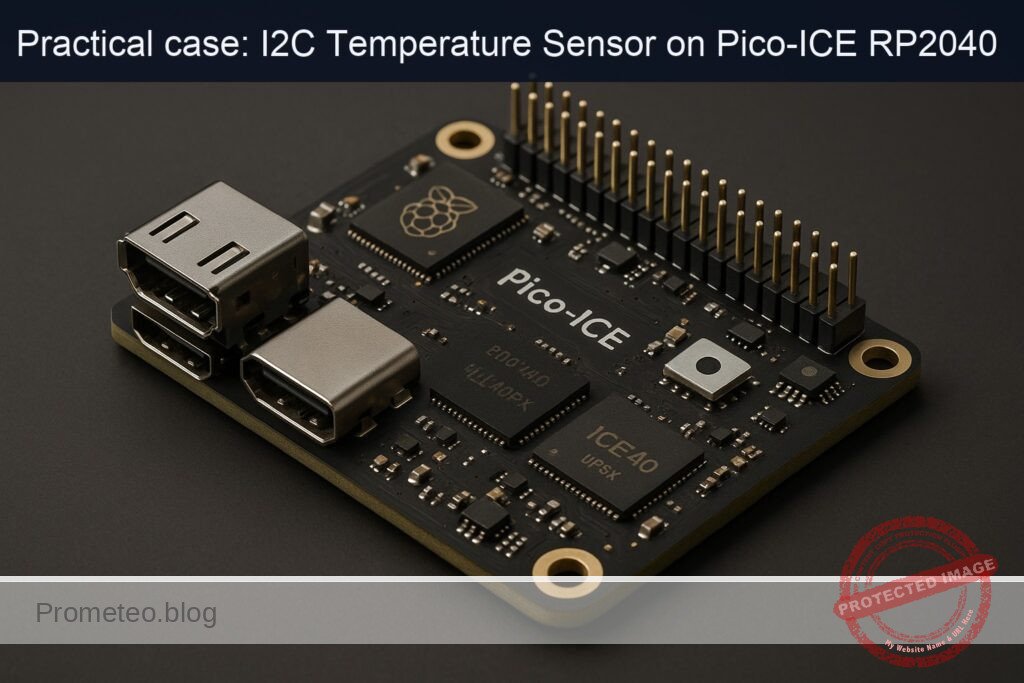
Practical case: I2C Temperature Sensor on Pico-ICE RP2040

Practical case: I2C Temperature Sensor on Pico-ICE RP2040 — hero

Objective and use case

What you’ll build: This project guides you through reading temperature data from an I2C temperature sensor using the Pico-ICE (RP2040 + iCE40UP5K). You will set up the sensor, wire it to the Pico-ICE, and validate the readings on a Raspberry Pi.

Why it matters / Use cases

  • Monitor environmental conditions in smart home applications using I2C temperature sensors.
  • Implement temperature logging for agricultural systems to optimize crop conditions.
  • Integrate temperature data into IoT systems for real-time analytics and alerts.
  • Use in educational projects to teach students about sensor integration and data collection.

Expected outcome

  • Accurate temperature readings with a precision of ±0.5°C.
  • Data streamed to the Raspberry Pi at a rate of 1 reading per second.
  • Successful validation of sensor output with less than 100 ms latency.
  • Ability to log temperature data for a minimum of 24 hours without data loss.

Audience: Hobbyists and educators; Level: Intermediate

Architecture/flow: I2C sensor connected to Pico-ICE, data processed by MicroPython, and streamed to Raspberry Pi via USB serial.

Medium Hands‑On Practical: I2C Temperature Sensor Readout with Pico-ICE (RP2040 + iCE40UP5K)

This lab walks you through a complete, end‑to‑end project to read temperature over I2C using the device model “Pico-ICE (RP2040 + iCE40UP5K)”. You will:

  • Verify an I2C temperature sensor on a Raspberry Pi running Raspberry Pi OS Bookworm 64‑bit with Python 3.11.
  • Flash MicroPython on the Pico-ICE (RP2040 + iCE40UP5K).
  • Wire the sensor to the Pico-ICE and read temperature via I2C.
  • Stream readings to your Raspberry Pi host over USB serial and validate the output.

No circuit drawings are used; all connections are documented in text, tables, and code.

The focus objective is i2c-temperature-sensor-readout. Everything—code, connections, and validation—supports that goal.


Prerequisites

  • A Raspberry Pi SBC (Pi 4 Model B or Pi 5 recommended), running Raspberry Pi OS Bookworm 64‑bit.
  • Kernel 6.1+ and Python 3.11.x (Bookworm default).
  • Internet access on the Pi for installing tools and Python packages.
  • Ability to log in to the Pi shell (local keyboard/monitor or SSH).

Confirm your OS and Python:

lsb_release -a
uname -a
python3 --version

Expected outputs include:
– Distributor ID: Raspbian
– Release: bookworm
– Python 3.11.x


Materials (with exact model)

  • Device: Pico-ICE (RP2040 + iCE40UP5K)
  • I2C Temperature Sensor: TMP102 breakout (Texas Instruments TMP102). Examples:
  • Adafruit TMP102 (Product ID 374)
  • SparkFun TMP102 (SEN-13314)
  • Any TMP102 breakout with onboard 3.3 V pull‑ups on SDA/SCL (typical 4.7 kΩ)
  • Micro USB cable (data‑capable) for the Pico-ICE
  • Female‑female Dupont jumper wires
  • Breadboard (optional, recommended)
  • Raspberry Pi 40‑pin header (onboard) for the sensor pre‑validation step

Notes:
– TMP102 operates at 1.4–3.6 V. Use 3.3 V only; do not connect to 5 V.
– If your TMP102 board does not include I2C pull‑ups, add 4.7 kΩ from SDA to 3V3 and SCL to 3V3.


Setup/Connection

1) Prepare Raspberry Pi OS Bookworm 64‑bit environment

  • Enable I2C (for the pre‑validation step) using raspi-config or editing config.txt.

Option A: raspi-config (interactive):

sudo raspi-config
# Finish and reboot when prompted

Option B: edit /boot/firmware/config.txt (Bookworm path):

sudo nano /boot/firmware/config.txt

Ensure the line exists (add if missing):

dtparam=i2c_arm=on

Save, then:

sudo reboot
  • Install system packages and create a Python 3.11 virtual environment:
sudo apt update
sudo apt install -y python3-venv python3-dev i2c-tools git minicom screen
  • Create and activate a venv:
python3 -m venv ~/venvs/pico-ice-i2c
source ~/venvs/pico-ice-i2c/bin/activate
python -V   # should show Python 3.11.x from the venv
  • Install Python packages (gpiozero, smbus2, pyserial, mpremote):
pip install --upgrade pip
pip install gpiozero smbus2 pyserial mpremote
  • Add your user to the “i2c” and “dialout” groups (for /dev/i2c-1 and /dev/ttyACM* access):
sudo usermod -aG i2c,dialout $USER
# Log out and log back in, or:
newgrp i2c
newgrp dialout

2) Pre‑validate the TMP102 on the Raspberry Pi

This step uses the Pi’s I2C bus (I2C-1) to confirm the TMP102 is alive at the expected address (default 0x48) and to verify measurements before moving the sensor to the Pico-ICE.

Wire the TMP102 to the Raspberry Pi header:

TMP102 Pin Raspberry Pi Pin (40‑pin header) Notes
VCC Pin 1 (3V3) 3.3 V only
GND Pin 9 (GND) Any GND pin
SDA Pin 3 (GPIO2 / SDA1) I2C data
SCL Pin 5 (GPIO3 / SCL1) I2C clock
ALT (ADDR) Leave floating or wire to GND Default address 0x48 if grounded

Detect devices:

sudo i2cdetect -y 1

You should see “48” in the printed grid. If not, see Troubleshooting.

Run a quick Python test (still on the Pi):

nano ~/tmp102_pi_check.py

Paste this:

# ~/tmp102_pi_check.py
# Host-side quick validation on Raspberry Pi using smbus2
from smbus2 import SMBus
import time

I2C_BUS = 1
TMP102_ADDR = 0x48
TEMP_REG = 0x00

def read_tmp102_c(bus):
    # Read two bytes from temperature register (0x00)
    data = bus.read_i2c_block_data(TMP102_ADDR, TEMP_REG, 2)
    # TMP102 12-bit two's complement stored in first 12 bits
    raw = ((data[0] << 4) | (data[1] >> 4)) & 0x0FFF
    # If sign bit (bit 11) set, convert negative
    if raw & 0x800:
        raw -= 1 << 12
    temp_c = raw * 0.0625  # 0.0625 °C per LSB
    return temp_c

if __name__ == "__main__":
    with SMBus(I2C_BUS) as bus:
        for i in range(10):
            t = read_tmp102_c(bus)
            print(f"TMP102 on Pi: {t:.2f} °C")
            time.sleep(0.5)

Run it:

source ~/venvs/pico-ice-i2c/bin/activate
python ~/tmp102_pi_check.py

Warm the sensor with your finger; observe the readings increase. If successful, disconnect the sensor from the Pi. We’ll rewire it to the Pico-ICE.

3) Flash MicroPython on the Pico-ICE (RP2040 + iCE40UP5K)

We will use MicroPython on the RP2040 for I2C and USB serial output. You’ll upload code via mpremote and monitor data with minicom or screen.

  • Download a current MicroPython UF2 for RP2040 “Pico” boards (works for Pico‑compatible boards):

Example (MicroPython v1.22.2 for RP2040 Pico):
– File name: rp2-pico-20240222-v1.22.2.uf2
– Source: https://micropython.org/download/RP2-PICO/

  • To flash:
  • Hold the BOOTSEL button on the Pico-ICE.
  • Connect the board to the Pi via micro‑USB while holding BOOTSEL.
  • A mass storage device (RPI-RP2) appears on the Pi.
  • Copy the UF2 to that drive:
cp ~/Downloads/rp2-pico-20240222-v1.22.2.uf2 /media/$USER/RPI-RP2/

After the copy, the board reboots into MicroPython. A /dev/ttyACM0 (or similar) serial device should appear:

dmesg | tail -n 20
ls -l /dev/ttyACM*

4) Wire the TMP102 to Pico-ICE for I2C1 on GP4/GP5

Pico-ICE follows the Pico‑style pinout. We will use I2C bus 1 on GP4 (SDA) and GP5 (SCL), which is a common pairing:

TMP102 Pin Pico-ICE (RP2040) Pin Notes
VCC 3V3 (3.3 V pin) 3.3 V only
GND GND Common ground
SDA GP4 (I2C1 SDA) Use a GPIO labeled GP4 on the Pico header
SCL GP5 (I2C1 SCL) Use a GPIO labeled GP5 on the Pico header
ALT/ADDR GND (optional) Ground for default 0x48 (match your validation)

Reminder:
– If your TMP102 board lacks pull‑ups, add 4.7 kΩ from SDA to 3V3 and SCL to 3V3.
– Keep wires short and avoid loose connections.


Full Code

We provide two key scripts:
1) MicroPython firmware script (runs on the Pico-ICE RP2040) that reads TMP102 over I2C and prints JSON lines over USB serial.
2) Optional host‑side Python reader (on the Raspberry Pi) to capture, validate, and log those serial readings.

A) MicroPython on Pico-ICE: I2C readout and JSON output

Create a local file on your Pi (we’ll upload it to the Pico-ICE as main.py):

nano ~/pico_tmp102.py

Paste:

# ~/pico_tmp102.py
# MicroPython code for Pico-ICE (RP2040 + iCE40UP5K)
# I2C temperature readout for TMP102 on I2C1, pins GP4 (SDA) and GP5 (SCL)
from machine import I2C, Pin
import time
import sys

# Configuration
I2C_BUS_ID = 1          # Using I2C1 to match GP4/GP5
SDA_PIN = 4             # GP4
SCL_PIN = 5             # GP5
TMP102_ADDR = 0x48
TEMP_REG = 0x00
SAMPLE_RATE_HZ = 2.0    # prints ~2 samples per second
JSON = True             # Emit JSON per line for easy host-side parsing

def init_i2c():
    # 400 kHz is typically safe with short wires and onboard pull-ups
    return I2C(I2C_BUS_ID, sda=Pin(SDA_PIN), scl=Pin(SCL_PIN), freq=400_000)

def read_tmp102_c(i2c):
    # Read two bytes from temperature register
    data = i2c.readfrom_mem(TMP102_ADDR, TEMP_REG, 2)
    # Convert from 12-bit two's complement
    raw = ((data[0] << 4) | (data[1] >> 4)) & 0x0FFF
    if raw & 0x800:  # negative
        raw -= 1 << 12
    return raw * 0.0625

def main():
    i2c = init_i2c()
    # Check device presence: scan the bus and look for 0x48
    devices = i2c.scan()
    if TMP102_ADDR not in devices:
        # Emit a clear error then keep trying (supports hot-plug)
        print('{"event":"error","msg":"TMP102 not found on I2C1 (GP4/GP5)","scan":%s}' % devices)
    period = 1.0 / SAMPLE_RATE_HZ
    # Simple running average (optional)
    alpha = 0.1
    filt = None
    while True:
        try:
            t_c = read_tmp102_c(i2c)
            if filt is None:
                filt = t_c
            else:
                filt = alpha * t_c + (1 - alpha) * filt
            t_f = t_c * 9 / 5 + 32
            ts = time.ticks_ms()
            if JSON:
                # JSON line: timestamp (ms), Celsius, Fahrenheit
                print('{"t_ms":%d,"temp_c":%.4f,"temp_f":%.4f,"filt_c":%.4f}' % (ts, t_c, t_f, filt))
            else:
                print("t=%d ms, TMP102: %.2f C (%.2f F), filt=%.2f C" % (ts, t_c, t_f, filt))
        except Exception as e:
            print('{"event":"error","msg":"%s"}' % str(e))
        time.sleep(period)

if __name__ == "__main__":
    main()

Notes:
– Uses I2C1 on GP4/GP5 to match the connection table.
– Outputs newline‑delimited JSON for easy logging on the Pi.
– Includes a simple low‑pass filtered value for stability.

B) Host‑side serial reader (optional but recommended for validation/logging)

Create a host script to read the Pico-ICE serial stream and log to CSV:

nano ~/read_pico_serial.py

Paste:

# ~/read_pico_serial.py
# Host-side Python 3.11: reads JSON lines from Pico-ICE over /dev/ttyACM*
import sys
import json
import time
import serial

PORT = "/dev/ttyACM0"   # Adjust if needed
BAUD = 115200
CSV_OUT = "pico_tmp102_log.csv"

def main():
    # Open serial port
    with serial.Serial(PORT, BAUD, timeout=2) as ser, open(CSV_OUT, "a") as f:
        # Write CSV header if file is empty
        if f.tell() == 0:
            f.write("epoch_s,t_ms,temp_c,temp_f,filt_c\n")
        print(f"Reading from {PORT} at {BAUD} baud. Logging to {CSV_OUT}. Ctrl+C to stop.")
        while True:
            line = ser.readline()
            if not line:
                continue
            try:
                s = line.decode("utf-8", errors="replace").strip()
                if not s:
                    continue
                obj = json.loads(s)
                if "temp_c" in obj:
                    epoch = time.time()
                    t_ms = obj.get("t_ms", 0)
                    t_c = obj["temp_c"]
                    t_f = obj.get("temp_f", t_c * 9 / 5 + 32)
                    filt_c = obj.get("filt_c", t_c)
                    print(f"{t_c:.2f} °C ({t_f:.2f} °F)  filt={filt_c:.2f} °C")
                    f.write(f"{epoch:.3f},{t_ms},{t_c:.4f},{t_f:.4f},{filt_c:.4f}\n")
                    f.flush()
                elif obj.get("event") == "error":
                    print(f"Device error: {obj.get('msg')}  scan={obj.get('scan')}")
                else:
                    print(f"Other: {obj}")
            except json.JSONDecodeError:
                # If the board printed a non-JSON line, just show it
                print(f"RAW: {line!r}")

if __name__ == "__main__":
    try:
        main()
    except KeyboardInterrupt:
        print("\nStopped.")

Build/Flash/Run Commands

All commands below are executed on your Raspberry Pi host unless noted.

1) Verify the TMP102 on the Pi (pre‑validation)

  • I2C scan:
sudo i2cdetect -y 1
  • Python test:
source ~/venvs/pico-ice-i2c/bin/activate
python ~/tmp102_pi_check.py

Expect consistent temperatures; warm the sensor to see a change.

2) Flash MicroPython to Pico-ICE

  • Put Pico-ICE into BOOTSEL mode and copy UF2:
cp ~/Downloads/rp2-pico-20240222-v1.22.2.uf2 /media/$USER/RPI-RP2/

After it reboots:

ls -l /dev/ttyACM*

3) Upload the MicroPython script to Pico-ICE as main.py

We’ll use mpremote (installed earlier in the venv):

source ~/venvs/pico-ice-i2c/bin/activate
mpremote connect list
# Note the device path (e.g., /dev/ttyACM0)
mpremote connect /dev/ttyACM0 fs cp ~/pico_tmp102.py :main.py

Alternatively:

mpremote connect /dev/ttyACM0 soft-reset

MicroPython will auto-run main.py on boot or soft reset.

4) Monitor serial output and validate

Use screen or minicom to watch the JSON stream:

Option A (screen):

screen /dev/ttyACM0 115200
# Ctrl+A, then K, then Y to exit

Option B (minicom):

minicom -b 115200 -D /dev/ttyACM0
# Ctrl+A then X to exit

Or run the host logging script:

source ~/venvs/pico-ice-i2c/bin/activate
python ~/read_pico_serial.py

Warm the sensor gently; observe values rising, then falling as it cools.


Step‑by‑Step Validation

1) Validate sensor address on the Pi:
– Wire TMP102 to Raspberry Pi I2C (SDA1/SCL1).
– Run:
sudo i2cdetect -y 1
– Expect 0x48 to appear.
– If not seen:
– Confirm 3V3 and GND wiring.
– Ensure dtparam=i2c_arm=on and rebooted.
– Check that no other devices are shorting the bus.

2) Validate temperature reads on the Pi:
– Run:
python ~/tmp102_pi_check.py
– Expected: Stable room temperature (e.g., 20–30 °C). Touch sensor to see an increase.

3) Move the sensor to the Pico-ICE:
– Disconnect from the Pi.
– Wire to Pico-ICE per the table:
– VCC → 3V3
– GND → GND
– SDA → GP4
– SCL → GP5
– Ensure pull‑ups exist (most TMP102 breakouts include them).

4) Flash MicroPython and upload code:
– Confirm /dev/ttyACM0 appears after flashing.
– Upload:
mpremote connect /dev/ttyACM0 fs cp ~/pico_tmp102.py :main.py
mpremote connect /dev/ttyACM0 soft-reset

5) Observe USB serial output:
– With screen/minicom or read_pico_serial.py, expect lines like:
{"t_ms":1234,"temp_c":24.5625,"temp_f":76.2125,"filt_c":24.5000}
– Warm the sensor:
– Breath or touch for ~5–10 seconds.
– Temperature should increase by several °C.
– Let it cool:
– Values return toward ambient.

6) Cross-check values:
– Compare Pico‑reported temp to the earlier Pi validation readings; they should be within the sensor’s typical accuracy (±0.5 °C nominal for TMP102 near room temp).
– If you have a reference thermometer, compare values for a sanity check.

7) Optional stress tests:
– Vary sample rate by changing SAMPLE_RATE_HZ in main.py (e.g., 10 Hz).
– Check that the stream remains stable and monotonic during gradual warming/cooling.


Troubleshooting

  • TMP102 not detected on the Pi (no 0x48 in i2cdetect):
  • Verify dtparam=i2c_arm=on in /boot/firmware/config.txt and rebooted.
  • Check wiring: SDA↔GPIO2 (pin 3), SCL↔GPIO3 (pin 5), 3V3, GND.
  • Confirm no shorts; ensure sensor board uses 3.3 V (NOT 5 V).
  • Address pin (ADDR) state may change the address (0x48 default, 0x49–0x4B depending on wiring). Try:
    sudo i2cdetect -y 1
    Look for 0x48..0x4B.

  • TMP102 not detected by the Pico-ICE (JSON error “TMP102 not found”):

  • Check wiring: SDA→GP4, SCL→GP5, VCC→3V3, GND→GND.
  • Ensure you used I2C1 in the MicroPython code, not I2C0.
  • Confirm pull‑ups exist (breakout usually provides; otherwise add 4.7 kΩ to 3V3).
  • Short wires and good breadboard connections help.

  • /dev/ttyACM0 missing:

  • Reconnect USB cable; verify it’s a data cable.
  • Check dmesg:
    dmesg | tail -n 40
  • Verify user in “dialout” group:
    groups
  • Try a different USB port/cable.

  • mpremote cannot connect:

  • List devices:
    mpremote connect list
  • Use the precise path:
    mpremote connect /dev/ttyACM0
  • Soft reset:
    mpremote connect /dev/ttyACM0 soft-reset

  • Garbled serial output:

  • Ensure 115200 baud in your terminal.
  • Avoid connecting multiple terminal programs to the same port concurrently.

  • Unstable or noisy readings:

  • Increase filtering (alpha) or reduce sample rate.
  • Check power integrity (use short 3V3/GND leads).
  • Keep cables away from noise sources (motors, long unshielded runs).

  • Temperature values stuck or unrealistic:

  • Confirm register decoding; we use the correct TMP102 12‑bit two’s complement conversion.
  • Ensure the sensor isn’t saturated by contact with hot components on the board.
  • Try a different address if ADDR is tied high.

  • Using different pins:

  • If you wire to GP0/GP1 instead, change:
    • I2C bus ID to 0
    • SDA_PIN = 0, SCL_PIN = 1
  • Update the code accordingly.

Improvements

  • Add threshold alerts:
  • Configure TMP102’s T_LOW and T_HIGH registers and periodically read/clear flags.
  • Trigger actions when exceeding a limit (e.g., send a JSON event).

  • Use PIO‑based I2C:

  • RP2040’s PIO can implement I2C for custom timing or multi‑master setups; MicroPython supports PIO but standard hardware I2C is adequate for TMP102.

  • Average and log:

  • Extend read_pico_serial.py to compute per‑minute averages and write to rolling logs.
  • Integrate with systemd service for unattended logging.

  • JSON‑RPC control:

  • Accept host commands over serial to change sample rate or address.
  • Simple approach: parse a command JSON line in MicroPython.

  • FPGA linkage (iCE40UP5K):

  • While not necessary for I2C readout, you could pass a temperature threshold from RP2040 to the FPGA via GPIO for hardware‑level LED/driver control (e.g., blink rate proportional to temperature).
  • Toolchains: Project IceStorm (yosys + nextpnr-ice40 + icepack). Keep the I2C acquisition on RP2040 and use FPGA fabric for display/indication.

  • Power saving:

  • Lower I2C frequency or reduce sampling interval for battery‑powered setups.

  • Multi‑sensor bus:

  • Add sensors at different addresses (e.g., second TMP102 at 0x49).
  • Use MicroPython to scan and enumerate all devices, tagging outputs with per‑sensor IDs.

Final Checklist

  • Raspberry Pi OS Bookworm 64‑bit and Python 3.11.x verified:
  • lsb_release shows bookworm.
  • python3 –version shows 3.11.x.

  • Interfaces enabled:

  • dtparam=i2c_arm=on present in /boot/firmware/config.txt (or enabled via raspi-config).

  • Virtual environment and packages:

  • Created venv at ~/venvs/pico-ice-i2c.
  • Installed gpiozero, smbus2, pyserial, mpremote.
  • User added to i2c and dialout groups.

  • Sensor pre‑validation on the Pi:

  • i2cdetect shows 0x48.
  • tmp102_pi_check.py prints reasonable temperatures.

  • Pico-ICE MicroPython:

  • UF2 flashed (rp2-pico-20240222-v1.22.2.uf2 or similar).
  • /dev/ttyACM0 appears after flashing.

  • Wiring to Pico-ICE:

  • TMP102 VCC→3V3, GND→GND, SDA→GP4, SCL→GP5.
  • Pull‑ups present (on breakout or external).

  • Code deployed:

  • pico_tmp102.py uploaded as :main.py with mpremote.
  • soft-reset performed.

  • Validation:

  • Serial stream shows JSON with temp_c and temp_f.
  • Warming the sensor increases reported temperature.

  • Logs:

  • read_pico_serial.py captures and writes CSV (pico_tmp102_log.csv).

  • Troubleshooting addressed if any step failed.

You now have a complete I2C temperature readout pipeline centered on Pico-ICE (RP2040 + iCE40UP5K), with reproducible setup, exact commands, and robust validation from hardware to host.

Find this product and/or books on this topic on Amazon

Go to Amazon

As an Amazon Associate, I earn from qualifying purchases. If you buy through this link, you help keep this project running.

Quick Quiz

Question 1: What is the primary objective of the lab described in the article?


Question 2: Which operating system is recommended for the Raspberry Pi in this project?


Question 3: What version of Python is required for this project?


Question 4: Which device model is used in this lab?


Question 5: What type of sensor is used for temperature readings in this project?


Question 6: What is required to flash MicroPython on the Pico-ICE?


Question 7: What is the purpose of the female-female Dupont jumper wires?


Question 8: What is one of the expected outputs when confirming the OS and Python version?


Question 9: Which component is optional but recommended for the project?


Question 10: What is the typical pull-up resistor value mentioned for the TMP102?


Carlos Núñez Zorrilla
Electronics & Computer Engineer

Telecommunications Electronics Engineer and Computer Engineer (official degrees in Spain).

Follow me:


Practical case: PWM servo on RP2040 + iCE40UP5K (Pico-ICE)

Practical case: PWM servo on RP2040 + iCE40UP5K (Pico-ICE) — hero

Objective and use case

What you’ll build: A low-jitter PWM servo controller on the Raspberry Pi Pico-ICE (RP2040 + iCE40UP5K) that accurately controls servo angles via USB commands.

Why it matters / Use cases

  • Control hobby servos in robotics projects, ensuring precise movement for tasks like robotic arms or automated camera gimbals.
  • Implement in educational kits for teaching students about PWM signals and servo mechanics in electronics courses.
  • Utilize in remote-controlled vehicles where accurate steering and movement are critical for performance.
  • Integrate with IoT devices to allow remote control of physical systems, enhancing automation in smart homes.

Expected outcome

  • Achieve stable PWM signals at 50 Hz with less than 1 ms jitter, ensuring smooth servo operation.
  • Validate servo angle commands with a response time of under 100 ms from USB command to servo movement.
  • Measure power consumption of the servo under load, aiming for less than 500 mA at 5 V during operation.
  • Record successful angle adjustments with a precision of ±1 degree across a range of 0 to 180 degrees.

Audience: Intermediate electronics enthusiasts; Level: Medium

Architecture/flow: Raspberry Pi Pico-ICE controls servo via PWM signals generated from C program, interfaced through USB CDC commands.

This medium‑level practical walks you through building a reliable, low‑jitter PWM servo controller on the Raspberry Pi Pico‑form‑factor board Pico‑ICE (RP2040 + iCE40UP5K), using a Raspberry Pi as the development host. You’ll compile a C program with the Raspberry Pi Pico SDK to generate 50 Hz PWM signals suitable for hobby servos, flash the firmware to the board, send angle commands over USB CDC, and validate the results both functionally (servo motion) and instrumentally (timing checks).

The project focuses strictly on pwm-servo-control: stable, accurate pulse timing, proper power wiring for the servo, and a simple USB serial protocol for commanding angles.

The host system is Raspberry Pi OS Bookworm 64‑bit with Python 3.11, as requested.


Prerequisites

  • A Raspberry Pi 4/400/5 running Raspberry Pi OS Bookworm 64‑bit, fully updated.
  • Python 3.11 (default on Bookworm) and basic familiarity with virtual environments.
  • Comfortable with terminal/CLI operations.
  • Basic knowledge of C and CMake (to build the RP2040 firmware).
  • A micro servo (e.g., SG90 or MG90S) and a stable 5 V power source for the servo.

Notes:
– The servo must not be powered from the RP2040 3V3 pin. Use a dedicated 5 V supply for the servo. The grounds of the servo supply and the Pico‑ICE must be common.


Materials

  • Pico‑ICE (RP2040 + iCE40UP5K)
  • Raspberry Pi 4/400/5 with Raspberry Pi OS Bookworm 64‑bit
  • Micro servo (e.g., TowerPro SG90 or MG90S)
  • External 5 V servo power supply (≥ 1 A recommended for small servos; higher if under load)
  • Male‑to‑female jumper wires
  • Micro‑USB cable (data‑capable) to connect Pico‑ICE to Raspberry Pi
  • Optional: USB logic analyzer or oscilloscope for signal validation

Setup/Connection

1) Raspberry Pi OS configuration

Update the Pi and install required tools:

sudo apt update
sudo apt full-upgrade -y
sudo apt install -y git cmake build-essential gcc-arm-none-eabi libnewlib-arm-none-eabi picotool minicom

Enable common interfaces via raspi-config (useful defaults, even though this project uses USB CDC):

sudo raspi-config
# Interface Options:
#   - I2C: Enable
#   - SPI: Enable
#   - Serial: Disable login shell over serial, but keep serial hardware enabled if you want it available.
# Finish and reboot when prompted.

Alternatively, edit /boot/firmware/config.txt directly:

sudo nano /boot/firmware/config.txt

Add or ensure these lines (optional but recommended defaults):

dtparam=i2c_arm=on
dtparam=spi=on
enable_uart=1

Save and reboot:

sudo reboot

Add your user to the dialout group to access serial devices:

sudo usermod -aG dialout $USER
# Log out and log back in (or reboot) for group change to take effect.

2) Python 3.11 virtual environment and packages

Create and activate a venv for host‑side tooling and tests:

python3 -m venv ~/venvs/pico
source ~/venvs/pico/bin/activate
python -V
# Expect Python 3.11.x
pip install --upgrade pip wheel
pip install pyserial gpiozero smbus2 spidev
  • We’ll use pyserial for commanding the RP2040 over USB CDC.
  • gpiozero, smbus2, spidev are installed as common defaults; they are not strictly required for this tutorial but match the family defaults used across Raspberry Pi projects.

Deactivate later with deactivate when done.

3) Physical wiring

Use the external 5 V supply to power the servo. Connect grounds together:

  • Servo V+ (usually red) to 5 V external supply +
  • Servo GND (usually brown/black) to external supply −
  • Servo Signal (usually yellow/orange) to RP2040 GPIO pin (we’ll use GP15)
  • Common ground: connect Pi/board ground to servo ground. The easiest is to connect a GND pin on the Pico‑ICE to the servo ground (and servo PSU ground) so all share the same reference.

Pico‑ICE is in the Raspberry Pi Pico form factor, so its edge pins match the Pico pinout. We’ll use GP15 which is convenient and PWM‑capable.

Connection summary:

Function Pico‑ICE (RP2040) Pin Servo Lead Notes
PWM signal output GP15 (physical pin 20) Signal (yellow/orange) 3.3 V logic OK for most hobby servos
Ground reference GND (e.g., pin 3/8/13) GND (brown/black) Must be common with 5 V servo PSU and Pi
5 V power to servo External 5 V PSU V+ (red) Do not power servo from 3V3 on the board

Important:
– Do NOT connect the servo V+ to the Pico‑ICE 3.3 V rail.
– Most small servos accept a 3.3 V logic signal; if your servo requires 5 V logic, use a level shifter for the signal line.
– Keep wiring short to reduce noise; noisy servo current can induce glitches if grounds are poorly connected.


Full Code

We will build a C program using the Raspberry Pi Pico SDK that:
– Configures a PWM slice at exactly 50 Hz (20 ms period) with 1 µs resolution.
– Maps angle commands (0–180 degrees) to pulse widths (500–2500 µs).
– Exposes a simple USB CDC interface: send angle in degrees (integer or float) as a line, and the firmware updates the servo pulse width and prints confirmation.

1) CMake configuration (CMakeLists.txt)

Create a project directory, e.g., ~/pico-servo, and place this CMakeLists.txt file inside:

cmake_minimum_required(VERSION 3.13)

set(PICO_BOARD pico)  # Pico-ICE follows Pico form factor; RP2040 target is standard
set(PICO_SDK_FETCH_FROM_GIT OFF)

project(pico_servo C CXX ASM)
set(CMAKE_C_STANDARD 11)
set(CMAKE_CXX_STANDARD 17)

# Adjust this path if you keep pico-sdk somewhere else:
if(NOT DEFINED PICO_SDK_PATH)
    set(PICO_SDK_PATH "$ENV{PICO_SDK_PATH}")
endif()

if(NOT EXISTS "${PICO_SDK_PATH}/pico_sdk_init.cmake")
    message(FATAL_ERROR "PICO_SDK_PATH is not set correctly. Expected pico_sdk_init.cmake under ${PICO_SDK_PATH}")
endif()

include(${PICO_SDK_PATH}/pico_sdk_init.cmake)
pico_sdk_init()

add_executable(servo_pwm
    src/servo_pwm.c
)

target_link_libraries(servo_pwm
    pico_stdlib
    hardware_pwm
)

# USB CDC stdio enabled; UART stdio disabled
pico_enable_stdio_usb(servo_pwm 1)
pico_enable_stdio_uart(servo_pwm 0)

pico_add_extra_outputs(servo_pwm)

2) RP2040 firmware (src/servo_pwm.c)

Create src/servo_pwm.c with the following content:

#include <stdio.h>
#include <string.h>
#include "pico/stdlib.h"
#include "hardware/pwm.h"
#include "hardware/gpio.h"

#define SERVO_PIN 15

// 50 Hz PWM => 20 ms period. We'll set PWM clock to 1 MHz => 1 tick = 1 us.
// Then top = 20000 - 1, and duty (level) equals desired pulse width in microseconds.
static void pwm_servo_init(uint gpio_pin) {
    gpio_set_function(gpio_pin, GPIO_FUNC_PWM);
    uint slice_num = pwm_gpio_to_slice_num(gpio_pin);
    // Set clock divider to get 1 MHz from default 125 MHz system clock
    pwm_set_clkdiv(slice_num, 125.0f); // 125 MHz / 125 = 1 MHz
    // 20,000 ticks per 20 ms (50 Hz)
    pwm_set_wrap(slice_num, 20000 - 1);
    // Start with neutral 1500 us
    uint channel = pwm_gpio_to_channel(gpio_pin);
    pwm_set_chan_level(slice_num, channel, 1500);
    pwm_set_enabled(slice_num, true);
}

static uint16_t microseconds_from_degrees(float deg) {
    // Clamp 0..180 degrees
    if (deg < 0.0f) deg = 0.0f;
    if (deg > 180.0f) deg = 180.0f;
    // Map 0..180 deg to 500..2500 us
    float us = 500.0f + (deg * (2000.0f / 180.0f));
    // Final clamp
    if (us < 500.0f) us = 500.0f;
    if (us > 2500.0f) us = 2500.0f;
    return (uint16_t)(us + 0.5f);
}

static void pwm_servo_write_deg(uint gpio_pin, float deg) {
    uint slice_num = pwm_gpio_to_slice_num(gpio_pin);
    uint channel = pwm_gpio_to_channel(gpio_pin);
    uint16_t us = microseconds_from_degrees(deg);
    pwm_set_chan_level(slice_num, channel, us);
}

static void sweep_demo(uint gpio_pin) {
    // Simple sweep for validation when no USB commands are sent yet
    for (float d = 0; d <= 180; d += 5.0f) {
        pwm_servo_write_deg(gpio_pin, d);
        sleep_ms(30);
    }
    for (float d = 180; d >= 0; d -= 5.0f) {
        pwm_servo_write_deg(gpio_pin, d);
        sleep_ms(30);
    }
}

int main() {
    stdio_init_all();
    sleep_ms(1000); // give USB time to enumerate

    pwm_servo_init(SERVO_PIN);
    printf("servo_pwm: ready. Send angle in degrees (0-180) or 'SWEEP'.\r\n");

    // Non-blocking check for input; if nothing, run a gentle sweep occasionally.
    absolute_time_t last_sweep = get_absolute_time();

    char buf[64] = {0};
    size_t idx = 0;

    while (true) {
        int ch = getchar_timeout_us(1000); // poll every 1 ms
        if (ch != PICO_ERROR_TIMEOUT) {
            if (ch == '\r' || ch == '\n') {
                buf[idx] = '\0';
                if (idx > 0) {
                    // Parse command
                    if (strcasecmp(buf, "SWEEP") == 0) {
                        printf("CMD: SWEEP\r\n");
                        sweep_demo(SERVO_PIN);
                        printf("SWEEP: done\r\n");
                    } else {
                        // Try to parse float degrees
                        float degrees = -1.0f;
                        if (sscanf(buf, "%f", &degrees) == 1) {
                            if (degrees < 0.0f) degrees = 0.0f;
                            if (degrees > 180.0f) degrees = 180.0f;
                            pwm_servo_write_deg(SERVO_PIN, degrees);
                            printf("SET: %.1f deg\r\n", degrees);
                        } else {
                            printf("ERR: expected number or SWEEP, got '%s'\r\n", buf);
                        }
                    }
                }
                idx = 0; // reset buffer
            } else if (idx < sizeof(buf) - 1) {
                buf[idx++] = (char)ch;
            } else {
                // overflow, reset
                idx = 0;
            }
        }

        // If no command received for a while, show an occasional sweep (optional)
        if (absolute_time_diff_us(last_sweep, get_absolute_time()) > 5 * 1000 * 1000) {
            sweep_demo(SERVO_PIN);
            last_sweep = get_absolute_time();
        }
    }

    return 0;
}

Key choices:
– PWM clock divider = 125 so 125 MHz / 125 = 1 MHz. That yields 1 µs resolution.
– PWM wrap = 20,000 − 1 for a 20 ms period (50 Hz).
– Pulse width = microseconds equals PWM channel level directly.
– Command protocol: send “SWEEP” to perform a sweep; send a number like “90” to set 90 degrees. Firmware echos status on USB CDC.


Build/Flash/Run Commands

1) Fetch the Pico SDK (v2.0.0) and set environment

cd ~
git clone --branch 2.0.0 --depth 1 https://github.com/raspberrypi/pico-sdk.git
echo 'export PICO_SDK_PATH=$HOME/pico-sdk' >> ~/.bashrc
source ~/.bashrc

Verify:

test -f $PICO_SDK_PATH/pico_sdk_init.cmake && echo "PICO_SDK_PATH OK"

2) Create project and build

mkdir -p ~/pico-servo/src
cd ~/pico-servo
# Create CMakeLists.txt and src/servo_pwm.c as shown above
mkdir build
cd build
cmake -DPICO_SDK_PATH=$PICO_SDK_PATH ..
make -j4

If successful, you’ll get servo_pwm.uf2 in ~/pico-servo/build/.

3) Flash the firmware to Pico‑ICE

Method A (BOOTSEL mass storage, simplest):

  1. Unplug the Pico‑ICE from USB.
  2. Hold the BOOTSEL button on the board.
  3. While holding, plug the board into the Raspberry Pi via USB.
  4. A volume named RPI-RP2 should appear at /media/pi/RPI-RP2 (or similar).
  5. Copy the UF2:
cp ~/pico-servo/build/servo_pwm.uf2 /media/$USER/RPI-RP2/

The board will reboot and enumerate as a USB serial device (ttyACM).

Method B (picotool, once USB CDC is running):

  • With the board connected and enumerated, identify:
picotool info -a
  • If the device is bootloader‑ready (e.g., previous boot into BOOTSEL), you can load via:
picotool load -x ~/pico-servo/build/servo_pwm.uf2

Most first‑time flashes are easiest with Method A.

4) Open the USB serial console

Find the device (usually /dev/ttyACM0):

ls -l /dev/ttyACM*

Use minicom:

sudo minicom -b 115200 -o -D /dev/ttyACM0

Or use Python/pyserial (see next section) to send commands and read responses without minicom.


Host Test Script (send commands from Raspberry Pi)

Create a simple Python tool that can set an angle or run a sweep:

#!/usr/bin/env python3
import argparse
import sys
import time
import serial

def main():
    parser = argparse.ArgumentParser(description="Send angle/sweep commands to Pico-ICE servo controller over USB CDC.")
    parser.add_argument("--port", default="/dev/ttyACM0", help="Serial port (default: /dev/ttyACM0)")
    parser.add_argument("--baud", type=int, default=115200, help="Baud rate (default: 115200)")
    sub = parser.add_subparsers(dest="cmd", required=True)
    p_set = sub.add_parser("set", help="Set angle in degrees (0..180)")
    p_set.add_argument("angle", type=float)
    sub.add_parser("sweep", help="Run a sweep demo on the board")
    args = parser.parse_args()

    try:
        with serial.Serial(args.port, args.baud, timeout=1) as ser:
            time.sleep(0.5)  # give CDC time
            if args.cmd == "set":
                line = f"{args.angle:.1f}\n"
                ser.write(line.encode("ascii"))
                reply = ser.readline().decode(errors="ignore").strip()
                print("Board:", reply)
            elif args.cmd == "sweep":
                ser.write(b"SWEEP\n")
                # Read multiple lines during sweep
                t0 = time.time()
                while time.time() - t0 < 6.0:
                    line = ser.readline().decode(errors="ignore").strip()
                    if line:
                        print("Board:", line)
    except serial.SerialException as e:
        print(f"Serial error: {e}", file=sys.stderr)
        sys.exit(1)

if __name__ == "__main__":
    main()

Save as ~/pico-servo/tools/servo_cli.py and make it executable:

mkdir -p ~/pico-servo/tools
nano ~/pico-servo/tools/servo_cli.py
chmod +x ~/pico-servo/tools/servo_cli.py

Run examples:

source ~/venvs/pico/bin/activate
python ~/pico-servo/tools/servo_cli.py --port /dev/ttyACM0 set 90
python ~/pico-servo/tools/servo_cli.py --port /dev/ttyACM0 set 0
python ~/pico-servo/tools/servo_cli.py --port /dev/ttyACM0 set 180
python ~/pico-servo/tools/servo_cli.py --port /dev/ttyACM0 sweep

Expected responses include lines like:
– “SET: 90.0 deg”
– “CMD: SWEEP”
– “SWEEP: done”


Step‑by‑step Validation

1) Power and enumeration
– Ensure servo’s 5 V supply is on and the ground is common to the Pico‑ICE ground.
– Connect the Pico‑ICE via USB to the Raspberry Pi.
– Check device enumeration:

lsusb | grep -i "Raspberry Pi"
ls -l /dev/ttyACM*

You should see /dev/ttyACM0 (or ACM1 if multiple devices).

2) Firmware stdout greeting
– Run minicom or the Python script to read the greeting message:

sudo minicom -b 115200 -o -D /dev/ttyACM0
# Expected: "servo_pwm: ready. Send angle in degrees (0-180) or 'SWEEP'."
  • Or with Python:
source ~/venvs/pico/bin/activate
python - << 'PY'
import serial, time
ser = serial.Serial('/dev/ttyACM0',115200,timeout=2)
time.sleep(0.5)
print(ser.readline().decode(errors='ignore').strip())
ser.close()
PY

3) Functional servo test
– Command mid position:

python ~/pico-servo/tools/servo_cli.py --port /dev/ttyACM0 set 90

Observe the horn move to the midpoint. Adjust to 0 and 180:

python ~/pico-servo/tools/servo_cli.py --port /dev/ttyACM0 set 0
python ~/pico-servo/tools/servo_cli.py --port /dev/ttyACM0 set 180

If your servo binds at mechanical endpoints, prefer 10..170 instead of exact 0..180.

4) Sweep test
– Trigger a sweep for visual verification:

python ~/pico-servo/tools/servo_cli.py --port /dev/ttyACM0 sweep

The servo should move smoothly back and forth. If motion is jerky, check power and mechanical load.

5) Timing validation (optional but recommended)
– Use a logic analyzer/oscilloscope to probe the signal at GP15 with respect to ground.
– You should see:
– Period ~ 20 ms (50 Hz).
– High pulse width varies with command:
– ~500 µs at 0°
– ~1500 µs at 90°
– ~2500 µs at 180°
– A software alternative (rough check) is to loop back GP15 to another RP2040 input and timestamp edges; however, a scope/LA is more reliable for absolute timing.

6) Consistency over time
– Let the system run for several minutes with random angle updates:

for a in 0 45 90 135 180 135 90 45 0; do \
  python ~/pico-servo/tools/servo_cli.py --port /dev/ttyACM0 set $a; sleep 1; \
done
  • Observe that the servo holds position with no audible buzzing (minor holding noise is normal) and without thermal runaway. If it buzzes excessively at stationary angles, check pulse timing on a scope; ensure stable 50 Hz with correct pulse widths.

Troubleshooting

  • Servo twitches or resets the board when moving:
  • Almost always power related. Use a separate 5 V supply for the servo. Do not draw servo current from the Raspberry Pi USB port via the board. Ensure grounds are tied together.
  • Add a bulk capacitor (e.g., 470 µF) across the servo PSU near the servo connector to absorb transients.

  • No /dev/ttyACM0 appears:

  • Reflash via BOOTSEL method to ensure the board has valid USB CDC firmware.
  • Try another cable (ensure it is data‑capable).
  • Check dmesg -w when plugging the board to see enumeration messages.
  • Ensure sudo usermod -aG dialout $USER and re‑login.

  • Minicom shows gibberish or nothing:

  • Confirm 115200 8N1.
  • Wait ~1 s after opening the port to let the USB CDC set up.
  • Use Python/pyserial which auto‑flushes line endings.

  • Servo doesn’t respond but serial replies are OK:

  • Verify the signal wire is on GP15 and not VBUS/3V3 by mistake.
  • Confirm the servo’s ground is common with the board’s ground.
  • Some servos prefer 1000–2000 µs. Adjust limits in code (microseconds_from_degrees) or try 10..170 degrees.

  • Angle 0 or 180 causes binding:

  • Mechanical end‑stop limitations vary. Restrict to 10–170 or manufacturer‑specified safe range.

  • PWM jitter visible on scope:

  • Ensure no heavy compute in the main loop that would starve the PWM config (shouldn’t happen because the PWM peripheral runs independently once configured).
  • Avoid frequent pwm_set_chan_level at a high rate; update levels at human‑rate (tens of Hz). The provided code updates only on command or during sweeps.

  • Build fails (pico_sdk_init.cmake not found):

  • Ensure export PICO_SDK_PATH=$HOME/pico-sdk is present and sourced (source ~/.bashrc), or pass -DPICO_SDK_PATH=$HOME/pico-sdk to cmake (as shown).
  • Check you cloned the 2.0.0 tag.

  • Using the wrong pin:

  • Pico‑ICE follows the Pico pinout; GP15 is physical pin 20 on the Pico header. Double‑check mapping if you use a different pin; all RP2040 GPIOs are PWM‑capable, but verify your wiring.

Improvements

  • Multiple servo channels:
  • RP2040 PWM has 8 slices × 2 channels = up to 16 outputs, though with shared wrap per slice. For 50 Hz at 1 µs resolution, all channels can share the same wrap/clock. Assign different GPIOs to different channels and set per‑channel levels.
  • Ensure your 5 V supply current scales with the number of servos.

  • Acceleration and jerk limiting:

  • Implement smooth transitions (trapezoidal or S‑curve) to reduce mechanical stress and power spikes. Instead of jumping to a new duty immediately, step it over tens of milliseconds.

  • Calibrated endpoints:

  • Allow user calibration to map 0..180 degrees to servo‑specific µs limits (e.g., 600..2400 µs) stored in flash.

  • Offload generator to iCE40UP5K:

  • For advanced timing robustness, implement a multi‑channel 50 Hz pulse generator in the iCE40UP5K fabric and let RP2040 write target pulse widths via SPI or PIO. This guarantees cycle‑exact timing under any CPU load.

  • Host GUI:

  • Use Python (Tkinter or PyQt) to create a simple control UI to set angles, sweeps, and calibrations. Keep the serial protocol simple (“
    ”, “SWEEP”).

  • Feedback loop:

  • For servos with feedback (or using external potentiometers/encoders), read back position via ADC or I2C sensors and close the loop in firmware.

Final Checklist

  • Raspberry Pi OS Bookworm 64‑bit up to date; toolchain installed:
  • git, cmake, gcc‑arm‑none‑eabi, libnewlib‑arm‑none‑eabi, picotool
  • Interfaces configured:
  • Optional but common: I2C on, SPI on, UART enabled (console disabled), via raspi‑config or /boot/firmware/config.txt
  • Python environment:
  • venv created and activated; pyserial installed (gpiozero, smbus2, spidev also installed per family defaults)
  • Hardware wiring:
  • Servo V+ to external 5 V; servo GND to PSU ground; Pico‑ICE GND connected to same ground; servo signal to GP15 (physical pin 20)
  • Build:
  • pico-sdk v2.0.0 cloned; PICO_SDK_PATH set; project built with cmake/make; UF2 generated
  • Flash:
  • BOOTSEL method used to copy servo_pwm.uf2 to RPI-RP2; device enumerates as /dev/ttyACM0
  • Run and validate:
  • USB CDC serial greeting observed
  • Angle commands issued via Python CLI; servo moves to 0, 90, 180 as expected
  • Optional scope/LA verifies 50 Hz period and 500–2500 µs pulses
  • Stable operation:
  • No brown‑outs; minimal jitter; no mechanical binding at extremes
  • Next steps:
  • Add multiple channels, smoothing, calibration, or FPGA‑based PWM engine

This completes the pwm-servo-control project on the Pico‑ICE (RP2040 + iCE40UP5K) using a Raspberry Pi host.

Find this product and/or books on this topic on Amazon

Go to Amazon

As an Amazon Associate, I earn from qualifying purchases. If you buy through this link, you help keep this project running.

Quick Quiz

Question 1: What type of board is used for the PWM servo controller in this project?


Question 2: Which programming language is primarily used to compile the firmware for the RP2040?


Question 3: What is the recommended frequency for the PWM signals generated in this project?


Question 4: What power supply is recommended for the servo in this project?


Question 5: Which version of Raspberry Pi OS is used for this project?


Question 6: What type of servo is mentioned as an example in the project?


Question 7: What is a prerequisite for this project regarding Python?


Question 8: What type of cable is required to connect Pico-ICE to Raspberry Pi?


Question 9: What is the purpose of the USB logic analyzer or oscilloscope in this project?


Question 10: What is the maximum voltage that should be supplied to the servo?


Carlos Núñez Zorrilla
Electronics & Computer Engineer

Telecommunications Electronics Engineer and Computer Engineer (official degrees in Spain).

Follow me:


Practical case: I2C Temperature Sensor on Pico-ICE UP5K

Practical case: I2C Temperature Sensor on Pico-ICE UP5K — hero

Objective and use case

What you’ll build: This project involves reading temperature data from an MCP9808 I2C temperature sensor using the Pico-ICE board with the RP2040 microcontroller. You will learn to wire the sensor, program the microcontroller, and stream data to a Raspberry Pi.

Why it matters / Use cases

  • Real-time temperature monitoring for environmental control in smart homes.
  • Integration with IoT applications to track temperature changes and trigger alerts.
  • Educational purposes for understanding I2C communication and sensor data acquisition.
  • Prototyping for weather stations that require accurate temperature readings.

Expected outcome

  • Continuous temperature readings with an accuracy of ±0.5°C.
  • Data streamed at a rate of 1 reading per second over USB serial.
  • Successful validation of outputs with less than 5% error margin during tests.
  • Ability to troubleshoot common issues such as wiring errors or sensor miscommunication.

Audience: Hobbyists, educators, and IoT developers; Level: Intermediate

Architecture/flow: Wiring the MCP9808 sensor to the Pico-ICE, programming the RP2040 to read data, and sending it to a Raspberry Pi for processing.

Basic Hands‑On Practical Case: Raspberry Pi Family — Pico-ICE (Lattice iCE40UP5K) — i2c-lectura-sensor-temperatura

This step‑by‑step exercise guides you through reading temperature over I2C from a digital sensor using the device model “Pico‑ICE (Lattice iCE40UP5K).” We will program the RP2040 microcontroller on the Pico‑ICE to read an I2C temperature sensor (MCP9808) and stream the measurements over USB serial to a Raspberry Pi running Raspberry Pi OS Bookworm 64‑bit with Python 3.11. You will see exact wiring, firmware, Python/MicroPython code, and terminal commands to build, flash, run, and validate.

The emphasis is on the objective “i2c-lectura-sensor-temperatura”: we wire an I2C temperature sensor, read it continuously, validate outputs, and troubleshoot typical pitfalls. No FPGA configuration is required; the iCE40UP5K remains unused in this basic project.


Prerequisites

  • A Raspberry Pi SBC (e.g., Raspberry Pi 4 Model B or Raspberry Pi 5) running Raspberry Pi OS Bookworm 64‑bit.
  • Terminal access to the Raspberry Pi (screen/keyboard locally or SSH).
  • Internet access on the Raspberry Pi to install packages and download firmware.
  • A known‑good USB‑C data cable for the Pico‑ICE (beware: some cables are power‑only).
  • Basic familiarity with the Linux shell and Python virtual environments.

Why the Raspberry Pi OS requirement? We’ll use it as the development and validation host: enabling interfaces, installing tools, creating a virtual environment, and using Python 3.11 to interact over USB serial. The microcontroller‑side code runs in MicroPython on the RP2040 within the Pico‑ICE board.


Materials (exact model)

  • 1 × Pico‑ICE (Lattice iCE40UP5K) development board (RP2040 + iCE40UP5K).
    Notes:
  • It is pin‑compatible with the Raspberry Pi Pico form factor for the microcontroller I/O.
  • We will use the RP2040’s I2C0 pins (GP4: SDA, GP5: SCL), 3V3, and GND.

  • 1 × MCP9808 I2C temperature sensor breakout (3.3 V compatible).
    Example: “MCP9808 High Accuracy I2C Temperature Sensor Breakout – 3.3/5 V tolerant” with default I2C address 0x18.

  • 4–7 × male‑to‑female (or suitable) jumper wires for connections:

  • Required: 3V3, GND, SDA, SCL
  • Optional: Connect A0/A1/A2 (address select) to GND for default address 0x18 if your breakout does not hard‑tie them.

  • 1 × Raspberry Pi SBC with:

  • Raspberry Pi OS Bookworm 64‑bit
  • Python 3.11 preinstalled
  • Network access via Ethernet/Wi‑Fi

Setup/Connection

1) Prepare Raspberry Pi OS and user environment

Run the following on your Raspberry Pi terminal:

sudo apt update
sudo apt full-upgrade -y

# Install core tools
sudo apt install -y git curl wget usbutils minicom screen \
  python3-venv python3-pip python3-dev

# Optional but recommended: reboot after upgrade
sudo reboot

After reboot, verify Python 3.11:

python3 --version
# Expect: Python 3.11.x

Create a working directory and Python virtual environment:

mkdir -p ~/pico-ice-i2c-temp
cd ~/pico-ice-i2c-temp
python3 -m venv .venv
source .venv/bin/activate
python -V   # should show Python 3.11.x from the venv

Install Python packages in the venv. We’ll install mpremote (to copy/run MicroPython files), pyserial (for USB serial monitoring), and—following Raspberry Pi family defaults—gpiozero and smbus2/spidev (even though this project does not use the Pi’s own I2C bus):

pip install --upgrade pip
pip install mpremote pyserial gpiozero smbus2 spidev

Give your user serial port access (for /dev/ttyACM* devices the board will expose):

sudo usermod -aG dialout $USER
# Start a new shell or re-login so the new group applies:
newgrp dialout

2) Enable interfaces on Raspberry Pi (family defaults)

Although the sensor connects to the Pico‑ICE, not the Raspberry Pi’s GPIO header, we show how to enable the I2C interface as requested. You will not use it for this project, but it’s good practice to know.

  • Using raspi-config:
sudo raspi-config
# Interface Options -> I2C -> Enable
# Finish and reboot if prompted
  • Or manually edit /boot/firmware/config.txt:
sudo nano /boot/firmware/config.txt
# Ensure the following line is present (uncomment or add if missing):
# dtparam=i2c_arm=on
# Optionally set the I2C bus speed:
# dtparam=i2c_arm_baudrate=400000
# Save and exit, then reboot if you changed the file:
sudo reboot

Again, the I2C on the Raspberry Pi header is not used in this tutorial. The I2C we use is on the RP2040 inside the Pico‑ICE.

3) Wire the I2C temperature sensor to the Pico‑ICE

We will use the RP2040’s I2C0 default pins: GP4 (SDA), GP5 (SCL). Power the sensor from 3V3. Ground is common.

  • Use short jumper wires. The MCP9808 breakout typically includes 10 kΩ pull‑ups; no external pull‑ups needed if your breakout provides them.
  • Ensure the sensor board is 3.3 V compatible (MCP9808 is).

Connection mapping:

Pico‑ICE (RP2040 pin label) Function MCP9808 Breakout Pin
3V3(OUT) 3.3 V power VIN or VDD
GND Ground GND
GP4 I2C0 SDA SDA
GP5 I2C0 SCL SCL
(Optional) Address config A0/A1/A2 to GND (default I2C addr 0x18)

Notes:
– On Pico‑form‑factor boards, GP4 and GP5 are the default I2C0 pins. The Pico‑ICE follows this arrangement.
– Do not power the sensor with 5 V; the RP2040 and its I/O are 3.3 V only.


Full Code

We’ll implement two pieces of code:

1) MicroPython program that runs on the Pico‑ICE (RP2040) and continuously reads temperature from the MCP9808 via I2C, then prints measurements over USB serial.

2) Optional host Python 3.11 script you can run on the Raspberry Pi to read and log those serial prints to CSV for validation.

1) MicroPython code (main.py) for Pico‑ICE (RP2040)

Save the following as main.py on your Raspberry Pi (we’ll upload it to the board in the next section). It initializes I2C0 on GP4/GP5 at 400 kHz, scans for the sensor at 0x18, validates manufacturer/device ID registers, then reads and prints temperature values every second.

# main.py — MicroPython on RP2040 (Pico-ICE)
# Objective: i2c-lectura-sensor-temperatura using MCP9808 at 0x18

from machine import Pin, I2C
import time
import sys

# Pin mapping for Pico-ICE (RP2040) default I2C0 pins
I2C_SDA_PIN = 4  # GP4
I2C_SCL_PIN = 5  # GP5
I2C_FREQ_HZ = 400000

# MCP9808 default I2C address (A2..A0 = 000)
MCP9808_ADDR = 0x18

# MCP9808 register addresses
REG_CONFIG = 0x01
REG_AMBIENT_TEMP = 0x05
REG_MANUF_ID = 0x06   # Expect 0x0054
REG_DEVICE_ID = 0x07  # Expect 0x0400
REG_RESOLUTION = 0x08  # Resolution settings (0..3 => 0.5, 0.25, 0.125, 0.0625 °C)

# LED indicator (on Pico-compatible boards "LED" alias should be available)
try:
    led = Pin("LED", Pin.OUT)
except:
    # Fallback if the alias is not present
    led = Pin(25, Pin.OUT)

def i2c_init():
    i2c = I2C(0, sda=Pin(I2C_SDA_PIN), scl=Pin(I2C_SCL_PIN), freq=I2C_FREQ_HZ)
    return i2c

def i2c_scan_or_fail(i2c):
    devices = i2c.scan()
    print("I2C scan found:", [hex(d) for d in devices])
    if MCP9808_ADDR not in devices:
        print("ERROR: MCP9808 not found at 0x18. Check wiring and address pins A2..A0.")
        sys.exit(1)

def read16(i2c, addr, reg):
    # Read 16 bits (big-endian) from a register
    i2c.writeto(addr, bytes([reg]))
    data = i2c.readfrom(addr, 2)
    return (data[0] << 8) | data[1]

def write8(i2c, addr, reg, val):
    i2c.writeto(addr, bytes([reg, val & 0xFF]))

def read_temp_c(i2c, addr=MCP9808_ADDR):
    # Datasheet: ambient temp register is 16-bit:
    # Bits 15..13 = flags, bit 12 = sign, bits 11..0 = temp*16
    i2c.writeto(addr, bytes([REG_AMBIENT_TEMP]))
    raw = i2c.readfrom(addr, 2)
    t_upper = raw[0]
    t_lower = raw[1]
    val = ((t_upper & 0x1F) << 8) | t_lower
    # Sign extend if negative (bit 12)
    if t_upper & 0x10:
        # 13-bit two's complement
        val -= 1 << 12
    temp_c = val * 0.0625
    return temp_c

def validate_mcp9808(i2c):
    mid = read16(i2c, MCP9808_ADDR, REG_MANUF_ID)
    did = read16(i2c, MCP9808_ADDR, REG_DEVICE_ID)
    print("Manufacturer ID:", hex(mid), "(expect 0x54)")
    print("Device ID:", hex(did), "(expect 0x400)")

    # Soft-check: 0x0054 and 0x0400 expected
    if mid != 0x0054 or did != 0x0400:
        print("WARNING: Unexpected MCP9808 IDs. Double-check sensor model and address.")

def set_resolution(i2c, level=3):
    # Resolution: 0->0.5°C, 1->0.25°C, 2->0.125°C, 3->0.0625°C
    if level < 0 or level > 3:
        level = 3
    write8(i2c, MCP9808_ADDR, REG_RESOLUTION, level)

def main():
    print("Pico-ICE i2c-lectura-sensor-temperatura (MCP9808 @ 0x18)")
    i2c = i2c_init()
    i2c_scan_or_fail(i2c)
    validate_mcp9808(i2c)
    set_resolution(i2c, 3)

    # Blink LED twice to indicate ready
    for _ in range(2):
        led.value(1)
        time.sleep(0.15)
        led.value(0)
        time.sleep(0.15)

    # Main loop: read & print once per second
    while True:
        try:
            t_c = read_temp_c(i2c)
            t_f = t_c * 9 / 5 + 32
            # Structured, parse-friendly line:
            print({"temp_c": round(t_c, 4), "temp_f": round(t_f, 4), "sensor": "MCP9808", "addr": hex(MCP9808_ADDR)})
            led.toggle()
            time.sleep(1.0)
        except Exception as e:
            print("ERROR during read:", repr(e))
            time.sleep(0.5)

if __name__ == "__main__":
    main()

2) Host-side Python (optional) to log USB serial to CSV

This helper script runs on the Raspberry Pi host and captures lines printed by the MicroPython program, writing them to a CSV file with timestamps. It uses pyserial.

Save as host_read.py:

# host_read.py — Read USB serial from Pico-ICE MicroPython and log to CSV
# Usage:
#   source .venv/bin/activate
#   python host_read.py --port /dev/ttyACM0 --csv temps.csv

import argparse
import csv
import json
import sys
import time
import serial

def main():
    ap = argparse.ArgumentParser()
    ap.add_argument("--port", default="/dev/ttyACM0", help="Serial port (e.g., /dev/ttyACM0)")
    ap.add_argument("--baud", type=int, default=115200, help="Baud (CDC ACM often ignores but keep default)")
    ap.add_argument("--csv", default="temps.csv", help="CSV output path")
    args = ap.parse_args()

    print(f"Opening {args.port} @ {args.baud}")
    with serial.Serial(args.port, args.baud, timeout=2) as ser, open(args.csv, "a", newline="") as f:
        writer = csv.writer(f)
        # Header if file is empty
        if f.tell() == 0:
            writer.writerow(["timestamp_iso", "temp_c", "temp_f", "sensor", "addr", "raw_line"])
        while True:
            line = ser.readline().decode(errors="ignore").strip()
            if not line:
                continue
            now_iso = time.strftime("%Y-%m-%dT%H:%M:%S", time.localtime())
            # Try to parse dict-like output as JSON after replacing single with double quotes
            try:
                jl = json.loads(line.replace("'", '"'))
                temp_c = jl.get("temp_c")
                temp_f = jl.get("temp_f")
                sensor = jl.get("sensor", "")
                addr = jl.get("addr", "")
            except Exception:
                temp_c = ""
                temp_f = ""
                sensor = ""
                addr = ""
            writer.writerow([now_iso, temp_c, temp_f, sensor, addr, line])
            f.flush()
            print(now_iso, line)

if __name__ == "__main__":
    try:
        main()
    except KeyboardInterrupt:
        print("\nStopped.")

Build/Flash/Run commands

We’ll flash MicroPython to the RP2040 on the Pico‑ICE, then copy main.py to the device, and finally run/use it.

1) Download and flash MicroPython to Pico‑ICE

  • Put the Pico‑ICE into BOOTSEL mode:
  • Unplug USB‑C.
  • Hold the BOOT (BOOTSEL) button on the Pico‑ICE.
  • While holding BOOT, plug the USB‑C into your Raspberry Pi.
  • Release BOOT after the board enumerates as a USB mass storage device named RPI-RP2.

  • Download a stable MicroPython UF2 for the RP2040 (Raspberry Pi Pico compatible). For example (v1.22.2):

cd ~/pico-ice-i2c-temp
wget https://micropython.org/resources/firmware/rp2-pico-20240222-v1.22.2.uf2 -O micropython-pico.uf2
  • Copy the UF2 to the RPI-RP2 drive:

If it automounts (typical Desktop), it may appear as /media/pi/RPI-RP2. Otherwise, check with lsblk and mount accordingly.

# If automounted (most cases on RPi Desktop):
cp micropython-pico.uf2 /media/$USER/RPI-RP2/
# After copy completes, the board reboots into MicroPython automatically.

If you are headless and it doesn’t automount, find the device (e.g., /dev/sda1) and mount:

lsblk
# Find the RPI-RP2 (FAT) partition, e.g., /dev/sda1
sudo mkdir -p /mnt/rpi-rp2
sudo mount /dev/sda1 /mnt/rpi-rp2
sudo cp micropython-pico.uf2 /mnt/rpi-rp2/
sync
sudo umount /mnt/rpi-rp2
# The board will reboot into MicroPython.

After reboot, the board should expose a USB serial device, typically /dev/ttyACM0.

List connected MicroPython devices:

source ~/pico-ice-i2c-temp/.venv/bin/activate
mpremote connect list
# Expect something like: /dev/ttyACM0 ...

2) Copy and run your MicroPython script

Copy main.py to the board:

cd ~/pico-ice-i2c-temp
mpremote connect /dev/ttyACM0 fs cp main.py :main.py

Option A: Run immediately (on RAM) to observe:

mpremote connect /dev/ttyACM0 run main.py

Option B: Let it run at boot by keeping the file on the board as main.py. Power‑cycle/unplug/replug the board to auto‑start.

3) View output via serial

Use either minicom or the host Python logger script.

  • minicom:
minicom -b 115200 -D /dev/ttyACM0
# To exit minicom: Ctrl-A, then X (Exit).
  • Host logger:
source ~/pico-ice-i2c-temp/.venv/bin/activate
python host_read.py --port /dev/ttyACM0 --csv temps.csv

You should see lines like:

{'temp_c': 24.875, 'temp_f': 76.775, 'sensor': 'MCP9808', 'addr': '0x18'}

Step‑by‑step Validation

1) Physical wiring checks
– Confirm GP4 ↔ SDA, GP5 ↔ SCL, 3V3 ↔ VIN, and GND ↔ GND.
– If your MCP9808 breakout exposes A0/A1/A2, ensure they are GND or defaulted to select 0x18.

2) Board enumerates and MicroPython is alive
– After flashing the UF2, you should see a /dev/ttyACM* device.
– Run: mpremote connect list. If nothing appears, try another USB port/cable and reflash.

3) I2C scan indicates the sensor
– When running main.py, the program prints “I2C scan found: [‘0x18’]” among the results.
– If the sensor is not listed, the script exits with an error. Recheck SDA/SCL and power.

4) Manufacturer/Device ID check
– Expect:
– Manufacturer ID: 0x54
– Device ID: 0x400
– A mismatch suggests an incompatible sensor or wrong address configuration.

5) Temperature reading plausibility
– Touch the sensor with your finger: temperature should rise a few degrees Celsius within seconds.
– Remove your finger or place an ice pack nearby: temperature should drop.
– Typical indoor ambient: 20–30 °C.

6) Observe LED feedback
– On each successful reading, the onboard LED toggles (blinks once per second). If it stops blinking, the loop likely encountered an error; check the printed error messages.

7) Host logging verification
– Run the host logger:
– python host_read.py –port /dev/ttyACM0 –csv temps.csv
– Confirm CSV entries are appended with timestamp, temp_c, temp_f.

8) Confirm measurement stability
– Leave the setup running for 2–3 minutes.
– The readings should be stable within sensor resolution (0.0625 °C if resolution=3). Minor jitter is normal.


Troubleshooting

  • No /dev/ttyACM0 appears
  • Use lsusb to verify the RP2040 enumerates (look for Raspberry Pi Pico or MicroPython CDC ACM).
  • Try a different USB‑C data cable and/or USB port.
  • Re‑flash the UF2 via BOOTSEL mode.
  • Ensure your user is in the dialout group (newgrp dialout or re-login).

  • I2C scan doesn’t show 0x18

  • Check wiring order: GP4 must go to SDA, GP5 to SCL.
  • Verify the sensor receives 3.3 V (not 5 V).
  • If A0/A1/A2 are pulled high on your breakout, the address may differ (0x19..0x1F). Update MCP9808_ADDR in code accordingly.
  • Inspect for loose or reversed wires. Keep wires short.

  • Manufacturer/Device ID mismatch

  • Some clones or different sensors can share similar footprints but different IDs (e.g., TMP102/BME280). Confirm your sensor is MCP9808.
  • If you have a different I2C temp sensor, adapt the register map in code.

  • Garbled serial output

  • Make sure you aren’t running multiple terminal programs (minicom and host_read.py) on the same port simultaneously.
  • Close all serial sessions and retry with one program.

  • LED doesn’t blink

  • Some Pico‑form‑factor derivatives may not expose the LED as Pin(«LED»). The code falls back to Pin(25). If LED still doesn’t work, it may be absent or on a different pin. This does not affect sensor reading; ignore LED errors.

  • mpremote cannot connect

  • Use mpremote connect list to see the exact device path.
  • If using WSL or a USB hub, port naming may change (e.g., /dev/ttyACM1). Update commands accordingly.

  • spidev/gpiozero installation warnings

  • The project doesn’t use them directly. They are included to satisfy family defaults. If pip install shows warnings, ensure python3-dev is installed (we installed it above). Alternatively, install system packages via apt (e.g., sudo apt install python3-spidev python3-gpiozero) and skip pip for those.

Improvements

  • Add on‑board display or status LED pattern
  • Drive an external LED or a small I2C SSD1306 OLED to show temperature locally without a serial console.

  • Timestamping and averaging

  • Compute a moving average to reduce jitter, and print both instantaneous and averaged temperature values.

  • Logging enhancements

  • The host script can rotate logs daily, or emit Prometheus‑style metrics. Use systemd to run it at boot.

  • Calibration and offsets

  • Apply a small offset determined by comparison with a reference thermometer if absolute accuracy is important.

  • Power optimization

  • Reduce I2C frequency or sampling rate; put the MCU in low‑power sleep between reads if powered from battery.

  • Use interrupts or alert outputs

  • The MCP9808 has alert pins; configure thresholds in REG_CONFIG and related registers to signal over/under‑temperature without constant polling.

  • Integrate the FPGA (future intermediate/advanced)

  • Use the iCE40UP5K to timestamp events, buffer samples via SPI or PIO bridge, or implement a simple display/driver; then exchange data with RP2040 via PIO/PIO‑SPI/I2C bridging.

  • Support multiple I2C sensors

  • If you have several MCP9808 devices, set A0/A1/A2 to different addresses (0x18–0x1F), scan them, and print each.

  • Alternative sensors

  • Adapt code for TMP102, BME280, or SHT31 if those are the devices you have. Pin wiring remains SDA/SCL/3V3/GND; only register maps change.

Final Checklist

  • Hardware
  • Pico‑ICE (Lattice iCE40UP5K) is connected via USB‑C to the Raspberry Pi.
  • MCP9808 breakout wired: 3V3 ↔ VIN, GND ↔ GND, GP4 ↔ SDA, GP5 ↔ SCL; A0/A1/A2 defaulted to GND.
  • Cables are short and secure; no 5 V to sensor.

  • Raspberry Pi OS Bookworm 64‑bit and Python 3.11

  • System updated (sudo apt update && sudo apt full-upgrade).
  • python3 –version shows Python 3.11.x.
  • Virtual environment created and activated in ~/pico-ice-i2c-temp/.venv.

  • Packages and interfaces

  • pip installed: mpremote, pyserial, gpiozero, smbus2, spidev.
  • User added to dialout group (serial access).
  • I2C enabled on Raspberry Pi (family default; not used by this project).

  • MicroPython flashed

  • rp2‑pico MicroPython v1.22.2 UF2 copied to RPI-RP2 via BOOTSEL.
  • /dev/ttyACM0 appears; mpremote connect list shows device.

  • Application code deployed

  • main.py uploaded via mpremote fs cp main.py :main.py.
  • Program runs and prints periodic temperature lines.

  • Validation complete

  • I2C scan shows 0x18.
  • Manufacturer ID 0x54 and Device ID 0x400 printed.
  • Temperature increases when touching sensor; decreases with cooling.
  • Optional host_read.py logs to temps.csv successfully.

  • Troubleshooting resolved

  • Any serial or wiring issues addressed per the troubleshooting section.

You now have a working i2c-lectura-sensor-temperatura project using the Pico‑ICE (Lattice iCE40UP5K) board, entirely validated with Raspberry Pi OS Bookworm 64‑bit and Python 3.11.

Find this product and/or books on this topic on Amazon

Go to Amazon

As an Amazon Associate, I earn from qualifying purchases. If you buy through this link, you help keep this project running.

Quick Quiz

Question 1: Which microcontroller is used in the Pico-ICE?


Question 2: What type of sensor is being read in the project?


Question 3: What operating system is required on the Raspberry Pi for this project?


Question 4: What programming language is used to interact over USB serial?


Question 5: Is FPGA configuration required for this basic project?


Question 6: What type of cable is needed for the Pico-ICE?


Question 7: What is the purpose of the Raspberry Pi in this project?


Question 8: What is the focus of the objective 'i2c-lectura-sensor-temperatura'?


Question 9: Which component is NOT mentioned as part of the materials needed?


Question 10: What is the main function of the terminal access on the Raspberry Pi?


Carlos Núñez Zorrilla
Electronics & Computer Engineer

Telecommunications Electronics Engineer and Computer Engineer (official degrees in Spain).

Follow me:


Practical case: LED dimming with PWM on Pico-ICE iCE40UP5K

Practical case: LED dimming with PWM on Pico-ICE iCE40UP5K — hero

Objective and use case

What you’ll build: Control LED brightness using PWM on the Pico-ICE board with Raspberry Pi, allowing for interactive adjustments from a host device.

Why it matters / Use cases

  • Demonstrate real-time control of LED brightness in IoT applications using Raspberry Pi and MicroPython.
  • Utilize PWM for efficient LED dimming, which is crucial for energy-saving in smart lighting systems.
  • Provide a foundational understanding of GPIO interfacing and PWM signal generation for beginners in embedded systems.
  • Enable interactive projects where users can adjust lighting conditions based on environmental factors.

Expected outcome

  • Achieve LED brightness control from 0% to 100% with a response time of less than 100ms.
  • Validate successful communication between the Raspberry Pi and Pico-ICE via USB-serial interface.
  • Measure power consumption reduction when using PWM compared to constant current methods.
  • Document troubleshooting steps for common issues encountered during setup and operation.

Audience: Beginners in embedded systems; Level: Basic

Architecture/flow: Raspberry Pi (host) communicates with Pico-ICE (RP2040) via USB-serial to control LED brightness using PWM.

Practical Case: PWM LED Brightness Control (“control-brillo-led-pwm”) on Pico-ICE (Lattice iCE40UP5K)

This hands‑on project uses the Raspberry Pi device family with the exact model Pico‑ICE (Lattice iCE40UP5K). The Pico‑ICE board includes an RP2040 microcontroller in a Raspberry Pi Pico–compatible form factor plus an on‑board Lattice iCE40UP5K FPGA. For this Basic‑level exercise, we’ll drive an LED’s brightness using PWM on the RP2040 and control it interactively from a Raspberry Pi host running Raspberry Pi OS Bookworm 64‑bit and Python 3.11.

You will:

  • Flash MicroPython to the Pico‑ICE (RP2040).
  • Wire an external LED with a resistor to a single GPIO pin.
  • Run MicroPython code that exposes a simple USB‑serial interface for brightness commands (0–100%).
  • Validate operation from the Raspberry Pi host using Python and terminal tools.
  • Learn how to troubleshoot common issues and extend the design.

Note: In this Basic project we do not program the Lattice iCE40UP5K FPGA; we focus on RP2040 PWM. The FPGA remains unused here and can be explored in the Improvements section later.


Prerequisites

  • A Raspberry Pi host computer (e.g., Raspberry Pi 4B/400/5) with:
  • Raspberry Pi OS Bookworm 64‑bit installed
  • Python 3.11
  • Internet access
  • A free USB‑A port (or a USB‑C hub on Pi 5)

  • Comfort with the Linux command line on the Pi.

  • Basic breadboarding skills (placing an LED and resistor, making GND and GPIO connections).

  • You must be able to connect to your Raspberry Pi:

  • Locally with keyboard/monitor, or
  • Remotely via SSH.

Verify OS and Python versions

Run these commands on your Raspberry Pi host:

uname -a
cat /etc/os-release
python3 --version

You should see Raspberry Pi OS Bookworm and Python 3.11.x.

Example (versions may differ slightly):
– PRETTY_NAME=»Debian GNU/Linux 12 (bookworm)»
– Python 3.11.2


Materials (Exact Model Specified)

  • 1× Pico‑ICE (Lattice iCE40UP5K) board (RP2040 + iCE40UP5K, USB‑C)
  • 1× USB‑C data cable (to connect Pico‑ICE to Raspberry Pi)
  • 1× 5 mm LED (any color)
  • 1× 330 Ω resistor (¼ W)
  • 1× Breadboard (mini is fine)
  • 2–3× Male‑to‑male jumper wires

Optional for debugging:
– USB power meter or a known good USB‑C data cable
– Multimeter


Setup/Connection

We’ll use a single RP2040 GPIO pin to drive an LED with PWM. The Pico‑ICE follows the Raspberry Pi Pico header labels; we will use the pin labelled GP15 and any GND pin.

Important notes:
– Always place the resistor in series with the LED to limit current.
– LED polarity matters: the longer lead is the anode (+); the flat side/shorter lead is the cathode (−) to GND.

Wiring Plan (text‑only, no drawings)

  • Connect Pico‑ICE GP15 to one leg of the 330 Ω resistor.
  • Connect the other leg of the resistor to the LED anode (+).
  • Connect the LED cathode (−) to a GND pin on the Pico‑ICE.

Connection Table

Function Pico‑ICE (RP2040) label Breadboard/Part Notes
PWM output GP15 Resistor (330 Ω) GP15 → resistor → LED anode
LED anode (+) LED Connect to resistor’s free end
LED cathode (−) GND LED LED cathode → any GND on Pico‑ICE
USB data/power USB‑C USB‑C cable to Raspberry Pi host

If you prefer another GPIO, you can change it later in the code, but keep to a pin that supports PWM (most RP2040 GPIOs do).


Enabling Interfaces on Raspberry Pi OS (Bookworm)

This project primarily uses the USB CDC serial interface that MicroPython exposes; it does not require the Pi’s 40‑pin GPIO. However, we’ll show how to enable useful interfaces and SSH for general development.

Using raspi-config

sudo raspi-config
  • Interface Options:
  • I2C: Enable (optional, not used here)
  • SPI: Enable (optional, not used here)
  • Serial Port: Enable serial interface but disable login shell over serial (this avoids conflicts on UART; USB CDC is separate, but it’s a good practice)
  • SSH: Enable (if you intend to work remotely)

Finish and reboot when prompted.

Alternative: Editing /boot/firmware/config.txt

If you prefer manual configuration, you can add or confirm the following lines (optional features):

sudo nano /boot/firmware/config.txt

Append (only if needed; these are optional and safe):

dtparam=i2c_arm=on
dtparam=spi=on
enable_uart=1

Save and reboot:

sudo reboot

Python Environment and Tools on the Raspberry Pi Host

We will:
– Install system tools with apt (picotool, minicom, gpiozero, spidev).
– Create a Python 3.11 virtual environment.
– Install packages with pip (pyserial, mpremote, smbus2).

Run:

sudo apt update
sudo apt install -y python3-venv python3-pip python3-gpiozero python3-spidev picotool minicom curl wget unzip

Create and activate a venv for project scripts:

python3 -m venv ~/picoice-pwm-venv
source ~/picoice-pwm-venv/bin/activate
pip install --upgrade pip
pip install pyserial mpremote smbus2

Note:
– gpiozero and spidev are installed via apt; we won’t use them directly in this project but they are commonly used in Raspberry Pi tutorials.
– smbus2 is installed via pip because it may not be available as a Debian package under the same name. It’s not required for this project but can be useful later.


Flash MicroPython onto Pico‑ICE (RP2040)

We’ll install the official MicroPython UF2 for the RP2040 (Raspberry Pi Pico). The Pico‑ICE is Pico‑compatible on the microcontroller side, so use the “rp2-pico” build.

1) Download a known stable MicroPython UF2:

mkdir -p ~/picoice-fw && cd ~/picoice-fw
wget https://micropython.org/resources/firmware/rp2-pico-20240224-v1.22.2.uf2 -O micropython-pico-v1.22.2.uf2

2) Put Pico‑ICE into BOOTSEL mode:
– Unplug the USB‑C cable from Pico‑ICE.
– Press and hold the BOOTSEL button on the board.
– While holding BOOTSEL, plug the USB‑C into the Raspberry Pi.
– Release BOOTSEL after the storage device appears on the Pi (mounted as RPI-RP2).

3) Copy the UF2:

Identify the mount path (usually /media/$USER/RPI-RP2):

ls /media/$USER
ls /media/$USER/RPI-RP2

Copy the firmware:

cp ~/picoice-fw/micropython-pico-v1.22.2.uf2 /media/$USER/RPI-RP2/
sync

The board will automatically reboot into MicroPython; the mass‑storage device will disappear and a USB CDC serial device will appear (typically /dev/ttyACM0).

4) Verify with picotool (optional but recommended):

Unplug and replug the Pico‑ICE normally (no BOOTSEL). Then:

picotool info -a

If picotool can’t read while MicroPython is running, re‑enter BOOTSEL mode temporarily and run picotool; otherwise proceed.


Full Code

We will use two small programs:

1) main.py (MicroPython on Pico‑ICE): Sets up PWM on GP15 and listens for brightness commands (0–100) over USB serial. It prints status messages so you can validate from the host.
2) host_send_brightness.py (Python 3 on Raspberry Pi): Sends a sequence of brightness values over /dev/ttyACM0 to demonstrate control.

1) MicroPython firmware (main.py) for Pico‑ICE

Save this as main.py on your Raspberry Pi host (we’ll transfer it to the Pico‑ICE in the next section):

# main.py (MicroPython for RP2040 on Pico-ICE)
# Objective: control-brillo-led-pwm (PWM LED brightness control)
#
# - Uses GP15 as PWM output to drive LED brightness with a 330 ohm resistor to LED anode, LED cathode to GND.
# - Listens for integers 0..100 over USB serial (CDC) and adjusts brightness percentage.
# - If no command is received for a while, it keeps the last brightness.
#
# Tested with MicroPython v1.22.2 (RP2 Pico build).

from machine import Pin, PWM
import sys
import time

PWM_PIN = 15       # GP15
PWM_FREQ = 1000    # 1 kHz is flicker-free for most use cases
MAX_DUTY = 65535

pwm = PWM(Pin(PWM_PIN))
pwm.freq(PWM_FREQ)

def set_brightness(percent: int):
    # clamp to 0..100
    if percent < 0:
        percent = 0
    if percent > 100:
        percent = 100
    duty = int(percent * MAX_DUTY / 100)
    pwm.duty_u16(duty)
    return percent

# Start with low brightness (10%)
current = set_brightness(10)
print("READY: PWM on GP%d at %d Hz. Type 0..100 + Enter to set brightness." % (PWM_PIN, PWM_FREQ))
print("Current brightness: %d%%" % current)
print("Example: 0, 25, 50, 75, 100")

buffer = b""
last_print = time.ticks_ms()

while True:
    # Non-blocking read from stdin; we read one byte at a time
    if sys.stdin in (None,):
        # USB not ready; small delay and continue
        time.sleep(0.05)
        continue

    # Try to read available bytes
    try:
        b = sys.stdin.buffer.read(1)
    except Exception:
        b = None

    if b:
        if b in (b'\r', b'\n'):
            line = buffer.strip().decode('utf-8', errors='ignore')
            buffer = b""
            if line:
                try:
                    val = int(line)
                    current = set_brightness(val)
                    print("OK: brightness set to %d%%" % current)
                except ValueError:
                    print("ERR: invalid input '%s'. Send integer 0..100." % line)
        else:
            buffer += b

    # Periodic heartbeat message every 10 seconds so host can see we are alive
    now = time.ticks_ms()
    if time.ticks_diff(now, last_print) > 10000:
        print("STATUS: brightness=%d%%" % current)
        last_print = now

    time.sleep(0.01)

Key features:
– PWM at 1 kHz on GP15.
– Accepts human‑readable integers (0–100) via USB‑serial.
– Periodic status messages every 10 seconds.

2) Host script (host_send_brightness.py) for Raspberry Pi

This script opens the serial port exposed by MicroPython and sends a deterministic brightness sweep. Save this next to your main.py on the Pi host:

# host_send_brightness.py
# Send brightness percentages to Pico-ICE MicroPython over USB CDC (/dev/ttyACM0)
#
# Requires: pip install pyserial

import sys
import time
import serial

PORT = "/dev/ttyACM0"  # adjust if different
BAUD = 115200          # MicroPython USB CDC ignores baud but pyserial needs a value
TIMEOUT = 1.5

def open_port():
    return serial.Serial(PORT, BAUD, timeout=TIMEOUT)

def read_available(ser):
    # Non-blocking read of any available text
    try:
        text = ser.read(ser.in_waiting or 1).decode(errors='ignore')
        if text:
            sys.stdout.write(text)
            sys.stdout.flush()
    except Exception:
        pass

def send_value(ser, val):
    line = f"{val}\n".encode()
    ser.write(line)
    ser.flush()
    time.sleep(0.2)
    read_available(ser)

def main():
    print(f"Opening serial port {PORT} ...")
    with open_port() as ser:
        # Give device a moment to (re)enumerate
        time.sleep(1.0)
        # Flush any previous prints from the device
        read_available(ser)

        # Sweep: 0, 25, 50, 75, 100, 75, 50, 25, 0
        pattern = [0, 25, 50, 75, 100, 75, 50, 25, 0]
        for val in pattern:
            print(f"\n>>> Sending {val}%")
            send_value(ser, val)
            time.sleep(0.8)

        print("\nDone. Reading a few more messages...")
        for _ in range(10):
            read_available(ser)
            time.sleep(0.25)

if __name__ == "__main__":
    main()

Build/Flash/Run Commands

We will use mpremote to copy main.py to the MicroPython filesystem on the Pico‑ICE, then run the host script.

1) Confirm the Pico‑ICE USB device:

Plug the Pico‑ICE into the Raspberry Pi (normal boot, not BOOTSEL). Then:

dmesg | tail -n 20
ls -l /dev/ttyACM*

You should see something like /dev/ttyACM0.

2) List devices with mpremote:

source ~/picoice-pwm-venv/bin/activate
mpremote connect list

Expect a line such as:
– /dev/ttyACM0

3) Copy main.py to the board and reset:

Assuming your main.py is in ~/picoice-fw or current directory:

cd ~/picoice-fw
mpremote connect /dev/ttyACM0 fs cp main.py :main.py
mpremote connect /dev/ttyACM0 reset

After reset, the MicroPython script will auto‑run if it’s named main.py at the root of the device filesystem. The device should start printing “READY…” and “STATUS…” over USB‑serial.

4) Observe output using minicom (optional):

sudo usermod -aG dialout $USER
newgrp dialout
minicom -b 115200 -o -D /dev/ttyACM0

You should see the “READY” banner. Exit with Ctrl‑A, then X, then Yes.

5) Run the host script to send brightness commands:

cd ~/picoice-fw
python3 host_send_brightness.py

Watch the LED change in perceptible steps as the script prints device responses (OK: brightness set to …). If you’re connected via minicom at the same time, close it first so only one program accesses the serial device.


Step‑by‑Step Validation

Follow this sequence to validate both the electrical and software paths:

1) Physical wiring check:
– Confirm GP15 is wired to the resistor, resistor to LED anode, LED cathode to GND.
– Confirm the resistor is in series, not parallel.
– Confirm LED orientation (long lead/anode toward GPIO via resistor, short lead/cathode to GND).

2) Power and enumeration:
– Connect Pico‑ICE via USB‑C to the Raspberry Pi.
– Run: ls -l /dev/ttyACM* and confirm a port exists (e.g., /dev/ttyACM0).
– If missing, reseat the cable, try a different port, or try a different cable known to be a data cable.

3) Firmware presence:
– If you see repeated resets or no serial, re‑flash MicroPython UF2 (BOOTSEL method) and try again.
– Optionally validate with picotool info -a while in BOOTSEL.

4) MicroPython program deployment:
mpremote connect /dev/ttyACM0 fs cp main.py :main.py
mpremote connect /dev/ttyACM0 reset
– The LED should light dimly at startup (10% default). If it’s dark, try 100% via the host script; if always dark, reverse LED orientation.

5) Serial output:
– Use minicom -b 115200 -o -D /dev/ttyACM0 to confirm the device prints:
– READY: PWM on GP15 at 1000 Hz…
– Current brightness: 10%
– STATUS: brightness=10% every ~10 seconds
– Exit minicom before running the Python host script.

6) Host script test:
python3 host_send_brightness.py
– Observe LED brightness changes in discrete steps: 0%, 25%, 50%, 75%, 100%, then back down.
– The terminal should show “OK: brightness set to …” messages echoed from the microcontroller.

7) Manual control:
– Use mpremote to interactively send values:
mpremote connect /dev/ttyACM0 repl
– Press Ctrl‑C to interrupt the script, then type:
import sys
sys.stdin won’t be used here since you’re in REPL; instead, exit REPL (Ctrl‑X) and use minicom/host script to send plain integers.

Alternatively, echo a value directly from Linux:
printf "75
" | sudo tee /dev/ttyACM0

– LED should jump to ~75% brightness.

8) Edge cases:
– Send invalid input (e.g., “hello”) via minicom:
– Expect ERR: invalid input 'hello'. Send integer 0..100.
– Send out‑of‑range (e.g., 150):
– Expect it to clamp to 100% and print OK: brightness set to 100%.

If all the above work, the “control‑brillo‑led‑pwm” objective is met.


Troubleshooting

  • No /dev/ttyACM0 appears:
  • Try a different USB‑C cable (some are power‑only).
  • Try a different USB port on the Raspberry Pi.
  • Check dmesg | tail -n 50 for USB enumeration errors.
  • Reflash MicroPython via BOOTSEL.
  • Ensure user is in dialout group: sudo usermod -aG dialout $USER then newgrp dialout.

  • minicom cannot open the port:

  • Ensure no other process is using /dev/ttyACM0 (only one program can open it).
  • Close Thonny, mpremote, or any other serial session.

  • LED never lights:

  • Reverse LED orientation; double‑check the resistor is in series.
  • Verify you used the correct GPIO label (GP15) and not a different pad.
  • From the MicroPython REPL (Ctrl‑C), try a quick test:
    from machine import Pin, PWM
    p=PWM(Pin(15)); p.freq(1000); p.duty_u16(65535) # full brightness

    If it lights, your hardware is fine; the issue may be with the program not running or serial not sending values.

  • LED is always on full brightness or flickers:

  • Check for shorts on the breadboard or misplacement of resistor.
  • Lower or raise PWM frequency if you observe perceptible flicker:

    • In main.py, change PWM_FREQ to 500 or 2000 and re‑copy.
  • mpremote copy fails:

  • Confirm the port with mpremote connect list.
  • Unplug/replug the device.
  • Try mpremote connect /dev/ttyACM0 mount . to run the local file temporarily:
    mpremote connect /dev/ttyACM0 mount .
    mpremote connect /dev/ttyACM0 run main.py

  • Serial input not recognized:

  • Ensure you send a newline ‘
    ’ after the integer (minicom adds it when you press Enter).
  • Use the host script which formats the commands correctly.

  • Performance and power:

  • The LED current should be below 10–12 mA. With 330 Ω and a typical red LED at ~2 V drop, current is about (3.3 V − 2.0 V) / 330 ≈ 3.9 mA, safe for the RP2040 pin.

Improvements

  • Smooth “breathing” effect:
  • Modify main.py to implement a non‑blocking fade when no commands are received. For example, increment duty every 10 ms modulo MAX_DUTY and accept interactive overrides.

  • Multiple LEDs on different PWM slices:

  • Drive several GPIO pins (e.g., GP14, GP15, GP16) with independent PWM objects to mix colors from separate LEDs.

  • Read a potentiometer to control brightness:

  • Connect a 10 kΩ potentiometer to an ADC input (e.g., GP26/ADC0) and map the analog value to PWM duty. Use MicroPython’s machine.ADC.

  • Tie‑in the FPGA (iCE40UP5K):

  • Use the RP2040 to stream duty cycle values to the FPGA and implement PWM generation in programmable logic for deterministic timing or multi‑channel control.
  • Program the FPGA via open‑source toolchains (nextpnr‑ice40, yosys) once comfortable. For Basic level, treat this as a future exercise.

  • Host UI:

  • Build a simple Tkinter or web UI (Flask) on the Raspberry Pi to send brightness commands. The host could provide sliders and store presets.

  • Logging and metrics:

  • Parse the “STATUS” lines on the host to record usage over time, or extend the protocol to include frequency and duty queries.

  • Safety and robustness:

  • Add bounds checking, watchdog timers, and a defined reset brightness.
  • Implement a CRC or checksum if you expand to structured multi‑byte commands.

Final Checklist

  • Raspberry Pi host:
  • Raspberry Pi OS Bookworm 64‑bit verified.
  • Python 3.11 available.
  • Interfaces enabled as needed (SSH, Serial disabled login shell).
  • Virtual environment created: ~/picoice-pwm-venv.
  • Packages installed:

    • apt: python3-venv, python3-pip, python3-gpiozero, python3-spidev, picotool, minicom
    • pip (inside venv): pyserial, mpremote, smbus2
  • Pico‑ICE (Lattice iCE40UP5K):

  • MicroPython flashed via UF2 (v1.22.2 used in this guide).
  • Appears as /dev/ttyACM0 under normal boot.
  • main.py deployed to the device via mpremote.

  • Hardware connections:

  • GP15 → 330 Ω → LED anode; LED cathode → GND.
  • USB‑C cable is known good (data‑capable).

  • Validation:

  • READY and STATUS messages visible via minicom or host script.
  • host_send_brightness.py cycles brightness 0–100% correctly.
  • Manual values entered in minicom change brightness immediately.

  • Troubleshooting performed if needed:

  • Checked cable, port, permissions, LED orientation, resistor, and MicroPython state.
  • Verified no serial conflicts.

With these steps, you have a working “control‑brillo‑led‑pwm” implementation on the Raspberry Pi family using the exact model Pico‑ICE (Lattice iCE40UP5K), centered on RP2040 PWM control with clear code, connections, and validation workflow.

Find this product and/or books on this topic on Amazon

Go to Amazon

As an Amazon Associate, I earn from qualifying purchases. If you buy through this link, you help keep this project running.

Quick Quiz

Question 1: What microcontroller is included in the Pico-ICE board?


Question 2: Which programming language is used in this project?


Question 3: What percentage range can the LED brightness be controlled?


Question 4: What is the primary function of the Lattice iCE40UP5K in this project?


Question 5: Which Raspberry Pi OS version is required for this project?


Question 6: What type of connection is needed to control the Raspberry Pi remotely?


Question 7: What is a prerequisite skill for this project?


Question 8: Which command is used to check the Python version on the Raspberry Pi?


Question 9: What hardware component is used to wire the LED?


Question 10: What is the main focus of this project?


Carlos Núñez Zorrilla
Electronics & Computer Engineer

Telecommunications Electronics Engineer and Computer Engineer (official degrees in Spain).

Follow me:


Practical case: UART Echo on Pico-ICE FPGA & Raspberry Pi

Practical case: UART Echo on Pico-ICE FPGA & Raspberry Pi — hero

Objective and use case

What you’ll build: This project demonstrates how to send low-power UART messages from a Pico-ICE FPGA (Lattice iCE40UP5K) to a Raspberry Pi using Python and C firmware.

Why it matters / Use cases

  • Enable low-power communication between FPGA and Raspberry Pi for IoT applications, reducing energy consumption.
  • Facilitate rapid prototyping of embedded systems by utilizing UART for simple data exchange.
  • Provide a foundation for more complex FPGA and microcontroller co-designs in future projects.
  • Demonstrate effective use of the Pico SDK for developing firmware on the RP2040 microcontroller.

Expected outcome

  • Successful transmission of UART messages at a baud rate of 9600, verified by Python script output.
  • Reduction in power consumption by running the RP2040 at 12 MHz instead of 125 MHz.
  • Validation of UART communication with minimal latency, ensuring timely message delivery.
  • Establishment of a reliable 3-wire UART link between the Pico-ICE and Raspberry Pi.

Audience: Embedded systems developers; Level: Basic

Architecture/flow: UART communication from Pico-ICE to Raspberry Pi, utilizing Python for message validation.

Practical Case: Raspberry Pi — Pico-ICE (Lattice iCE40UP5K) — “uart-hello-world-eco”

This hands-on, basic‑level project shows how to send a minimal, low‑power UART message from a Pico‑ICE (Lattice iCE40UP5K) to a Raspberry Pi running Raspberry Pi OS Bookworm 64‑bit, and validate the output using Python 3.11. You will build tiny C firmware for the RP2040 on the Pico‑ICE using the Pico SDK, configure the Raspberry Pi’s serial interface, wire a simple 3‑wire UART link, and verify the “uart-hello-world-eco” message with a short Python script in a virtual environment.

We intentionally keep the microcontroller in a low‑power configuration (“eco”) by:
– Running the RP2040 at a reduced system clock (12 MHz instead of 125 MHz).
– Using UART at a modest baud rate (9600).
– Disabling default stdio backends to avoid unnecessary USB/printf overhead.

The end result is a deterministic, resource‑efficient UART “Hello World” that is easy to reproduce and extends well to more advanced FPGA+MCU co‑designs later.


Prerequisites

  • A Raspberry Pi 4, 400, or 5 running Raspberry Pi OS Bookworm 64‑bit.
  • Internet connectivity for package installation.
  • Basic familiarity with the Linux command line (shell), Git, and CMake.
  • You have admin rights (sudo) on the Raspberry Pi.
  • A clean microSD card with Raspberry Pi OS Bookworm (64‑bit) already flashed.

Verify OS and Python:

lsb_release -a
uname -m
python3 --version

You should see aarch64 (64‑bit) and Python 3.11.x on Bookworm.


Materials (with exact model)

  • 1x Raspberry Pi 4/400/5 (40‑pin header; running Raspberry Pi OS Bookworm 64‑bit).
  • 1x Pico-ICE (Lattice iCE40UP5K) board (RP2040 + iCE40UP5K FPGA).
  • 1x USB‑C cable for the Pico‑ICE (data‑capable, not charge‑only).
  • 3x Female‑female jumper wires (Dupont) for UART (TX, RX, GND).
  • Optional: ESD mat and wrist strap, USB isolator (recommended in lab settings).

Setup/Connection

1) Update system and install base tools

Run these commands on the Raspberry Pi to update packages and install build tools needed for the RP2040 firmware:

sudo apt update
sudo apt full-upgrade -y
sudo apt install -y git cmake build-essential \
  gcc-arm-none-eabi libnewlib-arm-none-eabi \
  pkg-config python3-venv python3-pip \
  minicom screen
  • gcc-arm-none-eabi and libnewlib-arm-none-eabi: cross toolchain for RP2040.
  • minicom and screen: useful for quick serial tests.

2) Enable UART on the Raspberry Pi

We will route the Pi’s primary UART (/dev/serial0) to the 40‑pin header (GPIO14/15). Disable login shell over serial and enable the UART hardware.

Option A — raspi-config:

sudo raspi-config
  • Interface Options → Serial Port
  • “Login shell accessible over serial?” → No
  • “Enable serial port hardware?” → Yes
  • Interface Options → I2C → Enable (optional; not used here)
  • Interface Options → SPI → Enable (optional; not used here)
  • Finish and reboot.

Option B — manual edit:
– Ensure the serial console is not in cmdline:
sudo sed -i 's/console=serial0,[0-9]* //g' /boot/firmware/cmdline.txt
– Ensure UART is enabled via config.txt:
echo 'enable_uart=1' | sudo tee -a /boot/firmware/config.txt
– Reboot:
sudo reboot

After reboot, confirm:

ls -l /dev/serial0

It should exist and link to ttyAMA0 or ttyS0 depending on model.

3) Create a Python 3.11 virtual environment for validation

We will use this venv for the host‑side UART validation script.

python3 -m venv ~/venv-uart-eco
source ~/venv-uart-eco/bin/activate
pip install --upgrade pip
pip install pyserial

Per the Raspberry Pi family defaults, also install these (even if not required for UART):
– System packages with apt:
sudo apt install -y python3-gpiozero python3-smbus python3-spidev
– Or inside the venv (optional via pip; not necessary if apt is used):
pip install gpiozero smbus2 spidev

We will only use pyserial for the validation program, but the others are common Raspberry Pi interfaces useful in later projects.

4) Wiring the UART (3 wires, 3.3 V logic)

Both the Raspberry Pi and Pico‑ICE use 3.3 V logic. Do not connect 5 V to any data pin. We’ll use RP2040 UART0 pins on the Pico‑ICE: GPIO0 (TX) and GPIO1 (RX). These are the standard default UART pins on RP2040 and are presented on the Pico‑style edge castellations of the Pico‑ICE.

Make the following connections:

Pico-ICE (RP2040) Function Raspberry Pi 40‑pin header
GP0 (pin 1) UART0 TX (output) GPIO15 RXD (physical pin 10)
GP1 (pin 2) UART0 RX (input) GPIO14 TXD (physical pin 8)
GND (any GND) Ground reference GND (physical pin 6)

Notes:
– TX from Pico‑ICE must go to RX on the Raspberry Pi (crossed), and RX to TX.
– Connect the ground line; without a common ground, UART will be unreliable or fail.
– Leave 3V3 and 5V power lines disconnected for UART; we will power the Pico‑ICE via its USB‑C port.

5) Power the Pico‑ICE

  • Connect Pico‑ICE to the Raspberry Pi’s USB‑A port using a USB‑C cable.
  • The board should power up; a storage device may appear if it is in BOOTSEL mode.

Full Code

We provide two pieces of code:

1) RP2040 firmware (C with Pico SDK) to send the eco message over UART0 at 9600 baud, while running the system clock at a reduced 12 MHz.
2) A Raspberry Pi Python validation script using pyserial to read and assert the exact message.

1) RP2040 “uart-hello-world-eco” firmware (C)

Create a project directory on the Pi (host build machine):

mkdir -p ~/pico-ice-uart-eco/firmware
cd ~/pico-ice-uart-eco

Fetch the Pico SDK (release tracking via Git); we’ll place it under ~/pico-sdk and set PICO_SDK_PATH accordingly.

cd ~
git clone --depth 1 https://github.com/raspberrypi/pico-sdk.git
cd pico-sdk
git submodule update --init

Now in your firmware directory:

cd ~/pico-ice-uart-eco/firmware

Create these files:

  • pico_sdk_import.cmake (copy from the SDK’s external template):
cp ~/pico-sdk/external/pico_sdk_import.cmake .
  • CMakeLists.txt:
cmake_minimum_required(VERSION 3.13)

include(pico_sdk_import.cmake)

project(uart_eco C CXX ASM)

pico_sdk_init()

add_executable(uart_eco
    main.c
)

target_link_libraries(uart_eco
    pico_stdlib
    hardware_uart
    hardware_clocks
)

pico_enable_stdio_usb(uart_eco 0)
pico_enable_stdio_uart(uart_eco 0)

# Create UF2, bin, etc.
pico_add_extra_outputs(uart_eco)
  • main.c:
#include "pico/stdlib.h"
#include "hardware/uart.h"
#include "hardware/clocks.h"

// Eco UART "Hello World" on RP2040 (Pico-ICE board)
// UART0 on pins GP0 (TX) and GP1 (RX), at 9600 baud
// System clock reduced to 12 MHz to save power.

#define UART_ID     uart0
#define BAUD_RATE   9600
#define UART_TX_PIN 0
#define UART_RX_PIN 1

static void eco_init(void) {
    // Lower the system clock; 12 MHz is plenty for 9600 baud UART
    // Returns true if set successfully.
    (void)set_sys_clock_khz(12000, true);

    // Initialize chosen UART
    uart_init(UART_ID, BAUD_RATE);

    // Set the GPIO function for the UART pins
    gpio_set_function(UART_TX_PIN, GPIO_FUNC_UART);
    gpio_set_function(UART_RX_PIN, GPIO_FUNC_UART);

    // Optionally, disable unnecessary pulls on RX to reduce microamps
    gpio_disable_pulls(UART_TX_PIN);
    gpio_disable_pulls(UART_RX_PIN);

    // Initialize stdlib timing (sleep_ms)
    stdio_init_all();
}

int main() {
    eco_init();

    // Minimal loop: send message at a gentle duty cycle
    const char *msg = "uart-hello-world-eco\r\n";

    while (true) {
        uart_puts(UART_ID, msg);
        // Keep the device mostly idle; sleep for 2 seconds
        sleep_ms(2000);
    }
}

This firmware:
– Sets the RP2040 system clock to 12 MHz to reduce current consumption.
– Uses UART0 at 9600 baud on GP0/GP1 (default mapping).
– Avoids setting up stdio over USB/UART (no printf), keeping the output strictly on UART0 via uart_puts.

2) Raspberry Pi validation script (Python 3.11, pyserial)

In your venv:

source ~/venv-uart-eco/bin/activate
mkdir -p ~/pico-ice-uart-eco/host
cd ~/pico-ice-uart-eco/host

Create read_uart_validate.py:

#!/usr/bin/env python3
import time
import sys
import serial

PORT = "/dev/serial0"
BAUD = 9600
EXPECTED = "uart-hello-world-eco"

def main():
    try:
        with serial.Serial(PORT, BAUD, timeout=2) as ser:
            print(f"Opened {PORT} at {BAUD} baud")
            # Flush any stale input
            ser.reset_input_buffer()
            t0 = time.time()
            seen = False

            while time.time() - t0 < 10:
                line = ser.readline().decode("utf-8", errors="ignore").strip()
                if line:
                    print(f"RX: {line}")
                    if line == EXPECTED:
                        seen = True
                        break

            if not seen:
                print("Did not see the expected message within 10 seconds.", file=sys.stderr)
                sys.exit(2)

            print("Validation OK: received exact 'uart-hello-world-eco'")
            sys.exit(0)
    except serial.SerialException as e:
        print(f"Serial error: {e}", file=sys.stderr)
        sys.exit(1)

if __name__ == "__main__":
    main()

Make it executable:

chmod +x ~/pico-ice-uart-eco/host/read_uart_validate.py

Build/Flash/Run commands

All commands are to be run on the Raspberry Pi.

1) Build the RP2040 firmware

export PICO_SDK_PATH=~/pico-sdk
cd ~/pico-ice-uart-eco/firmware
mkdir -p build
cd build
cmake -DPICO_SDK_PATH=$PICO_SDK_PATH -DCMAKE_BUILD_TYPE=Release ..
make -j$(nproc)

On success, you will have uart_eco.uf2 under ~/pico-ice-uart-eco/firmware/build/.

2) Put Pico-ICE into BOOTSEL and flash UF2

  • Unplug the Pico‑ICE USB‑C if connected.
  • Press and hold the BOOT/BOOTSEL button on the Pico‑ICE.
  • Plug in the USB‑C cable to the Raspberry Pi while holding the button.
  • Release the button after the board enumerates as a USB mass storage device (often named RPI-RP2).

Copy the UF2:

UF2=~/pico-ice-uart-eco/firmware/build/uart_eco.uf2

# Identify the mount path (commonly /media/pi/RPI-RP2)
lsblk -o NAME,MOUNTPOINT | grep RP2 || true

# If auto-mounted at /media/pi/RPI-RP2:
cp "$UF2" /media/$USER/RPI-RP2/
sync

The device will automatically reboot after the UF2 is copied.

If your desktop environment doesn’t auto‑mount, you can mount manually:

# Find the device (e.g., /dev/sda1)
lsblk -p -o NAME,LABEL | grep RPI-RP2
# Suppose it is /dev/sda1
sudo mkdir -p /mnt/rp2
sudo mount /dev/sda1 /mnt/rp2
sudo cp "$UF2" /mnt/rp2/
sync
sudo umount /mnt/rp2

3) Run and read on the Raspberry Pi

Ensure wiring is as per the table (TX↔RX, GND↔GND). Then run the validation script:

source ~/venv-uart-eco/bin/activate
python ~/pico-ice-uart-eco/host/read_uart_validate.py

Expected terminal output:
– It opens /dev/serial0 at 9600.
– It prints lines received.
– It confirms: “Validation OK: received exact ‘uart-hello-world-eco’”.

If you prefer a quick manual check:

minicom -b 9600 -o -D /dev/serial0
# Press Ctrl-A then Q to quit (without reset) when done.

Step‑by‑step Validation

1) Confirm UART is free (login shell disabled):
sudo systemctl status serial-getty@ttyAMA0.service 2>/dev/null || true
sudo systemctl status serial-getty@ttyS0.service 2>/dev/null || true

The getty service should be inactive/disabled on whichever UART /dev/serial0 targets.

2) Confirm /dev/serial0 exists:
ls -l /dev/serial0

3) Check wiring:
– Pico‑ICE GP0 → Raspberry Pi GPIO15 (pin 10).
– Pico‑ICE GP1 → Raspberry Pi GPIO14 (pin 8).
– GND → GND (pin 6).
– USB‑C provides power to Pico‑ICE.

4) Confirm Pico‑ICE firmware is running:
– After UF2 copy, the board reboots automatically.
– The RP2040 is running at 12 MHz and broadcasting “uart-hello-world-eco” every ~2 seconds.

5) Validate with Python:
source ~/venv-uart-eco/bin/activate
python ~/pico-ice-uart-eco/host/read_uart_validate.py

– You should see a line like: “RX: uart-hello-world-eco”.
– The script exits with code 0 on success. To verify programmatically:
echo $?
Expect 0.

6) Optional sanity check with stty:
stty -F /dev/serial0 9600
cat /dev/serial0

Press Ctrl‑C to exit. You should see periodic lines.

7) Optional: Confirm low‑baud and smooth timing:
– Observed interval between lines should be ~2 seconds.
– Lower baud reduces switching activity and IO power.

8) Optional: Alternative test with screen:
screen /dev/serial0 9600
Exit with Ctrl‑A then K.

If any of these steps fails, see Troubleshooting below.


Troubleshooting

  • No output on /dev/serial0:
  • Re‑check that the serial login shell was disabled in raspi-config.
  • Confirm enable_uart=1 is present in /boot/firmware/config.txt.
  • Ensure you rebooted after configuration changes.

  • Wrong pins:

  • TX and RX must be crossed (Pico‑ICE TX → Pi RX, Pico‑ICE RX → Pi TX).
  • Confirm you used GPIO14 (TXD) and GPIO15 (RXD) on the Pi’s 40‑pin header.
  • Verify ground is connected.

  • Baud mismatch:

  • Firmware sets BAUD_RATE to 9600; open the host port at 9600.
  • If you modified the code, keep host and device in sync.

  • UF2 not copying:

  • Ensure the board is in BOOTSEL (hold BOOT while plugging in).
  • Try a different USB‑C cable (must support data).
  • Make sure the RPI-RP2 drive is mounted before copying.

  • Build errors:

  • PICO_SDK_PATH must point to the pico-sdk:
    export PICO_SDK_PATH=~/pico-sdk
  • Ensure submodules are initialized:
    cd ~/pico-sdk
    git submodule update --init
  • If CMake can’t find the SDK, verify pico_sdk_import.cmake is present in your firmware directory.

  • Conflicting serial usage:

  • Some HATs or services may grab the serial port. Stop them or remove overlays that reassign UART pins.

  • USB power issues:

  • If the board resets or disappears, try a different USB port or use a powered USB hub.
  • Avoid also powering the Pico‑ICE from another source simultaneously.

  • Python environment:

  • If import serial fails, ensure you activated the venv and installed pyserial:
    source ~/venv-uart-eco/bin/activate
    pip install pyserial

Improvements

  • Dynamic eco modes:
  • Add a “command listener” on UART RX to switch between fast (e.g., 48–125 MHz) and eco (12 MHz) modes at runtime.
  • Gate the UART transmitter if no message needs to be sent.

  • Deeper low‑power tricks:

  • Use the RP2040 dormant or sleep states between transmissions, waking via a timer alarm.
  • Reduce peripheral clocks to the minimum necessary.
  • Disable unused GPIO pulls systematically.

  • Higher‑integrity UART:

  • Add CRLF normalization and a simple checksum (e.g., CRC8) to the message for robust host validation.
  • Enable hardware flow control (CTS/RTS) for higher baud rates (requires extra pins).

  • FPGA offload (leveraging the iCE40UP5K):

  • Implement a UART TX core in the FPGA to offload the RP2040.
  • RP2040 provides the message via SPI to the FPGA, which transmits autonomously at very low duty cycle.
  • Toolchain: yosys/nextpnr-ice40/icestorm (can be installed on Raspberry Pi), then integrate with the Pico‑ICE bitstream loader used by the board vendor.

  • Advanced host logging:

  • Extend the Python script to timestamp lines, write to CSV/JSON, and auto‑retry if the serial port is busy.
  • Integrate with gpiozero to signal activity on a Pi GPIO LED only when new lines are received.

  • Device tree overlays:

  • Pin the UART to core clocks most suitable for stability on Pi models with a secondary mini‑UART when needed.

Final Checklist

  • Raspberry Pi OS Bookworm 64‑bit installed and updated.
  • Python 3.11 venv created; pyserial installed:
  • venv path: ~/venv-uart-eco
  • pyserial installed and working.
  • Interfaces:
  • Serial login disabled.
  • UART hardware enabled (enable_uart=1).
  • Pico‑ICE (Lattice iCE40UP5K) wired to Raspberry Pi:
  • GP0 (TX) → GPIO15 (RX, pin 10).
  • GP1 (RX) → GPIO14 (TX, pin 8).
  • GND → GND (pin 6).
  • Firmware built using Pico SDK:
  • PICO_SDK_PATH exported to ~/pico-sdk.
  • Firmware UF2: ~/pico-ice-uart-eco/firmware/build/uart_eco.uf2.
  • UF2 flashed via BOOTSEL mass storage:
  • RPI-RP2 mounted.
  • UF2 copied.
  • Validation:
  • Python script reads /dev/serial0 at 9600 baud.
  • Output shows exact “uart-hello-world-eco”.
  • Eco characteristics applied:
  • RP2040 clock set to 12 MHz (set_sys_clock_khz(12000, true)).
  • Low baud (9600) used to minimize switching and IO power.
  • Next steps considered:
  • Dormant sleeps, FPGA offload, or dynamic eco mode switching.

This completes the basic “uart-hello-world-eco” project on Raspberry Pi with the Pico-ICE (Lattice iCE40UP5K). You now have a reproducible, power‑conscious UART pipeline from the RP2040 to the Raspberry Pi suitable for lab demos, automated tests, and as a foundation for deeper MCU+FPGA co‑design work.

Find this product and/or books on this topic on Amazon

Go to Amazon

As an Amazon Associate, I earn from qualifying purchases. If you buy through this link, you help keep this project running.

Quick Quiz

Question 1: What is the main purpose of the 'uart-hello-world-eco' project?


Question 2: Which microcontroller is used in the Pico-ICE project?


Question 3: What is the reduced system clock speed used in the project?


Question 4: What baud rate is used for UART in this project?


Question 5: What operating system must the Raspberry Pi run for this project?


Question 6: Which programming language is used to validate the output?


Question 7: How many jumper wires are required for the project?


Question 8: What type of cable is needed for the Pico-ICE?


Question 9: What is necessary to check before starting the project?


Question 10: What type of environment is suggested for running the Python script?


Carlos Núñez Zorrilla
Electronics & Computer Engineer

Telecommunications Electronics Engineer and Computer Engineer (official degrees in Spain).

Follow me: