Introduction
Have you ever struggled with connecting devices, only to realize the cable was wrong? I recall a time when I had to hunt for the right USB cable in a sea of cords. Fortunately, USB has simplified the process of connecting various devices, and in this tutorial, you’ll learn all about it. The Universal Serial Bus (USB) has become a ubiquitous standard in the world of electronics, enabling us to connect a plethora of devices with ease. From smartphones to printers, USB has revolutionized the way we interact with technology.
In this expanded micro-tutorial, we will explore the history, functionality, and applications of USB technology. We will also delve into the technical specifications that define USB standards, provide a hands-on practical project to illustrate its use, discuss common mistakes, and conclude with insights on the future of USB technology. By the end of this tutorial, you will have a comprehensive understanding of USB and its significance in our digital lives.
What it’s used for and how it works
USB, or Universal Serial Bus, is a standard protocol used for connecting devices to computers, power sources, and other peripherals. It serves multiple purposes, such as data transfer, power supply, and even video transmission. Initially introduced in 1996, USB was designed to simplify the connection process between devices, replacing a variety of ports and connectors. The beauty of USB lies in its versatility; it can handle both data and power through the same cable, making it an efficient solution for modern technology.
When you connect a device via USB, you’re utilizing a standardized interface that allows for both data exchange and electrical power. The USB standard has evolved through several versions, each improving speed and functionality. Currently, USB 4 is the latest version, offering remarkable data transfer speeds and versatility.
Basic USB Architecture
The USB architecture consists of three main components: the host, devices, and the cable. The host is typically a computer or a hub that manages communication between devices. Devices can range from keyboards and mice to external hard drives and smartphones. The cable is the physical link that enables data transfer and power delivery between the host and the device.
How Data Transfer Works
When you plug in a USB device, the host recognizes it and initiates a communication protocol. This process typically involves the following steps:
1. Device Detection: The host checks if a device is connected. This is done through a process called polling, where the host continuously checks the state of the USB ports.
2. Enumeration: The host gathers information about the device, such as its type and capabilities. This includes identifying the device class (e.g., storage, audio, video) and the maximum data rate it supports.
3. Data Transfer: Once the device is recognized, data can be transferred back and forth. This can happen in both directions: the host can send data to the device, and the device can send data back to the host.
4. Power Delivery: If required, power can also be supplied through the same cable. This is particularly useful for charging devices like smartphones and tablets.
Types of USB Connectors
Over the years, various USB connector types have emerged, each designed for specific applications:
– USB Type-A: The most common rectangular connector found on computers and chargers. It is often used for connecting peripherals like keyboards and mice.
– USB Type-B: Typically used for printers and larger devices. Its square shape makes it easily identifiable and prevents incorrect connections.
– Mini USB: Smaller connector used in older devices, such as digital cameras. While less common today, it played a significant role in the early days of portable devices.
– Micro USB: A smaller connector that became standard in smartphones and tablets. It is designed to be compact while still providing robust functionality.
– USB Type-C: The latest reversible connector that supports higher data rates and power delivery. Its versatility allows it to be used across a wide range of devices, from laptops to smartphones.
USB Protocols
USB supports multiple protocols for data transfer, which include:
– Bulk Transfer: Used for large data transfers with guaranteed delivery. This is ideal for applications like file transfers where speed is less critical than reliability.
– Isochronous Transfer: Used for time-sensitive data like audio and video. This protocol ensures that data is delivered at consistent intervals, making it suitable for streaming applications.
– Interrupt Transfer: Used for devices that require immediate attention, such as keyboards and mice. This protocol allows for quick responses to user input.
– Control Transfer: Used for device configuration and command execution. This is essential for setting up devices and managing their operations.
Power Delivery Specifications
USB isn’t just about data; it also provides power. The USB Power Delivery (USB PD) standard allows for higher power levels than previous versions. For instance, USB PD can deliver up to 100 watts of power, making it suitable for charging laptops and other high-demand devices. This capability has led to the development of devices that can charge quickly and efficiently, helping to streamline our daily tech interactions.
The Evolution of USB
As technology advanced, so did USB. Here’s a brief overview of its evolution:
– USB 1.0 (1996): Offered data rates of 1.5 Mbps and 12 Mbps, laying the groundwork for a unified connection standard.
– USB 2.0 (2000): Introduced a significant leap in speed with 480 Mbps, still widely used today. This version allowed for faster data transfers, making it more suitable for a variety of applications.
– USB 3.0 (2008): Brought SuperSpeed at 5 Gbps, dramatically improving transfer rates and efficiency. This version also introduced new power management features.
– USB 3.1 (2013): Increased speeds to 10 Gbps, enhancing the capabilities of USB connections even further. It also introduced the Type-C connector, which is reversible and supports higher power delivery.
– USB 3.2 (2017): Introduced multi-lane operation for up to 20 Gbps, allowing for even faster data transfer rates. This version further optimized the performance of USB connections.
– USB4 (2019): Consolidated USB standards with Thunderbolt 3 compatibility, offering speeds up to 40 Gbps. This version represents the culmination of years of development and aims to unify various USB and Thunderbolt technologies.
In conclusion, USB has come a long way from its humble beginnings, offering a versatile and user-friendly means of connecting devices across various platforms. Its evolution reflects the changing landscape of technology and the increasing demand for faster, more efficient connections.
Key parameters
To understand USB better, it’s essential to be familiar with its key parameters. Here’s a table summarizing typical values for various USB versions:
| USB Version | Data Rate | Power Output | Connector Type |
|---|---|---|---|
| USB 1.0 | 1.5 / 12 Mbps | 2.5 W | Type-A, Type-B |
| USB 2.0 | 480 Mbps | 2.5 W | Type-A, Type-B |
| USB 3.0 | 5 Gbps | 4.5 W | Type-A, Type-B |
| USB 3.1 | 10 Gbps | 100 W | Type-A, Type-C |
| USB 3.2 | 20 Gbps | 100 W | Type-A, Type-C |
| USB4 | 40 Gbps | 100 W | Type-C |
Note: The data rates and power outputs may vary based on the specific implementation and device compatibility.
Understanding these parameters is crucial for selecting the right USB version for your needs, whether you’re transferring data, charging devices, or connecting peripherals.
Hands-on practical project
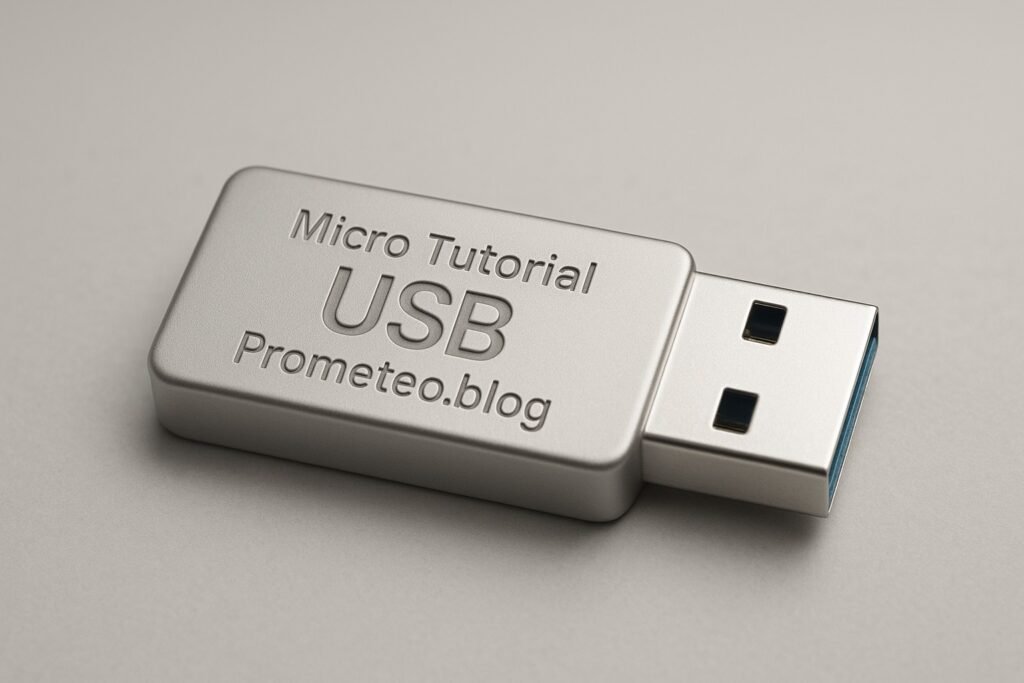
Let’s delve into a concrete use case of USB in action: using a USB flash drive to transfer files. Imagine you need to move important documents from your home computer to your work computer. Using a USB flash drive is a simple and effective solution.
Step 1: Preparing the USB Flash Drive
First, you’ll need a USB flash drive. Plug it into your home computer’s USB port. If the drive is new, you may need to format it to ensure compatibility. Most operating systems will prompt you to format it upon first use. You can usually select a file system such as FAT32 or exFAT, which are compatible with most devices. Formatting is essential as it prepares the drive for storing files and ensures that it functions correctly with your operating system.
Step 2: Transferring Files
Once the flash drive is recognized by your computer, it will appear as a removable storage device. Open the file explorer and locate the files you wish to transfer. You can either drag and drop files or copy and paste them directly onto the flash drive.
Tips for File Organization
- Create Folders: Organize files by creating folders for different categories, such as work documents, personal files, or media. This will help you find files easily when you need them.
- Naming Conventions: Use clear and consistent naming for your files. This makes it easier to locate them later and helps avoid confusion.
Step 3: Safely Ejecting the USB Drive
After transferring the files, it’s crucial to safely eject the USB drive to avoid data corruption. Windows users can right-click on the drive in the file explorer and select “Eject.” Mac users can drag the drive to the trash or click the eject button next to the drive name. Safely ejecting the drive ensures that all data has been written and that the drive can be removed without issues.
Step 4: Using the Flash Drive at Work
Now that you have the files on your USB flash drive, the next step is to transfer them to your work computer. Plug the flash drive into an available USB port. Once recognized, you can access the files just as you did on your home computer. Simply copy the files from the USB drive to your work computer’s storage. This process is straightforward and allows for quick file sharing between different systems.
Step 5: Backing Up Important Data
Using a USB flash drive is also an excellent way to back up important data. You can regularly copy essential files to the flash drive, ensuring you have a backup in case of data loss on your primary device. To enhance security, consider encrypting sensitive files before transferring them to the USB drive. Many operating systems offer built-in encryption tools that can help protect your data.
Benefits of Using USB Flash Drives
- Portability: USB flash drives are small and lightweight, making them easy to carry. This portability allows you to have your important files with you wherever you go.
- Compatibility: They work with most computers, laptops, and devices that have USB ports. This universal compatibility makes USB flash drives a versatile tool for file transfer.
- Data Security: You can easily encrypt data for added security. This is especially important for sensitive information that you may not want to be accessed by unauthorized users.
- Cost-Effectiveness: USB flash drives are relatively inexpensive, providing a cost-effective solution for data storage and transfer. Their affordability makes them accessible to a wide range of users.
In summary, USB flash drives are a practical tool for file transfer and data backup. By following the steps outlined above, you can seamlessly move files between devices while ensuring their safety and organization. This hands-on project illustrates the power and simplicity of USB technology in everyday scenarios.
Common mistakes and how to avoid them
When working with USB connections and devices, it’s easy to make some common mistakes. Here’s a bullet list of what to watch out for and how to avoid these pitfalls:
– Not safely ejecting devices: Always eject your USB drive before physically removing it to prevent data corruption. This simple step can save you from losing important files.
– Using incompatible cables: Ensure that you use the right cable for your device and USB version to avoid connection issues. Check the specifications of your devices to ensure compatibility.
– Overloading power: Don’t connect too many devices to a single USB port, as this can lead to power overload and device malfunction. Be mindful of the power requirements of each device.
– Ignoring updates: Regularly update your USB device drivers to ensure optimal performance and compatibility. Keeping your drivers up to date can prevent connectivity issues.
– Neglecting data backup: Don’t rely solely on USB for data storage. Always have backups on cloud storage or external hard drives. This redundancy protects against data loss.
– Forgetting about formatting: If you’re using a new USB drive, remember to format it to ensure it works with your operating system. Formatting prepares the drive for use and ensures compatibility.
By being aware of these common mistakes and taking proactive steps to avoid them, you can enhance your experience with USB technology and ensure smooth operation in your daily tasks.
Conclusion + call to action
In conclusion, USB technology has become an integral part of our daily lives, facilitating seamless connections between devices. Whether you’re transferring files, charging devices, or expanding storage, USB offers a reliable and efficient solution. By understanding its workings, key parameters, and common mistakes, you can make the most of this technology. So, the next time you plug in a USB device, remember the journey it has taken to simplify your life. For further exploration of USB technology and its applications, I encourage you to delve deeper. More information at prometeo.blog
Third-party readings
- Tutorial: Cómo reparar cables USB rotos (Micro USB incluyendo transferencia de datos)
- Tutorial de BitScope Micro
- Tutorial de MicroPython para pyboard
Find this product and/or books on this topic on Amazon
As an Amazon Associate, I earn from qualifying purchases. If you buy through this link, you help keep this project running.
Quick Quiz

Telecommunications Electronics Engineer and Computer Engineer (official degrees in Spain).