Objective and use case
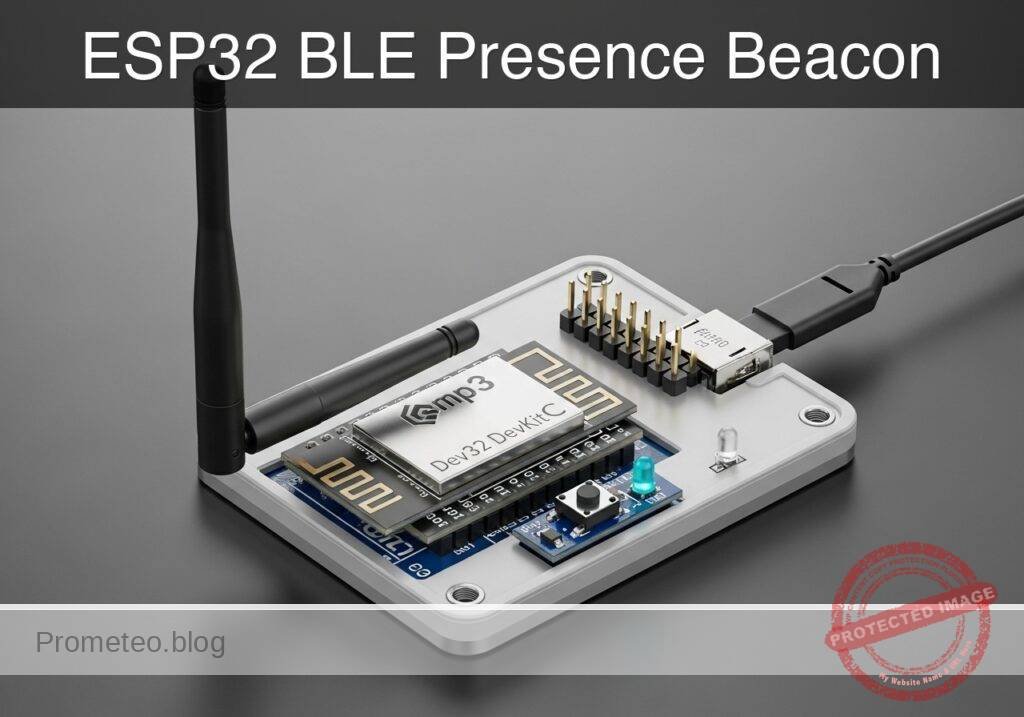
What you’ll build: A standalone Bluetooth Low Energy (BLE) room presence beacon that broadcasts occupancy status, toggled via a physical pushbutton and displayed locally via a status LED.
Why it matters / Use cases
- Meeting room & facility management: Detects if conference rooms, phone booths, or restrooms are occupied without complex wired sensor networks.
- Privacy control: Acts as a digital “Do Not Disturb” sign for personal offices or recording studios, broadcasting status to nearby smartphones or BLE gateway hubs.
- Low-power connectionless architecture: Utilizes BLE advertisement payloads for state broadcasting, allowing infinite passive scanners to read data simultaneously without the power overhead of establishing formal BLE GATT connections.
Expected outcome
- The ESP32 successfully initializes a BLE server and continuously broadcasts connectionless state payloads.
- Pressing the hardware button instantly toggles the local LED and updates the BLE advertisement packet with sub-100ms latency.
- Remote dashboards or BLE hubs accurately track room availability simply by listening to the passive BLE advertisements.
Audience: IoT Developers, Smart Building Engineers; Level: Intermediate
Architecture/flow: Physical Pushbutton → ESP32 GPIO Interrupt → Update State → Toggle Local LED & Modify BLE Advertisement Payload → Passive Broadcast to BLE Scanners.
Educational validation note
Before publication, this case passed the Prometeo automated validation gate with status PASS. For this ESP32 DevKitC profile, the project was checked as a PlatformIO project: the validator extracted platformio.ini and src/main.cpp, created a temporary project and ran pio run against platform = espressif32, board = esp32dev and framework = arduino. It also checked article structure, copy/paste-safe ASCII command options, and unsupported stacks such as direct ESP-IDF or non-scoped ESP32 boards.
Published validation evidence
- Automatic result: PASS.
- Parsed structure: 3 sections, 4 tables and 2 code blocks detected before publication.
- Checked code: 1 PlatformIO config + 1 ESP32 source/pio run.
- Supported catalog: the article text was checked against Prometeo’s validation-capable device profiles, and unsupported stacks block publication.
- Report findings: no blocking findings.
This validation confirms syntax and tool compatibility for the published code, but it does not replace physical testing on your exact ESP32 DevKitC board, wiring, power supply and local WiFi environment.
Educational safety note
This project is an educational prototype, not a certified product. Before powering the setup, verify the pinout of your exact ULX3S board revision, keep FPGA I/O signals at 3.3 V, never connect 5 V directly to I/O pins, disconnect power before changing wiring, and use suitable external supplies for loads, motors or servos while sharing ground only when the wiring requires it.
Conceptual block diagram
High-level view: what enters the system, what each block processes, and what comes out.
Functional architecture
Conceptual signal and responsibility flow between device blocks.

Validation path
Conceptual summary of the tools used to check the published material.

Prerequisites
Before beginning this practical case, ensure you have the following ready:
* A basic understanding of C++ programming and microcontroller GPIO logic (input/output).
* Visual Studio Code installed on your computer with the PlatformIO IDE extension enabled.
* A smartphone (Android or iOS) with a BLE scanning application installed. We recommend LightBlue or BLE Scanner.
* The appropriate USB drivers for your ESP32 board installed on your host OS (typically CP210x or CH34x drivers, depending on the specific DevKitC manufacturer).
Materials
| Component | Description / Exact Model | Quantity |
|---|---|---|
| Microcontroller Core | ESP32 DevKitC + pushbutton/contact input + status LED | 1 |
| Resistor | 330 Ω (Ohm) resistor (for the status LED current limiting) | 1 |
| Breadboard | Standard 400-tie or 830-tie solderless breadboard | 1 |
| Jumper Wires | Assorted male-to-male Dupont jumper wires | 4-6 |
| USB Cable | Micro-USB or USB-C cable (data-capable, matching your DevKitC) | 1 |
(Note: The “ESP32 DevKitC + pushbutton/contact input + status LED” constitutes the complete logical device model for this prototype. The pushbutton and LED may be discrete components placed on the breadboard or integrated into a custom carrier board).
Setup/Connection
This project requires wiring a physical pushbutton to act as our contact input and an external LED to act as our status indicator. We will use the ESP32’s internal pull-up resistor for the pushbutton to simplify wiring and reduce component count.
Wiring Logic
- Pushbutton: Connect one terminal of the normally-open pushbutton to GPIO 4. Connect the opposite terminal directly to one of the ESP32’s GND pins. When the button is pressed, it bridges GPIO 4 to Ground, creating a
LOWsignal. The ESP32’s internal pull-up resistor keeps the pinHIGHwhen unpressed. - Status LED: Connect the anode (longer leg) of the LED to GPIO 5. Connect the cathode (shorter leg) to one end of the 330 Ω resistor. Connect the other end of the resistor to the ESP32’s GND.
Pinout Reference Table
| Component Terminal | ESP32 DevKitC Pin | Signal Type | Description |
|---|---|---|---|
| Pushbutton Terminal 1 | GPIO 4 | Digital Input | Toggles room status (uses internal pull-up) |
| Pushbutton Terminal 2 | GND | Power (Ground) | Pulls GPIO 4 LOW when pressed |
| Status LED Anode (+) | GPIO 5 | Digital Output | Illuminates when room is “Occupied” |
| Status LED Cathode (-) | GND (via 330Ω) | Power (Ground) | Current return path |
Validated Code
The following code files are structured for the PlatformIO environment. The project requires two main files: platformio.ini for the build configuration and src/main.cpp for the application logic.
platformio.ini
Create or overwrite the platformio.ini file in the root of your PlatformIO project with the following configuration. This sets up the ESP32 DevKitC environment and specifies the serial monitor speed.
[env:esp32dev]
platform = espressif32
board = esp32dev
framework = arduino
monitor_speed = 115200
; Force the use of standard C++11 and optimize for size
build_flags =
    -std=gnu++11
    -Os
src/main.cpp
Create or overwrite the main.cpp file inside the src directory. This code implements a non-blocking debounce algorithm for the pushbutton and dynamically updates the BLE advertising payload without requiring a full device reset.
Public preview of the validated file. The complete source is shown to members and in PDF/Print.
/**
 * BLE Room Presence Beacon
 * Device: ESP32 DevKitC + pushbutton/contact input + status LED
 * Framework: Arduino via PlatformIO
 */

#include <Arduino.h>
#include <BLEDevice.h>
#include <BLEUtils.h>
#include <BLEServer.h>

// Hardware Pin Definitions
#define BUTTON_PIN 4
#define LED_PIN 5

// State Machine Variables
bool isOccupied = false;
int buttonState = HIGH;
int lastReading = HIGH;

// Non-blocking Debounce Variables
unsigned long lastDebounceTime = 0;
const unsigned long debounceDelay = 50; // 50 milliseconds

// BLE Global Pointer
BLEAdvertising *pAdvertising;

/**
 * Updates the BLE Advertisement payload based on the current room state.
 * Connectionless BLE requires us to stop advertising, update the payload,
 * and then restart advertising so scanners see the new data immediately.
 */
void updateBLEAdvertisement() {
    if (pAdvertising != nullptr) {
        pAdvertising->stop();
    }

    BLEAdvertisementData oAdvertisementData = BLEAdvertisementData();

    // Set standard BLE flags.
    // 0x04 = BR_EDR_NOT_SUPPORTED (Indicates this is a BLE-only device)
    oAdvertisementData.setFlags(0x04);

    // Dynamically change the advertised device name based on state.
    // This allows scanners to know the room status without connecting.
    if (isOccupied) {
        oAdvertisementData.setName("ROOM_INUSE");
    } else {
        oAdvertisementData.setName("ROOM_AVAIL");
    }

    pAdvertising->setAdvertisementData(oAdvertisementData);
    pAdvertising->start();
}

void setup() {
    // Initialize Serial Monitor for debugging
    Serial.begin(115200);
    while (!Serial) {
        ; // Wait for serial port to connect
    }
// .../**
* BLE Room Presence Beacon
* Device: ESP32 DevKitC + pushbutton/contact input + status LED
* Framework: Arduino via PlatformIO
*/
#include <Arduino.h>
#include <BLEDevice.h>
#include <BLEUtils.h>
#include <BLEServer.h>
// Hardware Pin Definitions
#define BUTTON_PIN 4
#define LED_PIN 5
// State Machine Variables
bool isOccupied = false;
int buttonState = HIGH;
int lastReading = HIGH;
// Non-blocking Debounce Variables
unsigned long lastDebounceTime = 0;
const unsigned long debounceDelay = 50; // 50 milliseconds
// BLE Global Pointer
BLEAdvertising *pAdvertising;
/**
* Updates the BLE Advertisement payload based on the current room state.
* Connectionless BLE requires us to stop advertising, update the payload,
* and then restart advertising so scanners see the new data immediately.
*/
void updateBLEAdvertisement() {
if (pAdvertising != nullptr) {
pAdvertising->stop();
}
BLEAdvertisementData oAdvertisementData = BLEAdvertisementData();
// Set standard BLE flags.
// 0x04 = BR_EDR_NOT_SUPPORTED (Indicates this is a BLE-only device)
oAdvertisementData.setFlags(0x04);
// Dynamically change the advertised device name based on state.
// This allows scanners to know the room status without connecting.
if (isOccupied) {
oAdvertisementData.setName("ROOM_INUSE");
} else {
oAdvertisementData.setName("ROOM_AVAIL");
}
pAdvertising->setAdvertisementData(oAdvertisementData);
pAdvertising->start();
}
void setup() {
// Initialize Serial Monitor for debugging
Serial.begin(115200);
while (!Serial) {
; // Wait for serial port to connect
}
    Serial.println("Initializing BLE Room Presence Beacon...");

    // Configure GPIO Pins
    pinMode(BUTTON_PIN, INPUT_PULLUP);
    pinMode(LED_PIN, OUTPUT);

    // Set initial hardware state
    digitalWrite(LED_PIN, LOW); // LED OFF = Available

    // Initialize the BLE environment with a default name
    BLEDevice::init("ROOM_AVAIL");
    pAdvertising = BLEDevice::getAdvertising();

    // Apply our custom advertisement data and start broadcasting
    updateBLEAdvertisement();

    Serial.println("Initialization Complete. Broadcasting as ROOM_AVAIL.");
}

void loop() {
    // Read the current physical state of the pushbutton
    int reading = digitalRead(BUTTON_PIN);

    // If the switch changed (due to noise or pressing)
    if (reading != lastReading) {
        lastDebounceTime = millis(); // Reset the debouncing timer
    }
// Whatever the reading is at, it's been there for longer than the debounce delay,
// so take it as the actual current state.
if ((millis() - lastDebounceTime) > debounceDelay) {
// If the button state has truly changed
if (reading != buttonState) {
buttonState = reading;
// Only toggle the room state when the button is actively PRESSED (transition to LOW)
if (buttonState == LOW) {
isOccupied = !isOccupied;
// Update the physical Status LED
digitalWrite(LED_PIN, isOccupied ? HIGH : LOW);
// Update the BLE Advertisement Payload
updateBLEAdvertisement();
// Print to Serial Monitor for validation
Serial.print("State toggled! Room is now: ");
Serial.println(isOccupied ? "OCCUPIED" : "AVAILABLE");
}
}
}
// Save the reading. Next time through the loop, it'll be the lastReading.
lastReading = reading;
}
Build/Flash/Run commands
Use the PlatformIO Command Line Interface (CLI) to compile, upload, and monitor the ESP32. Ensure your terminal is open in the root directory of your project (where platformio.ini is located).
| Action | Command |
|---|---|
| Build Project | pio run |
| Upload to ESP32 | pio run --target upload |
| Open Serial Monitor | pio device monitor |
Execution Workflow:
1. Connect the ESP32 DevKitC to your computer via USB.
2. Run pio run to download the Espressif framework dependencies and compile the C++ source code. Ensure the build succeeds without errors.
3. Run pio run --target upload to flash the compiled firmware to the microcontroller.
4. Run pio device monitor to view the serial output. You should immediately see “Initializing BLE Room Presence Beacon…” followed by “Initialization Complete.”
Step-by-step Validation
To prove the system is functioning correctly, follow these structured checkpoints.
- Initial Power-Up and Serial Log Check
- Action: Observe the terminal output after running
pio device monitor. - Expected Observation: The terminal prints “Initialization Complete. Broadcasting as ROOM_AVAIL.”
- Pass Condition: The ESP32 boots without kernel panics or boot loops, confirming the BLE stack initialized successfully.
- Action: Observe the terminal output after running
- Hardware State Toggling
- Action: Press the physical pushbutton once.
- Expected Observation: The status LED illuminates. The serial monitor prints “State toggled! Room is now: OCCUPIED”.
- Pass Condition: The non-blocking debounce logic correctly registers exactly one state change per physical press, and the LED reflects the
isOccupiedboolean.
- BLE Connectionless Advertisement Check (Available)
- Action: Open your smartphone BLE scanner app (e.g., LightBlue). Clear the cache/refresh the scan list. Ensure the ESP32 LED is OFF.
- Expected Observation: A device named “ROOM_AVAIL” appears in the scanner list.
- Pass Condition: The smartphone successfully receives the advertisement packets containing the default name.
- Dynamic Payload Update Check (Occupied)
- Action: Press the pushbutton on the ESP32 so the status LED turns ON. In the smartphone app, refresh the scan list.
- Expected Observation: The device named “ROOM_AVAIL” disappears, and a new device named “ROOM_INUSE” appears (often with the same MAC address).
- Pass Condition: The ESP32 successfully stopped the BLE server, updated the advertisement payload, and restarted broadcasting, proving dynamic connectionless state transmission.
Troubleshooting
| Symptom | Likely Cause | Fix |
|---|---|---|
| Firmware upload fails with “Permission denied” or “COM port not found” | Missing USB driver or insufficient OS permissions to access the serial port. | Install CP210x/CH34x drivers. On Linux, add your user to the dialout group using sudo usermod -a -G dialout $USER. |
| Button press registers multiple times (double-toggling) | Hardware switch bounce exceeding the software debounce delay window. | Increase debounceDelay in main.cpp from 50 to 100 or 150 milliseconds. |
| Status LED never turns on | LED polarity is reversed, or wired to the wrong GPIO pin. | Ensure the longer leg (anode) goes to GPIO 5 and the shorter leg (cathode) goes to GND via the resistor. |
| Smartphone app does not see the name change | The scanner app is caching the old BLE device name based on the MAC address. | Force a hard refresh in the app, or restart the smartphone’s Bluetooth radio to clear the local BLE cache. |
Improvements
Once the basic prototype is functioning, consider implementing the following architectural and hardware improvements to create a more robust device:
- Power Management & Battery Operation:
- Deep Sleep Integration: Instead of running the
loop()continuously, configure the ESP32 to enter Deep Sleep. Use theext0wake-up source tied to the pushbutton. Upon waking, broadcast the new state for 5 seconds, then return to sleep. This reduces power consumption from ~100mA to ~10µA, allowing months of operation on a LiPo battery. Validation method: To verify this performance claim, place a digital multimeter in series with the ESP32 power supply to measure the current draw during the deep sleep phase; you should observe a drop to approximately 10µA to 15µA depending on the specific DevKitC’s onboard voltage regulator and USB-to-UART bridge. - Status LED Timeout: Instead of keeping the LED permanently illuminated when occupied, pulse it briefly every 10 seconds or turn it off entirely after a minute to save power.
- Deep Sleep Integration: Instead of running the
- Data Structure & Payload Efficiency:
- Manufacturer Specific Data: Instead of changing the device name (which is heavily cached by iOS and Android), encode the occupancy state as a custom byte in the Manufacturer Specific Data field of the advertisement packet. This allows scanners to parse the exact state without relying on string comparisons and avoids OS-level name caching issues entirely.
Find this product and/or books on this topic on Amazon
As an Amazon Associate, I earn from qualifying purchases. If you buy through this link, you help keep this project running.
Quick Quiz

Telecommunications Electronics Engineer and Computer Engineer (official degrees in Spain).